Getting Started
The Command Center
The Command Center is the grid of 27 buttons in the left sidebar, just below search. Almost everything you do in Kashic Kards starts here with one click: adding a Kard, switching how the library is shown, filtering it, opening the boards and the tools, and reaching Settings and Help. Every button has a keyboard shortcut, and every button tells you its name and shortcut when you hover it.
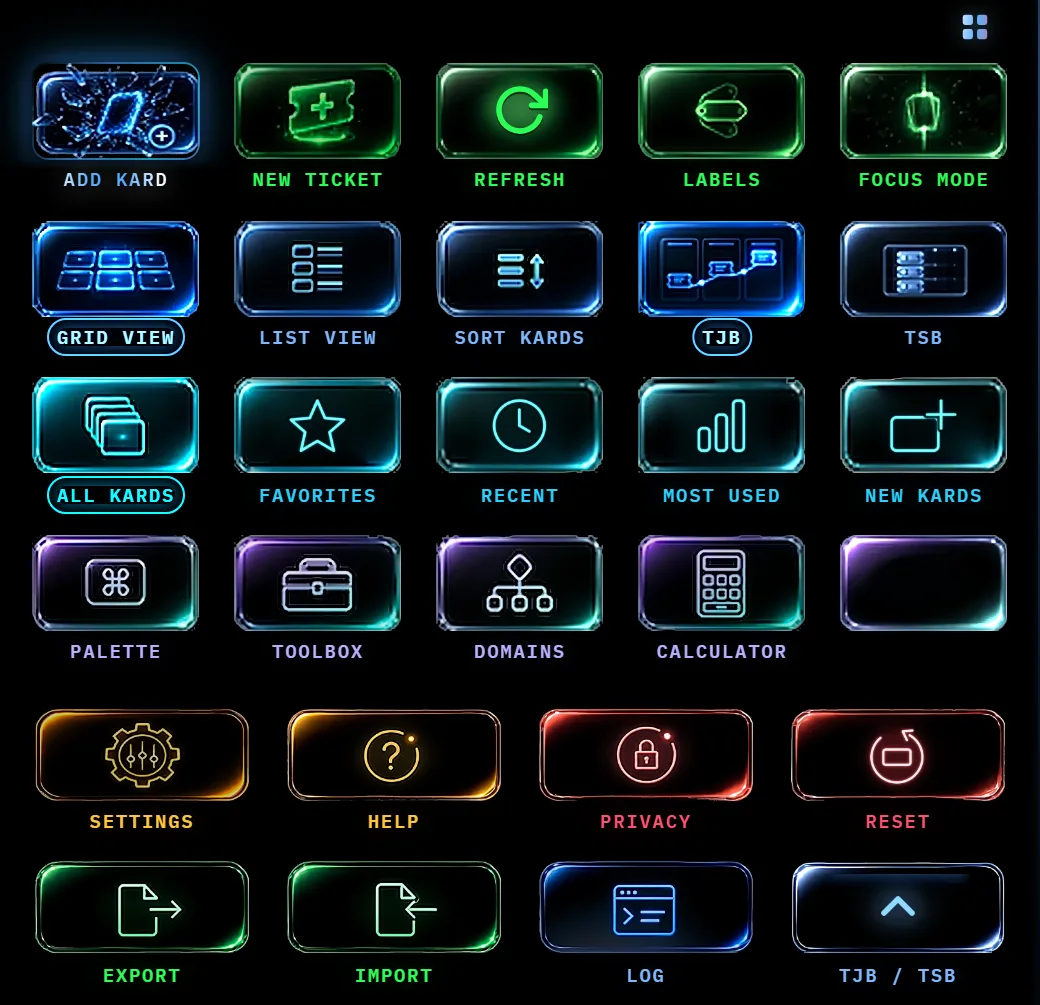
At a glance
The buttons are arranged in six rows, and each row is lit in one color so you can find your way by hue as well as by caption:
- Row one — the everyday actions: Add Kard, New Ticket, Refresh, Labels and Focus Mode. Add Kard is the brightest tile on the board on purpose; capturing a Kard is what the app is for.
- Row two (blue) — how things are shown: Grid View, List View, Sort Kards, and the two boards, TJB and TSB.
- Row three (cyan) — which Kards are shown: All Kards, Favorites, Recent, Most Used and New Kards.
- Row four (violet) — the tools: Palette, Toolbox, Domains and Calculator. The fifth tile in this row is blank: it has no action, so clicking it does nothing.
- Row five (amber and red) — the app itself: Settings, Help, Privacy and Reset.
- Row six — your data and your boards: Export, Import, Log and TJB / TSB.
A button that is switched on — the view you are in, the filter that is active, Focus Mode while it is running — glows brighter than its neighbors and wears a thin ring around its caption. With the captions hidden, a short lit bar under the tile takes the ring's place. Hover any button and it brightens; press it and it dims for the instant of the click. Nothing on the board moves.
Every button
| Button | What it does | Shortcut |
|---|---|---|
| Add Kard | Opens the AI Kard Generator to create a new Kard. See The AI Kard Generator. | Alt+N |
| New Ticket | Opens the New Ticket form for the ticket board. See TJB — The Ticket Board. | Alt+T |
| Refresh | Reloads the whole app from scratch — the same as your browser's reload. If a Kard is still generating or a ticket draft is unsaved, it asks first. Your layout, captions, Privacy Mode, board and sort come back as you left them; the quick filter returns to All Kards and Focus Mode ends. | Alt+R |
| Labels | Hides or shows the captions under these buttons (see below). | Ctrl+L |
| Focus Mode | Clears the screen down to your work. See Focus & Privacy Modes. | Alt+F |
| Grid View | Shows your Kards as tiles. | Alt+G |
| List View | Shows your Kards as a list. | Alt+L |
| Sort Kards | Opens the sort order menu for the library. | Alt+S |
| TJB | Switches the boards band to the ticket board's severity view, and opens the band if it is hidden. | Alt+V |
| TSB | Switches the boards band to the schedule view, and opens the band if it is hidden. See TSB — The Schedule Board. | Alt+D |
| All Kards | Clears any filter and shows the whole library. | Ctrl+1 |
| Favorites | Only the Kards you have starred. | Ctrl+2 |
| Recent | Your eight most recently opened Kards, newest first. | Ctrl+3 |
| Most Used | Your five most-opened Kards, most-opened first. | Ctrl+4 |
| New Kards | Kards added today or in the six days before it. | Ctrl+5 |
| Palette | Opens the Command Palette. See The Command Palette. | Ctrl+K |
| Toolbox | Opens the Toolbox. See The Toolbox. | Alt+X |
| Domains | Opens the Domain Manager to add, rename or remove domains and subcategories. See The Domain Manager. | Alt+M |
| Calculator | Opens the Calculator. See Calculator & Engineering Console. | Alt+C |
| Settings | Opens Settings. See Settings. | Alt+, |
| Help | Opens this Help. | Alt+H |
| Privacy | Switches Privacy Mode on or off. The tile glows red while it is on. See Focus & Privacy Modes. | Alt+P |
| Reset | Resets the Kard library to the starting set. It asks first. See Demo Data & Starting Fresh. | Alt+Z |
| Export | Saves your Kards to a file. | Ctrl+E |
| Import | Loads Kards from a file. | Ctrl+I |
| Log | Opens the System Log. See The Event Console (System Log). | Alt+Y |
| TJB / TSB | Hides or shows the whole boards band above the library. Its chevron flips each time. | Alt+J |
How to…
- Learn a button. Rest the pointer on it: the tooltip gives its full name and its shortcut, for example Export Kards (Ctrl+E).
- Hide the captions. Click Labels or press Ctrl+L. The tiles close up to their artwork alone and the board gets shorter. The tooltips still name every button, and when you move through the buttons with the keyboard a small tag shows the focused button's name. Click Labels again to bring the captions back. The choice is remembered on this device.
- Collapse the whole Command Center. The small four-pane window button at the top right of the board, above the first row, folds all 27 buttons away and leaves only itself, so the Domains list below gets the room. Click it again to unfold. Every shortcut in the table above keeps working while the board is collapsed.
- Use it from the keyboard. Tab moves through the buttons in row order; the focused button brightens and shows a ring. Enter or Space presses it.
- See what is switched on. The view you are in and the filter that is active are the brighter tiles with a ring around their caption — one in row two, one in row three — or, with the captions hidden, a short lit bar under the tile. Focus Mode lights its tile the same way while it is on; Privacy glows red instead.
Tips
- The five filters are Ctrl+1 to Ctrl+5 in the order they appear: All Kards, Favorites, Recent, Most Used, New Kards.
- Two buttons look alike but do different things: TJB (row two) switches the boards band to the ticket view, while TJB / TSB (row six) hides or shows the band itself.
- On a narrow window the board runs four tiles to a row instead of five, with smaller captions, so all 27 still fit and still carry their names.
- Under Windows High Contrast the artwork is set aside and each button becomes a plain outlined control with its icon and caption in your chosen colors.
The window button's red, white and blue cycle is decorative, not a status indicator. Settings → Interface & Accessibility → Reduced motion stops its color movement and makes the grid open or close immediately. The system's reduced-motion preference also applies. See Sidebar window buttons for the hero and Domains controls.
Troubleshooting
- The captions are gone: either Labels was clicked (Ctrl+L brings them back) or the window is too narrow for them — widen it, or hover a tile to read its name.
- The board is missing and only a small four-pane window button remains: the Command Center is collapsed. Click that button to unfold it.
- Privacy glows red: Privacy Mode is on. Press Alt+P or click Privacy to switch it off. See Focus & Privacy Modes.
- A button does nothing when clicked: Refresh (Alt+R) reloads the whole app. If it still does nothing afterwards, see Troubleshooting & FAQ.
Shortcuts
Every button's shortcut is in the table above. The full list for the whole app is in Keyboard Shortcuts.