Toolbox
The Toolbox
The tool window — opening tools, finding them fast, and what needs Kashic's server.
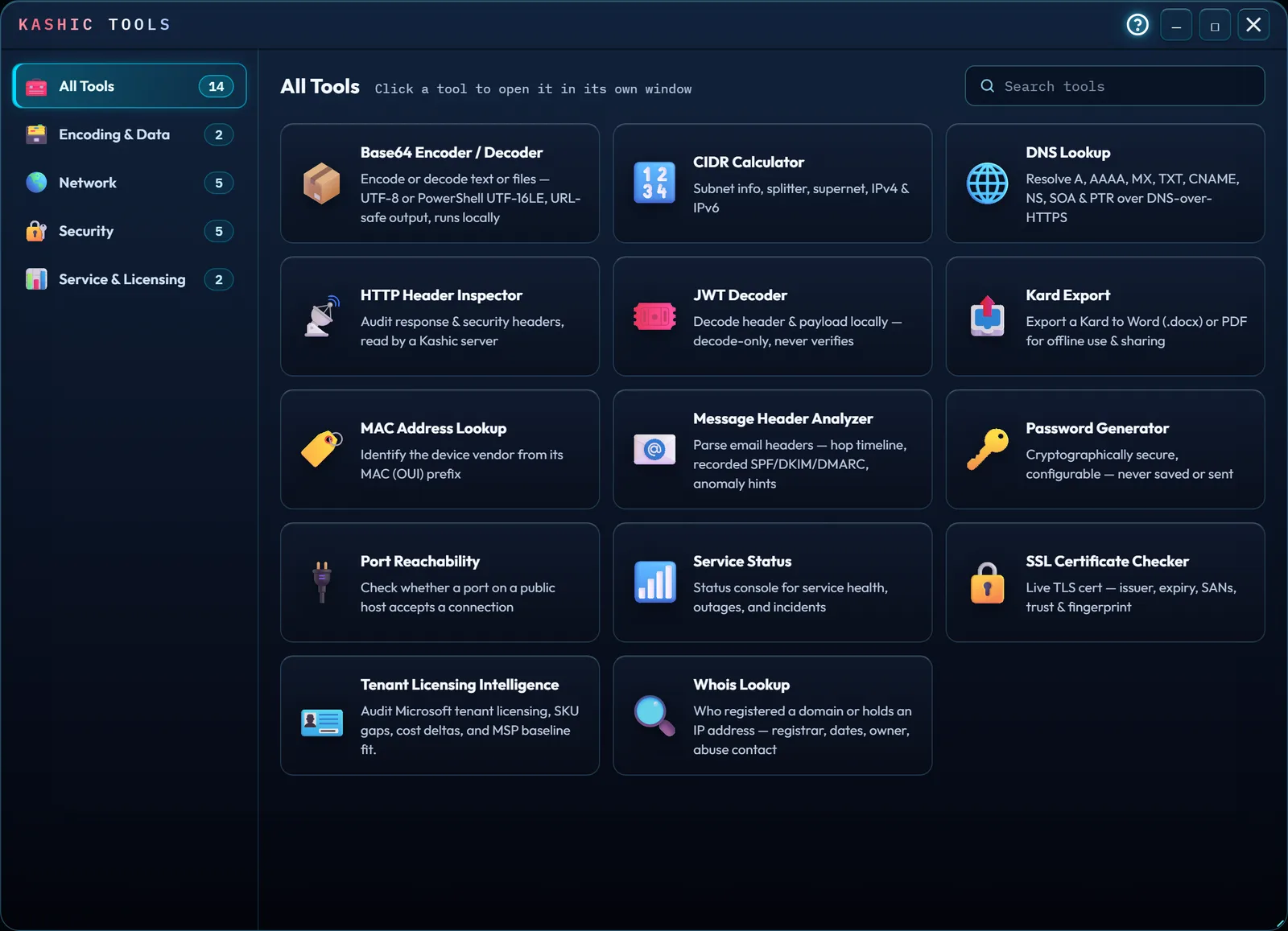
At a glance
The Toolbox is Kashic Kards™' IT utility drawer — diagnostics, security and encoding helpers, and a couple of licensing and status tools, all one window away from your Kards. It holds 14 tools — from DNS Lookup and Whois Lookup to a Password Generator and a JWT Decoder. The five network ones — Port Reachability, DNS, Whois, CIDR and HTTP Headers — have their own page: Network Diagnostic Tools. The security and certificate tools, and the encoding and data tools, have their own pages too: Security & Certificate Tools and Encoding & Data Tools. The remaining three each have their own page as well: Message Header Analyzer, Service Status, and Tenant Licensing Intelligence.
The ? in the Kashic Tools title bar, left of the window buttons, opens this page, and the ? in each tool window's title bar opens that tool's own section.
A handful of tools ask Kashic's server to do what a web page can't: the HTTP Header Inspector, Port Reachability, the SSL Certificate Checker, the MAC Address Lookup's vendor name, and Whois for a registry that publishes no RDAP. They work once you're signed in at kashic.ai. Every other tool — including DNS Lookup and the CIDR Calculator — works straight from your browser. When a tool needs the server and can't reach it, it says so plainly instead of faking a result.
How to…
Open the Toolbox
Press Alt+X, or click Toolbox in the Command Center. The KASHIC TOOLS window opens centered on screen, with every tool shown as a tile — an icon, its name, and a one-line description of what it does — all the same size, in A to Z order by name. Down the left is a category rail, also A to Z: All Tools, Encoding & Data, Network, Security, and Service & Licensing — the same families as the Help pages (Encoding & Data Tools, Network Diagnostic Tools, Security & Certificate Tools, and Service Status & Tenant Licensing), each with a count of its tools. On a narrow screen the rail becomes one row of buttons above the tiles; swipe it sideways to reach the rest.
Find a tool
Click a category in the rail to show only that family's tools, still A to Z; the heading over the tiles changes to the family's name. To search, type in Search tools above the tiles: it matches tool names, descriptions, and family names, so certificate finds all five security and certificate tools. The search and the category work together, and each count in the rail changes to show how many of that family's tools match — so if a search finds nothing in the category you're on, the counts show where the matches are. Press Enter in the search to open the first tile it shows. Click the ✕ inside the field, or press Esc while it has text, to clear it. On the keyboard, the arrow keys move between categories.
Load a tool
Click a tile. The launcher window closes and that tool opens in a window of its own, with the tile's icon and the tool's name in the title bar (the same icon marks it in the dock if you minimize it); click the ✕ there to close it. The launcher opens on All Tools again, with the search empty, the next time you open it.
Move, resize, and reset the launcher window
Drag the KASHIC TOOLS window by its title bar to move it, or drag any edge or corner to resize it. The ─ button parks the window in the dock along the bottom edge of the screen — the same dock the app's other tool windows use — and clicking its Kashic Tools chip there brings it back exactly as you left it. The □ button maximizes the window (its glyph flips to ⧉), and clicking it again restores the previous size. There's no separate reset gesture for it — closing the Toolbox and reopening it (Alt+X twice) always brings the window back centered at its default size, wherever you last left it.
Close the launcher
Press Esc, click the ✕ in the top-right, or click the dark area outside the window. If the search has text in it, the first Esc clears the search and a second one closes the window.
Tips & tricks
- Most tools carry a built-in Field Guide — a collapsible panel under the tool's controls with six short sections: what the tool is, what it's for, how to read what you see, tricks, honest limits, and ways to learn from it. Click its header to expand or collapse it; the app remembers which way you left it, tool by tool. Every Field Guide ends with a Full guide in Help → link that opens that tool's page here in Help, in a new tab.
- If the window's too small to show every tool at once, the tiles scroll while the rail and the search stay put — or click □ to maximize the window and see more tiles without scrolling.
- Reopening the Toolbox always starts on All Tools with an empty search, even if you left it on one category or mid-search.
Troubleshooting
- "My search says no tools match." The search only looks inside the category you've picked. Check the counts in the rail — a family with a number above zero has matches — or click All Tools to search everything. If every count is zero, try a shorter word: the search matches names, descriptions, and family names, not what a tool can look up.
- "A tool says it can't reach the server." The HTTP Header Inspector, Port Reachability, the SSL Certificate Checker, the MAC Address Lookup's vendor name and Whois for registries without RDAP use Kashic's server once you're signed in. If one says it can't reach it, check your connection and try again in a moment.
- "The Toolbox window opened in a strange spot or size." Close it and open it again — it always comes back centered at its default size, regardless of where you left it last.
Shortcuts
| Keys | Does |
|---|---|
| Alt+X | Open/close the Toolbox |