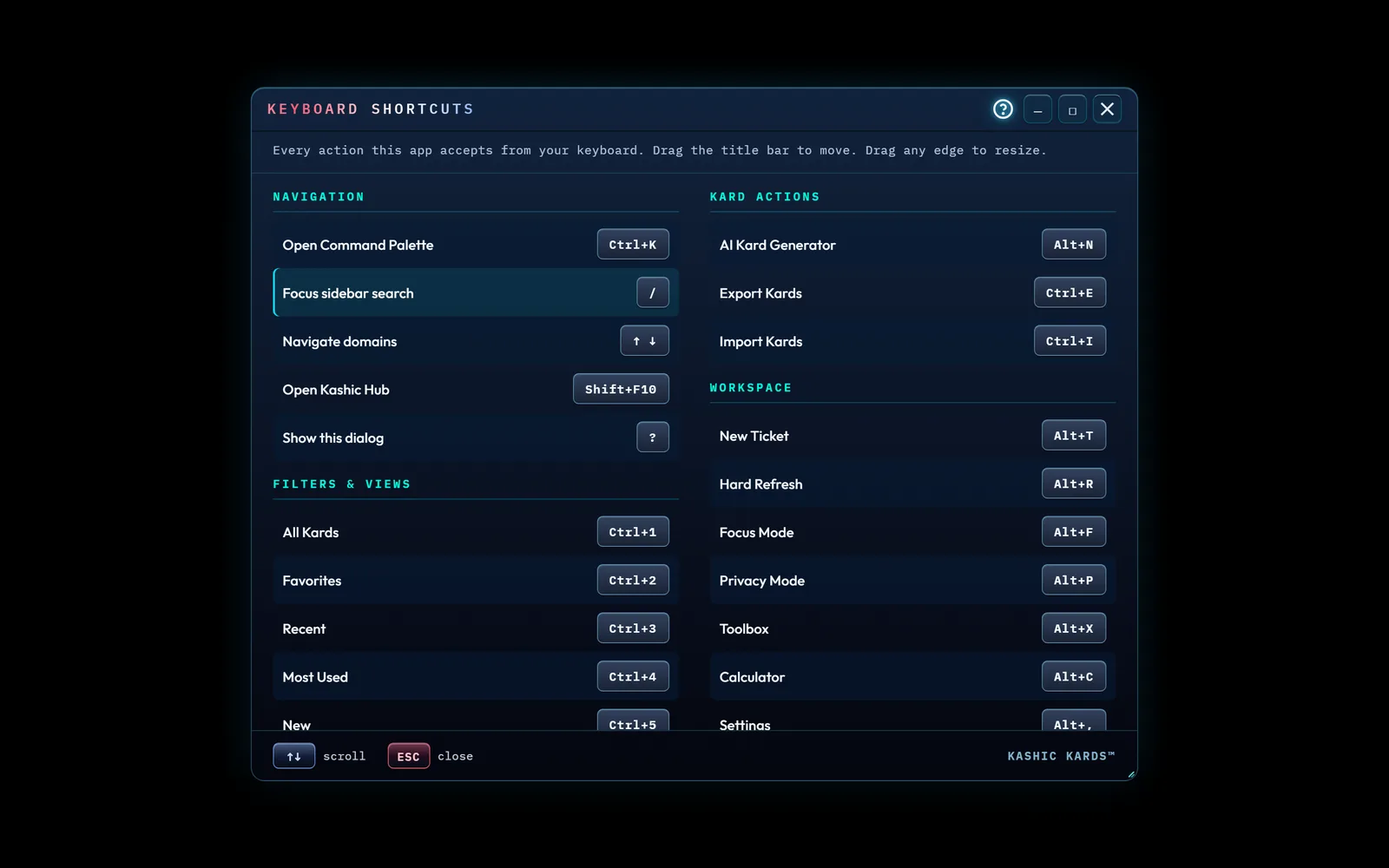
The Keyboard Shortcuts window is a single, always-current
reference for every action Kashic Kards™ accepts from your keyboard. It
doesn't do anything to your Kards — it just shows you the keys so
you can work faster without reaching for the mouse.
Every key the app accepts — opened from the Hub.
At a glance
You want to learn the fast way to do something you normally click.
You forgot a key combination and want to look it up without leaving the app.
You're new to Kashic Kards™ and want a quick tour of what's possible.
How to… open and close it
You want to…
Do this
Open it
Press ? anywhere outside a text box
Open it from the Hub
Right-click the logo and choose Keyboard Shortcuts…
Close it
Press Esc, click the ✕ in the title bar, or click the dark area outside the window
Pressing ? only opens the window when you're not typing
in a search box, the feedback form, or another text field — so it never gets in
the way while you write.
Reading the list
Each row pairs an action on the left with the key (or keys) that trigger it
on the right, for example Open Command PaletteCtrl+K.
When a key cap shows two keys, press them together.
On a Mac: the window automatically shows the keys
your Mac actually uses — Ctrl appears as ⌘ (Command) and
Alt appears as ⌥ (Option). The combinations work the same
way; only the labels change. The tables on this page follow the same rule.
The full shortcut list
Navigation
Open Command Palette
Ctrl+K
Focus the sidebar search
/
Move through domains in the sidebar
↑↓
Show this shortcuts window
?
Filters & views
All Kards · Favorites · Recent · Most Used · New
Ctrl+1 … Ctrl+5
Grid view / List view
Alt+G / Alt+L
Sort Kards
Alt+S
Severity view / Schedule view (Alt+D reaches the app while the page has focus; from the browser's address bar or toolbar, the browser takes it)
Alt+V / Alt+D
Toggle labels
Ctrl+L
Kard actions
AI Kard Generator
Alt+N
Export Kards / Import Kards
Ctrl+E / Ctrl+I
Workspace
New Ticket
Alt+T
Hard Refresh
Alt+R
Focus Mode / Privacy Mode
Alt+F / Alt+P
Toolbox / Calculator
Alt+X / Alt+C
Settings
Alt+,
Help
Alt+H
Reset Kard Library
Alt+Z
Toggle TJB / TSB
Alt+J
System Log
Alt+Y
Domain Manager
Alt+M
Diagnostics
Run Integrity Check
Ctrl+Alt+I
Moving and resizing the window
Move it — drag the title bar to reposition the window anywhere on screen.
Resize it — drag any edge or corner. The window stays inside the screen edges by design.
Help — the ? in the title bar opens this page.
Minimize / Maximize / Close — the −,
□, and × buttons in the title bar. Maximize
fills the screen; press the same button again to restore the previous size.
Scroll the list — the list is longer than it looks. Click into it
(or Tab to it) and use ↑↓, or just scroll with
your mouse or trackpad.
Tips & tricks
"Nothing happened when I pressed ?." Your cursor was in a
text box. Click on an empty part of the app first, then press ?.
"A shortcut didn't work." Shortcuts are paused while the AI Kard
Generator or the New Ticket form is open, because each needs your full attention (from New
Ticket, Alt+R still refreshes, after asking about your draft). Close it — or
minimize New Ticket to the dock — and try again.
"Ctrl+K opened my browser's search instead." Make sure the
Kashic Kards™ window has focus (click anywhere inside it) before using the shortcut.
"Ctrl+N opened a new browser window." Browsers keep
Ctrl+N for themselves. Open the AI Kard Generator with Alt+N instead.
"The keys in the window don't match my keyboard." On a Mac the labels
switch to ⌘ and ⌥ automatically — that's expected.
Troubleshooting
The window opened off-screen or too small: it always stays inside the
screen edges — drag it by the title bar or resize from a corner.
You can't scroll with the arrow keys: click once inside the list (or
Tab until it shows a soft outline), then the ↑↓
keys scroll it.
On a small phone screen: the two columns stack into one so every row
stays readable; scroll to see the rest.