System & Settings
The Event Console (System Log)
The flight recorder — reading entries, search syntax, pause and export, and what gets redacted.
At a glance
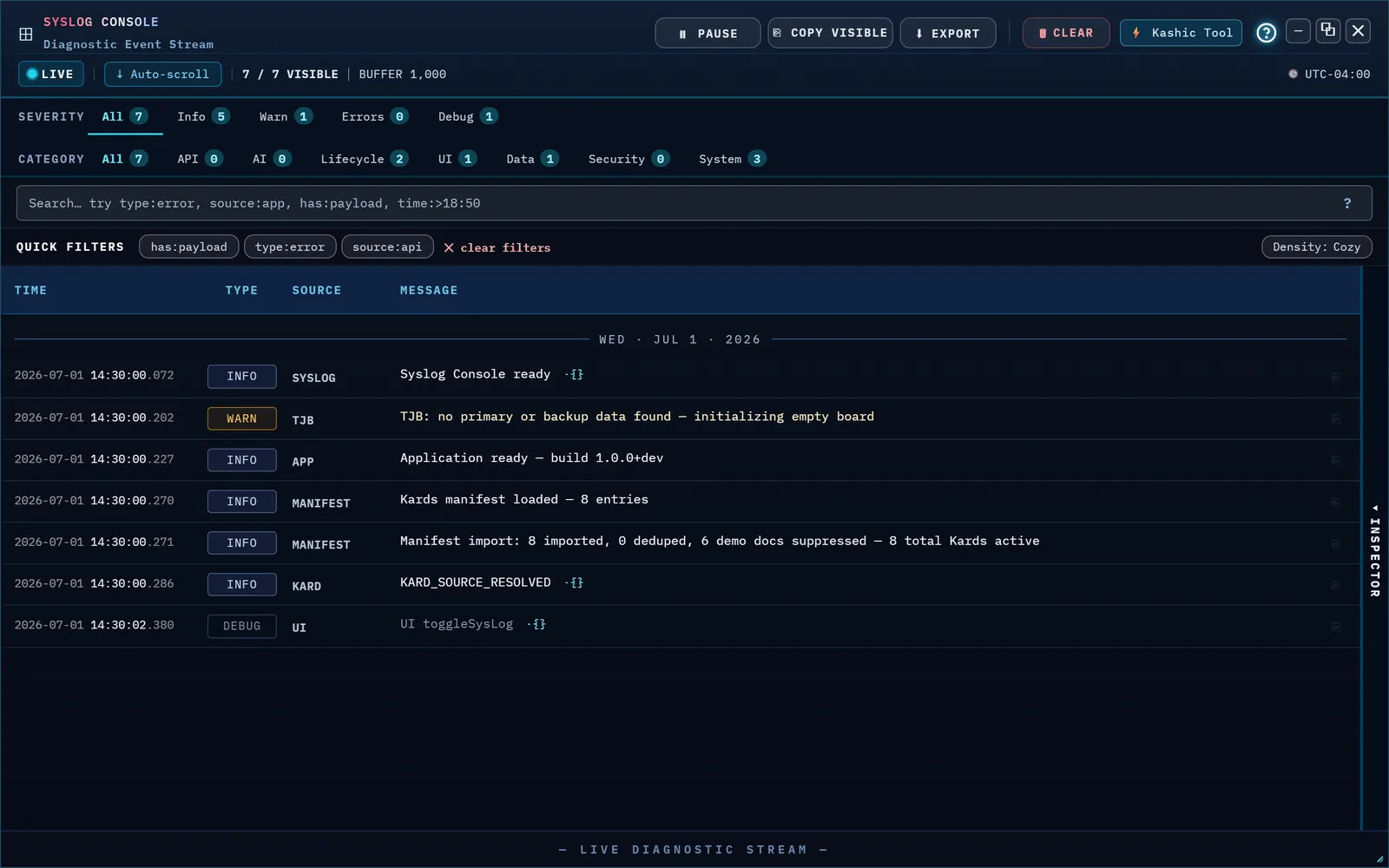
The Event Console — labeled Diagnostic Event Stream in its own header — is the app's flight recorder: a running log of what happened, when, and how severe it was. A LIVE badge and a running entry count sit at the top; new entries keep arriving while the console is open, newest at the bottom, with the day it happened stamped in front of the clock time on every row.
It survives a reload or a crash — entries are mirrored to this browser's storage as they arrive, so reopening the console after refreshing the page picks up where you left off.
How to…
Open the console
Press Alt+Y, or click Log in the Command Center.
Read a row
Each row has four columns: Time (the calendar date, dimmed, beside a
millisecond-precision clock), Type (the severity badge — Info, Warn,
Error or Debug), Source (which part of the app logged it —
SYSLOG, TJB, APP, MANIFEST and similar),
and Message. A small dot after the message means there's more: ·{}
means the entry carries a payload; ·🔒 means that payload was scrubbed — see
What gets redacted below. Click any row to open it in the
Inspector on the right — a Summary view of every field
(including the entry's category and, where it has one, its stable event name), a
Raw view of the whole entry as JSON, and a Copy button
that puts the full record on your clipboard. With a row focused, pressing
C copies that row as a single line.
In a narrow window — a phone, or the console sized down — each row puts its message on a second line under the clock, type and source, and the day headings carry the date. The Inspector then opens over the list rather than beside it; close it with ▸ to see the list again.
Filter by severity and category
Every entry carries two independent facets, each with its own pill row above the search box. Severity (All / Info / Warn / Errors / Debug) says how urgent it is — the four counts always add up to All. Category (All / API / AI / Lifecycle / UI / Data / Security / System) says which part of the system it came from — API traffic, AI generation, app lifecycle, UI actions, your Kard data, privacy and security posture, or general system housekeeping. Pick one from each row and they combine: Errors + API shows only failed API calls. The count strip always tells you what the current combination matched (8 of 23 style).
Search with a syntax
The search box takes plain text or these key:value filters — click the
? button beside the box for the same table, in the app itself:
| Try | Does |
|---|---|
severity:error | filter by severity (type: still works as an alias) |
category:api | filter by category (cat: works too) |
source:app | filter by emitter |
name:import | filter by an entry's stable event name (IMPORT_APPLIED, TOOL_OPENED, …) |
has:payload | entries with a payload |
time:>18:50 | at or after a time of day — on any day the buffer covers |
time:>2026-08-12T18:50 | at or after an exact date and time |
privacy mode | plain-text match |
Terms combine with AND, and a key: the syntax doesn't know falls back to
a plain-text match — if that matches nothing, the empty state names the unknown key so a
typo never reads as "there are no such events".
Pause the stream and use Clear
Click Pause to stop new rows from appearing — the LIVE badge turns amber and reads PAUSED, and the button itself starts counting what it's holding back (▶ Resume +3, for example). Nothing is lost: click Resume and every entry that arrived while you were paused flushes in at once, each one briefly highlighted so you can spot what's new. Clear is a two-step button — the first click arms it (Confirm clear?, for three seconds), the second click actually clears the console's local diagnostic buffer: the entries in this viewer and their mirror in this browser's storage, nothing else — no Kards, no settings, nothing beyond the log itself. Clearing while paused resets the buffered count too, so Resume never keeps advertising rows that no longer exist.
Export what you're looking at
Copy Visible puts the currently-visible rows on your clipboard as plain text and flashes ✓ Copied to confirm. Export opens a menu with six choices — scope (Visible, meaning whatever your filters and search currently show, or All (buffer), everything the console is holding) crossed with format (JSON, CSV, or plain-text TXT) — and downloads a file.
What gets redacted
Every entry is scrubbed the moment it's written, before it ever reaches the buffer,
the on-disk mirror, the Inspector, Copy Visible or any export — so there's no path that
stores the raw version first and cleans it up later. The scrubber looks for API keys,
bearer tokens, JWTs, cookies, authorization headers, secret-carrying URL parameters,
private-key blocks, password assignments, card numbers, email addresses, and generic
high-entropy strings that look like an opaque secret, replacing each with a labeled
placeholder that keeps the entry readable (an email keeps its first letter and domain
ending; a card keeps its last four digits). A scrubbed row shows the 🔒 dot;
opening it in the Inspector names exactly which categories fired. This is
defense-in-depth, not a cryptographic guarantee — it's there so a careless log call can't
durably write a secret to disk or into something you export.
Move, resize, and restore the window
The console is a standard Kashic tool window: it opens filling the workspace, and the ─ □ ✕ cluster in the top-right works exactly as it does on the other tools — □ restores it to a centered window (and becomes ⧉ to maximize again), ─ parks it in the dock with its stream and filters intact, and ✕ closes it. In the restored state, drag the title bar to move it and the bottom-right corner to resize it. Like the other tool windows it always opens maximized — it doesn't remember a custom size between opens, though minimizing to the dock keeps whatever state you were in.
Tips & tricks
- The quick-filter chips (
has:payload,type:error,source:api) add their term to whatever is already in the search box — chips and typed terms combine, and clicking a lit chip removes just its term. - Scroll up to read older entries and auto-scroll turns itself off; a Jump to latest button appears so you can snap back to the live edge without hunting for it.
- Density: Cozy / Compact, next to the quick filters, tightens the row spacing when you want more rows on screen at once.
Troubleshooting
- "I pressed Esc and nothing closed." Esc closes the closest thing first: the Export menu or search-help popover if one is open, then an armed Clear confirmation, then a selected row's Inspector detail, then a non-empty search (while the search box is focused) — only then does it close the whole console. Press it again to keep working outward.
- "I clicked Clear and nothing happened." The first click only arms it — the button turns into Confirm clear? for three seconds. Click it again within that window to actually clear.
- "Part of a message is replaced with a lock icon." That's the redaction layer — see What gets redacted above. It's working as intended, not a display bug.
Shortcuts
| Keys | Does |
|---|---|
| Alt+Y | Open or close the console |
| Esc | Closes the topmost open layer — export/search-help menu, then an armed Clear, then the Inspector selection, then a non-empty search, then the console itself |