System & Settings
Calculator & Engineering Console
The pop-up calculator — everyday math plus the engineering tabs (SLA, subnets, conversions).
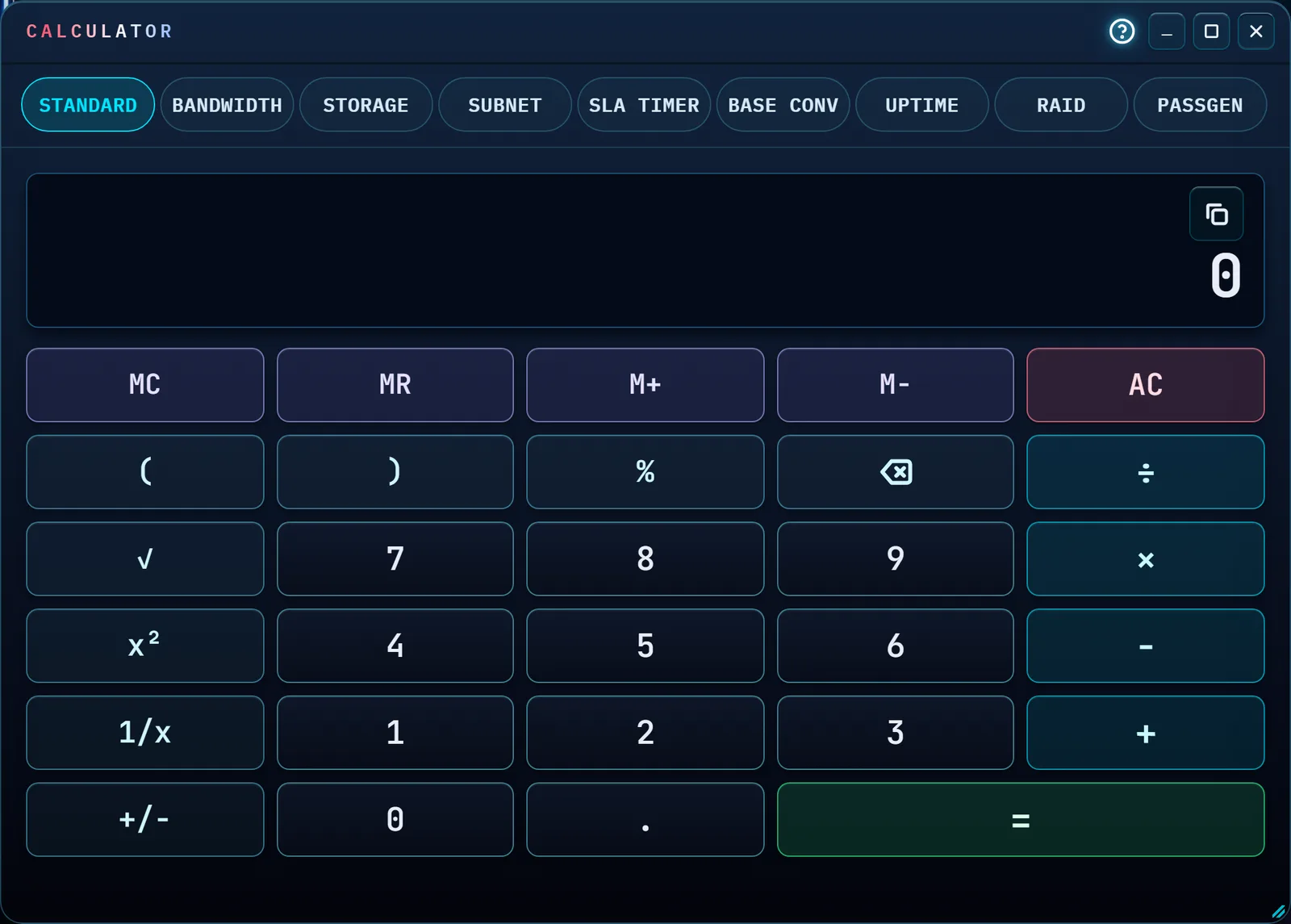
At a glance
Nine tabs live in one window: an everyday Standard calculator, and
eight IT-specific tabs — Bandwidth, Storage,
Subnet, SLA Timer, Base Conv,
Uptime, RAID and PassGen. Every number
is computed in this browser — nothing is sent anywhere to answer a calculation. The
Standard tab doesn't use JavaScript's eval() either: typed expressions run
through a real parser that only ever accepts numbers, the four operators and parentheses.
Figures are worked out in exact decimal arithmetic, not the binary floating point most
software uses, so 0.1 + 0.2 shows 0.3 and
1234567.891 − 1234567.89 shows 0.001. Each result is then rounded
at the precision shown, half away from zero (2.675 shown to two decimals is
2.68).
Results are calculated estimates for planning. Confirm critical values before relying on them in production systems.
The ? in the Calculator's title bar, left of the window buttons, opens this page.
How to…
Open the calculator
Press Alt+C, click Calculator in the Command Center, or run Calculator from the Command Palette. Click a tab, or use the arrow keys while focus is on the tab row, to switch modes. It opens on the tab you used last — even after you reload the page in the same browser tab.
The window is the same size on every tab, so switching modes never resizes it or shifts it out from under your pointer. On a smaller screen (or at high zoom) the tab row wraps onto more lines instead of hiding tabs (on a phone it is one row you swipe sideways, with the selected tab kept in view), the title bar and tabs stay put, and only the tab's own content scrolls; on Standard the readout stays pinned at the top while the keypad scrolls.
It's a modeless window: the app behind it stays live, so you can leave the calculator open — or minimize it to the dock with the minimize button — and carry on working. Because the rest of the app keeps its keyboard, the calculator's own keys respond only while focus is inside its window; click into it (or Alt+C) and typing goes to the keypad again. Each tab keeps what you typed while the page is open, including when you switch tabs or close and reopen the window; reloading the page clears it.
Do everyday math on Standard
The keypad has five columns: memory keys and AC on top; then
( ) %, backspace and ÷; then the digits with √,
x², 1/x and +/− on their left and × − + on
their right; = spans the bottom right. × and ÷ are
worked out before + and −, and parentheses must balance — an open
one without its partner reads Missing closing parenthesis. Each key's edge lights
for a moment when you press it, by mouse or keyboard, and the readout's edge lights when
= gives a result (nothing lights if your system is set to reduce motion).
- Percent works the way a desktop calculator's does: after
+or−it means a percentage of the number before it (200 + 10%is220); after×or÷, or on its own, it is the plain fraction (10%is0.1). - Repeated = repeats the last operation:
2 + 3 = =gives8, and2 + 3 × 4 = =gives56(× 4 again). - The readout shows up to 12 significant digits with comma separators,
and switches to scientific notation from
1e+12up and below0.000001(for example1e-7). Typing stops at 12 digits, so what you type is always what you see. The calculator keeps full precision behind the readout, so1 ÷ 3 = × 3 =gives1. - Errors say what happened: Cannot divide by zero, or Invalid input for the square root of a negative. The next key or AC clears it.
- Backspace edits the number you are typing; it does nothing to a result. Pressing two operators in a row keeps the second, and = waits until the expression is complete.
- MC / MR / M+ / M− work one memory slot. While it holds a value, the
chip in the readout shows it (
M = 1,250). AC does not clear memory; switching tabs and closing the window keep it; reloading the page clears it.
To copy the answer, click the readout or press the copy button beside it — the button is in the tab order, so copying works from the keyboard too. It copies exactly what the readout shows. If the copy doesn't go through (some browsers refuse it when the window isn't focused), you're told it failed rather than left assuming it worked.
Time an SLA breach
Set Ticket Opened and a Priority (P1 Critical — 1 hour,
P2 High — 4 hours, P3 Medium — 8 hours, P4 Low — 24 hours). The tab shows the opened time, the
exact deadline, and a status that keeps itself up to date every second while you watch:
✓ On track, ◷ Due soon (the last hour), or
⚠ Breached with how long ago, in days, hours, minutes and seconds. A bar
under the status fills as the SLA window is used, with a line where the last hour begins,
and a caption says the same in words (62% of the 4-hour window used).
Times are in this browser's time zone, with the zone named (for example
Oct 3, 2026, 8:00 AM EDT). The clock is calendar hours, 24×7 — business hours and
weekends are not counted, and the tab says so under the result. Hours are real elapsed time, so
a change to or from daylight saving time is handled: a P2 ticket opened at 12:30 AM on the
November change-back day is due at 3:30 AM EST, four real hours later. An open time in the
future is refused. The opened time and priority are kept if you reload the page in the same
browser tab.
Work out a subnet
Enter an IP Address (IPv4) and a Prefix / Mask — a plain
number like 24, a /24, or a dotted mask like
255.255.255.0 — or write the prefix onto the address
(10.0.0.1/24). Click Calculate Subnet or press
Enter; once both fields are valid the result also updates as you type. You get the
network, mask, broadcast address, first and last usable host, the total number of addresses,
and the usable hosts. Two edge cases are called out by name rather than forced into the usual
shape: a /31 reads as a point-to-point link where both addresses are usable and
there's no broadcast (RFC 3021), and a /32 reads as a single host route.
Write each octet without leading zeros: 192.168.010.1 is refused, because
some tools read 010 as octal 8 and others as decimal 10.
Convert bandwidth, storage and number bases
Bandwidth takes a file size and a connection speed and returns how long the transfer takes: the size in bits divided by the line rate, shown in days, hours, minutes and seconds (under a minute, seconds to two decimals). Sizes come in decimal units (B, kB, MB, GB, TB, PB) and binary units (KiB, MiB, GiB, TiB, PiB); speeds in bits per second (kbps, Mbps, Gbps) or bytes per second (kB/s, MB/s, GB/s). No protocol overhead is added, so a real transfer takes somewhat longer.
Storage takes one value in one unit and shows it in every unit at once,
with the decimal family (1 kB = 1,000 bytes) and the binary family (1 KiB = 1,024 bytes) side
by side — drive labels use the first, operating systems often report the second. Values show
two decimals; a value too small for that shows in scientific form (1.00e-6)
rather than a misleading 0.00.
Base Conv takes a whole number of 0 or more (up to 1,024 bits) in
decimal, hexadecimal, binary or octal and shows it in all four, plus the ASCII character for
a single byte (0–255). A prefix (0x, 0b, 0o) is
accepted when it matches the selected base; with Hex selected, 0b1010 is the hex
number B1010. Spaces, commas and underscores are ignored, and hex can be typed in either case
(it shows in uppercase). Binary and hex show in groups of four for reading — the gaps are
spacing only, so copying or selecting the value gives the plain digits. Each value has its own
copy button, which copies it as shown without gaps or commas (0xFF,
11111111, 1234). Negative numbers and
fractions are refused with their own message (there is no two's-complement mode).
Check uptime and RAID capacity
Uptime converts either direction — an uptime percentage into the downtime
it allows per year, quarter, month, week and day, or a downtime per year (in seconds, minutes
or hours) into the percentage it works out to — and labels the result against the "nines"
tiers (Two 9s through Five 9s). The periods are defined in the tab: day = 24 hours, week = 7
days, year = 365.25 days, month = 30.4375 days (year ÷ 12), quarter = 91.3125 days (year ÷ 4).
A computed percentage keeps enough decimals to tell the tiers apart (one second a year is
99.999997%) and is never rounded up to 100%.
RAID takes the number of drives installed, their size, the RAID level
(0, 1, 5, 6 or 10) and the hot spares. It shows raw capacity (every installed drive, spares
included) and usable capacity (spares left out) in both decimal and binary units — for
example 10.00 TB · 9.09 TiB — the efficiency, and how many drives can fail:
none for RAID 0, all but one for RAID 1, one for RAID 5, two for RAID 6, and for RAID 10 one
guaranteed, up to half the drives if each failure is in a different mirror pair. Each level's
minimum is enforced (RAID 0 and 1: 2 drives; RAID 5: 3; RAID 6: 4; RAID 10: 4 and an even
number, all besides spares). Enter one drive size; if your drives differ, enter the smallest.
Generate passwords on PassGen
Set a Length (8–128, 20 to start), How Many, and the
Character Types — uppercase, lowercase, digits and symbols, all on to start;
the exact symbol set is listed beside its checkbox
(! @ # $ % ^ & * ( ) - _ = + [ ] { } | ; : , . ?). Every password contains at
least one character of each type you select: a password that misses one is thrown away and
drawn again, which keeps every qualifying password equally likely. Each character comes from
the browser's cryptographic random source (crypto.getRandomValues()) with
rejection sampling, never Math.random. A length outside 8–128, or no type
selected, is reported at that field and nothing is generated.
Exclude look-alike characters is on to start and drops
0 O o 1 l I |, the characters most often misread from a screen or a printout. The
standalone Password Generator excludes the
same set, so the two tools agree on this option.
The strength line is approximate: length × log₂ of the pool size. Passwords show in groups of four for reading; the gaps are spacing only, so a copy is the exact password. Click a password to copy it, or Tab to it and press Enter. Nothing generated here is written to storage, logged, or kept anywhere the app can read back later; the passwords live only in this tab's output, and closing the calculator clears them out of the page. For more on the standalone tool, see Password Generator in Security & Certificate Tools.
Tips & tricks
- Most tabs update as you type. A problem shows under the field that caused it, with a ⚠ and words — not just a color.
- Numbers can be pasted with thousands separators:
1,000,000and1 000 000both read as one million. Use a period for the decimal point. - Every tab that produces a result keeps it on screen until you change an input — there's no auto-clear to lose a number you were about to write down.
Troubleshooting
- "I typed a subnet mask and it says the mask isn't valid." A real
subnet mask is a contiguous run of 1-bits followed by 0-bits (like
255.255.255.0) — anything else, like a scrambled mask, is rejected rather than silently misread. - "Subnet says to write each octet without leading zeros." Remove the
zero in front:
10, not010. - "RAID 10 says it needs an even number of drives." That's correct — RAID 10 stripes across mirrored pairs, so an odd number of drives (besides hot spares) can't be split evenly.
- "Pressing Esc cleared the calculator instead of closing it." On the Standard tab, Esc is the AC key. On every other tab it closes the window. The close button and Alt+C close it from anywhere.
- "I typed numbers and nothing appeared." The keypad takes the physical keyboard only while focus is inside the calculator's window — that's what keeps the rest of the app usable while it floats open. Click into the window and type again.
- "The SLA tab says the open time is in the future." Check the date and the AM/PM: the open time is read in this browser's time zone.
Shortcuts
| Keys | Does |
|---|---|
| Alt+C | Open or close the calculator |
| Esc | On Standard: clear (AC). On any other tab: close the calculator. Only while focus is inside its window. |
| ← / → / Home / End | Move along the tab row when focus is on a tab |
| Digits, ., + - * /, ( ), % | Type into the Standard keypad |
| Enter or = | Equals |
| Backspace / Delete | Delete the last digit typed / clear (AC) |
The keypad keys work on the Standard tab while focus is inside the window. They deliberately stop there: the calculator floats over a live workspace, so the app's own keys keep working everywhere else — and while focus is inside the calculator, / divides rather than jumping to the sidebar search. A calculator minimized to the dock takes no keystrokes at all. There are no memory shortcuts, so nothing conflicts with the browser's own keys.