Getting Started
Your First 10 Minutes
A guided look around the screen — sidebar, Command Center, boards and library.
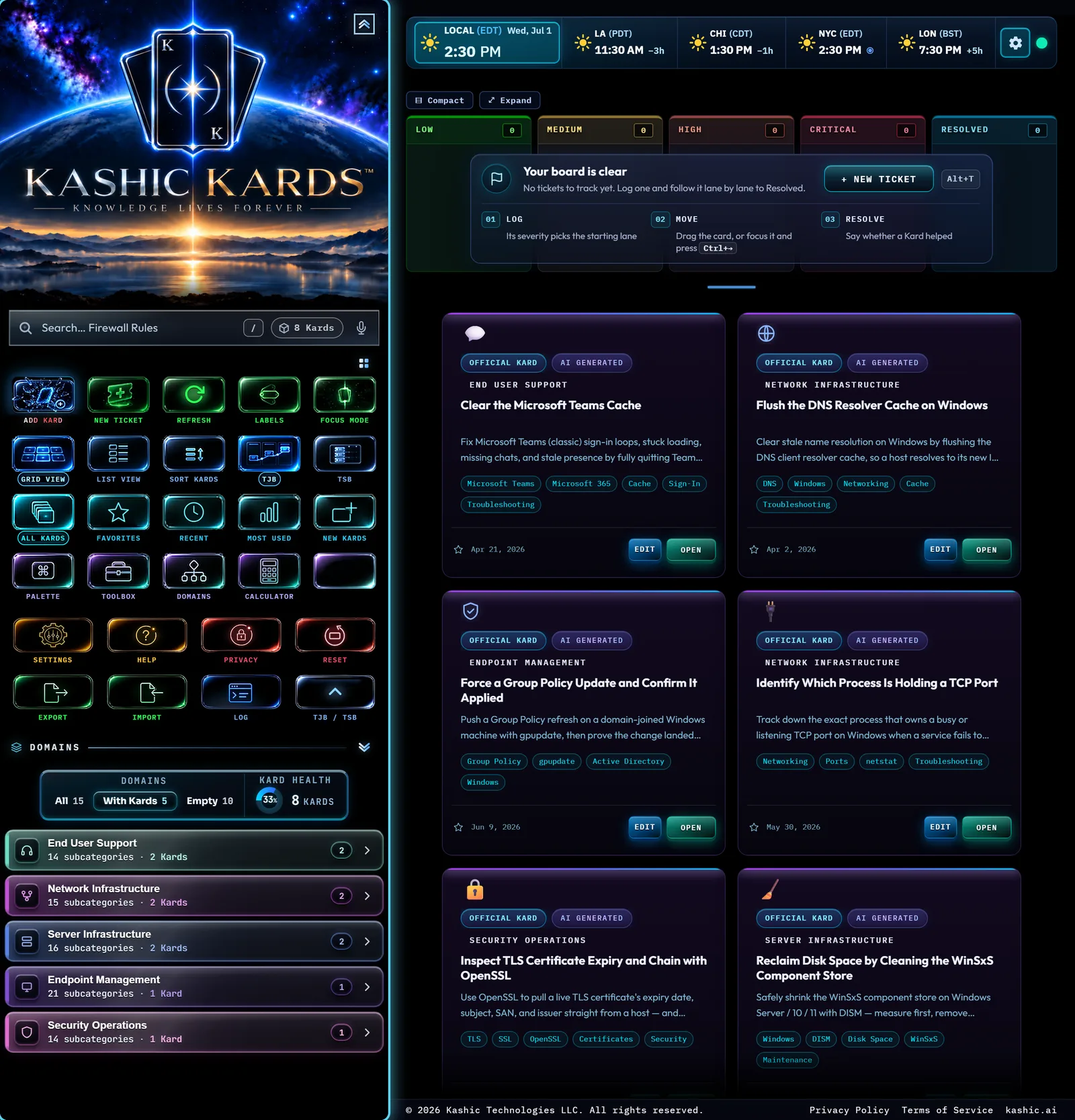
At a glance
This is a one-lap tour of the whole screen, eight stops, in order. Nothing here changes anything — click around freely, and Esc backs out of whatever you opened. If you'd rather read a plain description of each zone first, see Welcome to Kashic Kards™.
How to… take the tour
① The brand and Hub
The Kashic Kards™ logo sits at the top of the sidebar. Click the chevron at its top-right corner to collapse or expand the logo; right-click the logo (press-and-hold on touch) to open the Kashic Hub — the menu for quick actions, modes, backups, and diagnostics. Try it: right-click the logo, then press Esc to close the menu.
② Search
Just below the brand, the search box filters your whole library as you type. Press / from anywhere to jump straight into it. Try it: type a couple of letters and watch the sidebar and grid narrow — see Search & Pins for filter shortcuts and voice search.
③ The Command Center
The grid of buttons below search is the Command Center — one click for almost everything: adding a Kard, switching views, filtering, opening tools, and more. Every button shows its name and shortcut in a tooltip, so hovering teaches you the app as you go. Try it: hover a few buttons and read the tooltips.
④ The Domains list
Below the Command Center, the Domains list is the map of how your library is organized — click a domain to filter the grid to it, and expand one to see its subcategories. The icon next to the "Domains" label expands or collapses all of them at once. Try it: click a domain, then click All Kards in the Command Center to clear the filter.
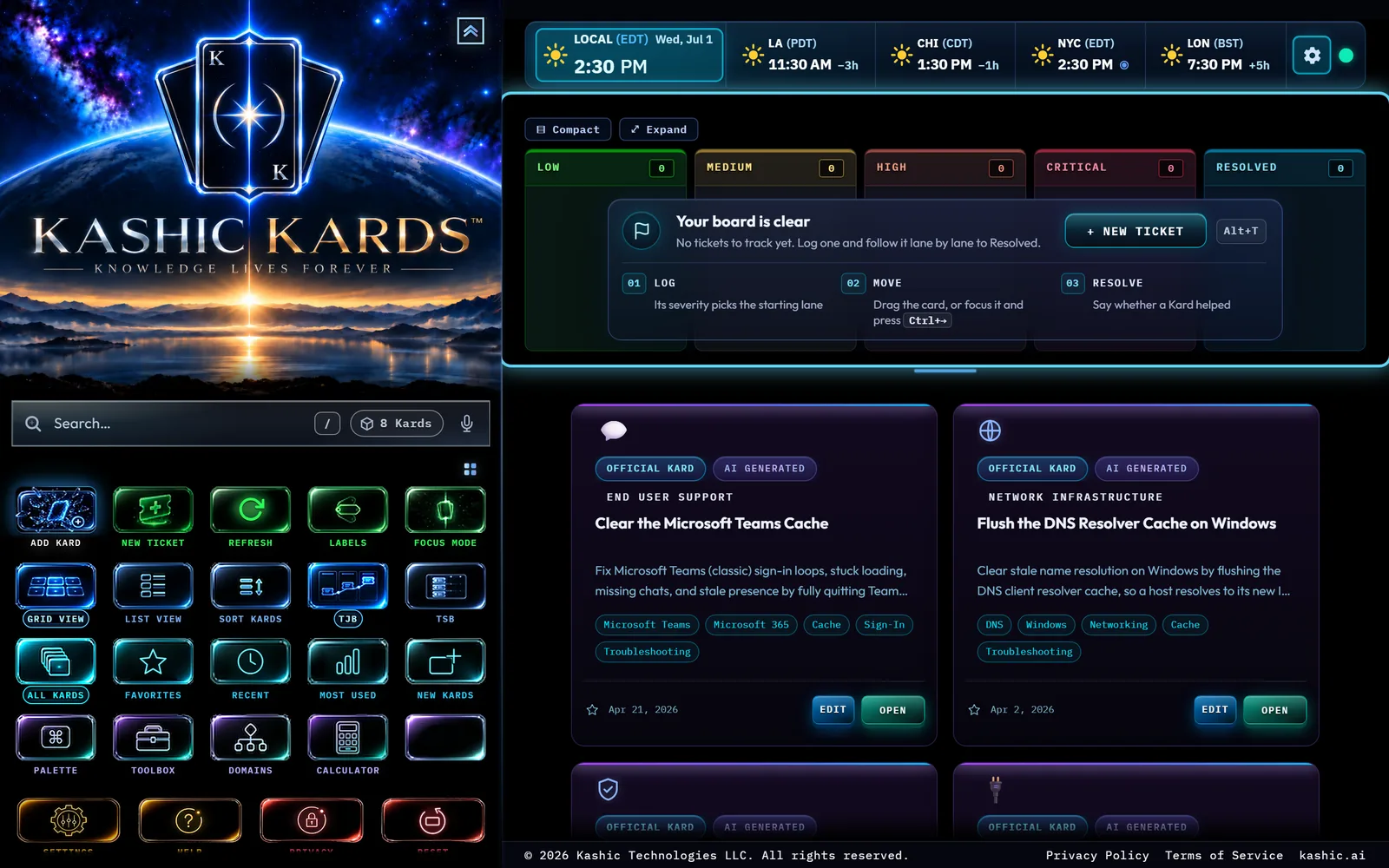
⑤ The boards band and Meridian
The middle of the screen holds TJB (your ticket board) and TSB (your schedule), with the Meridian time strip ticking above them — your local clock plus a few other cities. TJB starts empty (no demo tickets ship with the app; only Kards do). Try it: click + NEW TICKET on the empty board, or see Meridian — The Time Bar to schedule from any zone.
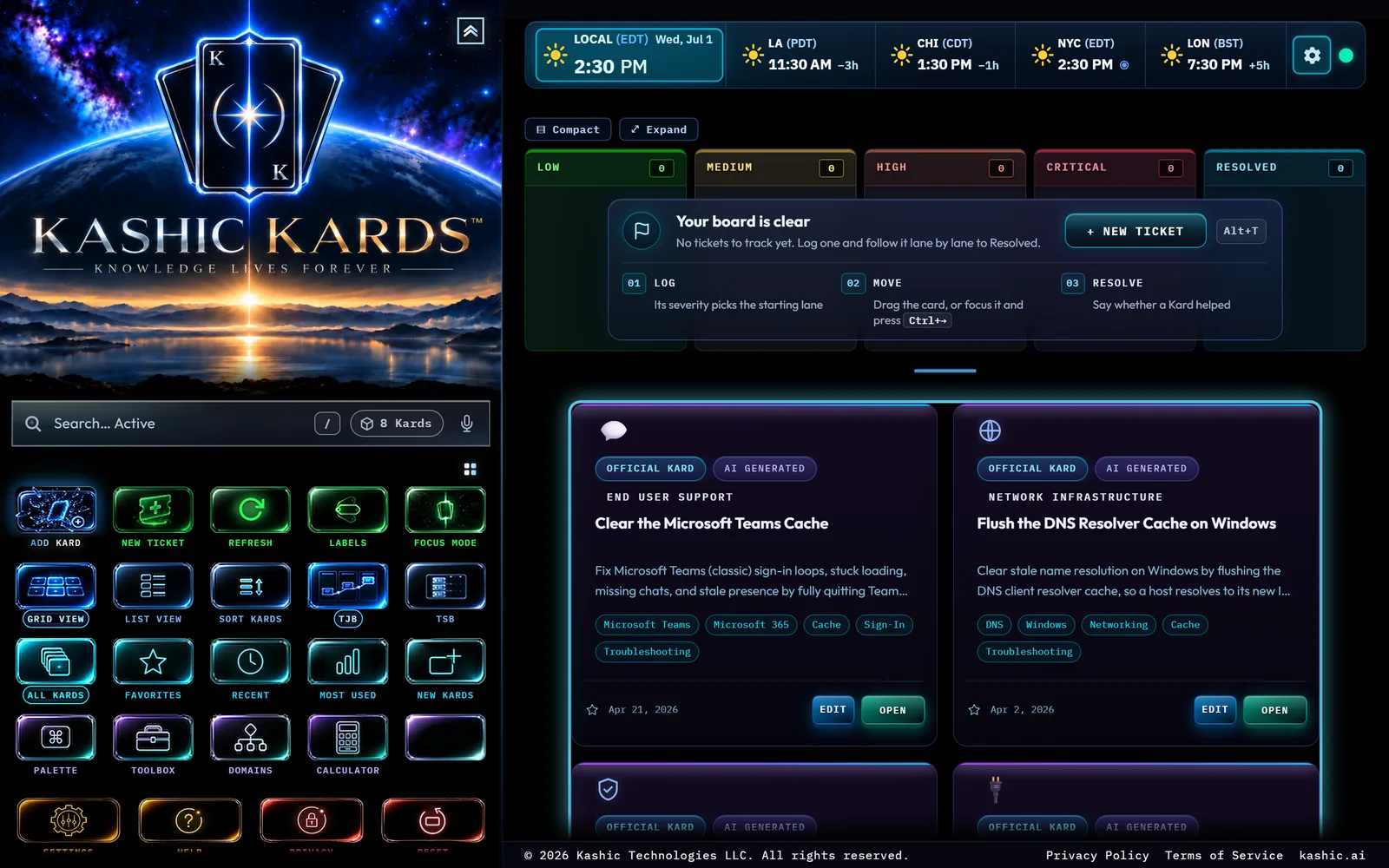
⑥ The Kard library grid
Below the boards, the grid shows every Kard as a tile — title, description, tags, and an OPEN button. Switch between grid and list, sort, or use the quick filters (All, Recent, Favorites, Most Used, New) from the Command Center. Try it: switch to List View and back using the Command Center's second row.
⑦ Opening your first Kard
Click any tile — or its OPEN button — to read it. The Kard opens in a full viewer with its content laid out stage by stage, ready to print or step through on a call. Try it: open one of the eight sample Kards (see Demo Data & Starting Fresh) and press Esc when you're done.
⑧ The Command Palette
Press Ctrl+K from anywhere to open the Command Palette — one search box for commands, Kards, and tools. Type a few letters of whatever you want and press Enter. Try it: open it now, type a few letters, and press Esc without picking anything — nothing happens until you actually select a result.
From here: browse the full Kard Library to see everything you have, open TJB to work a ticket end to end, or try the AI Generator (the Add Kard button) to create your first Kard from scratch.
Tips & tricks
- Every overlay in the app (Hub, Palette, Settings, the Kard viewer) closes the same way: press Esc. You can explore fearlessly.
- Nothing in this tour creates or deletes data on its own — the only things that add to your library are starting a new ticket or a new Kard on purpose.
Troubleshooting
- "I lost track of what I clicked." Press Esc to close whatever's open. Nothing you clicked during the tour changed your data.
- "My grid still looks filtered after I was just looking around." Check the Command Center's quick-filter row (All / Recent / Favorites / Most Used / New) and the Domains list — one of them may still be selected from earlier browsing.
Shortcuts
| Keys | Does |
|---|---|
| / | Jump into the search box from anywhere |
| Ctrl+K | Open the Command Palette |
| Esc | Close whatever menu, dropdown, or dialog is open |