Boards & Time
TSB — The Schedule Board
Owning your week — scheduled sessions, the session timer, capacity and mastery.
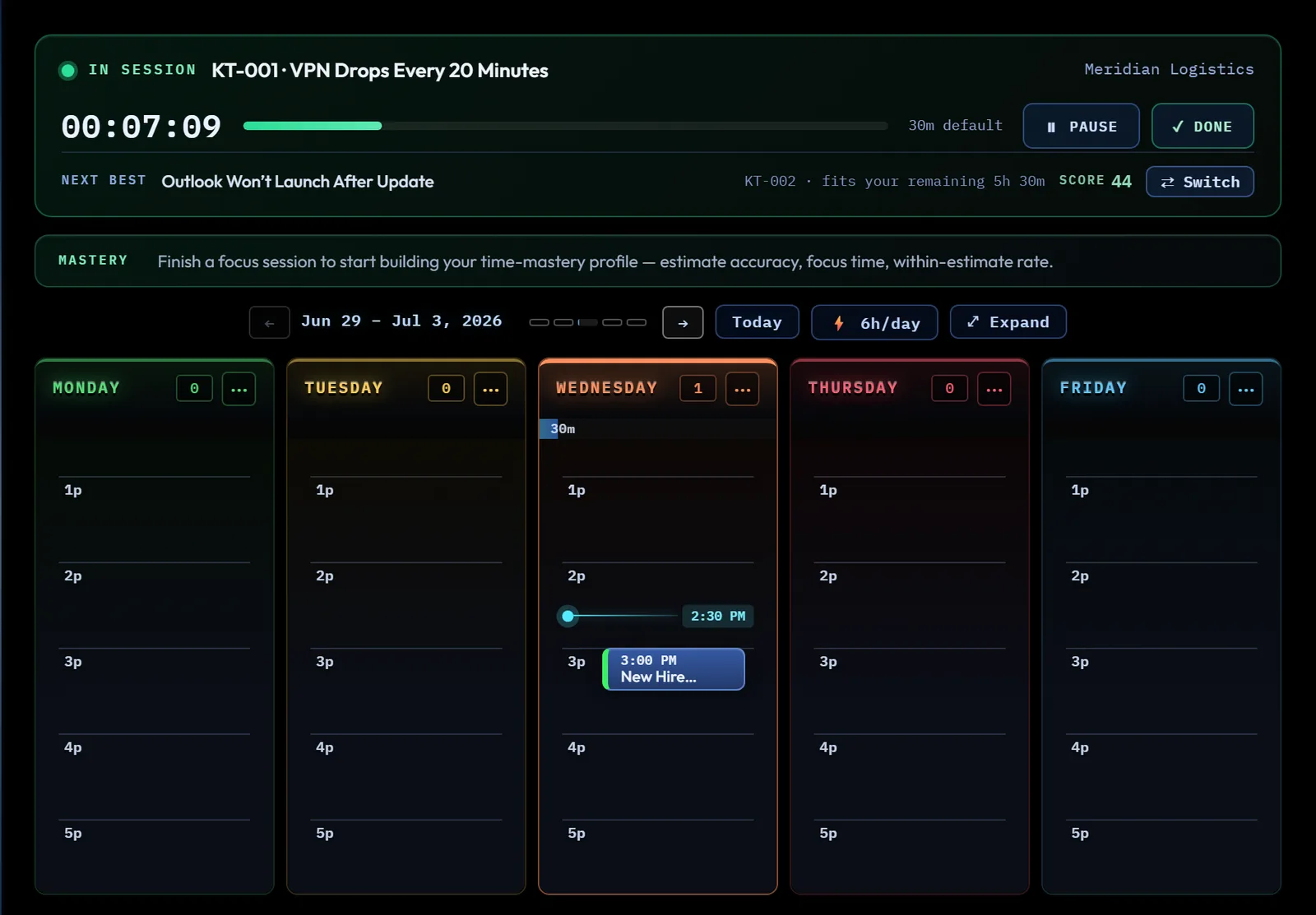
At a glance
TSB is the time-mastery half of the app. Instead of just listing what you have to do, it puts your day on a real clock: you plan sessions against an hour-by-hour grid running from 6 AM to 8 PM, Monday through Friday, work them with a timer that's honest about real elapsed time, and the board turns what actually happened into plain numbers — how close your estimates ran, how much focus time you logged, how your day went versus how you planned it. It isn't a calendar you fill in and forget; it's the half of the app that answers "did today go the way I meant it to?"
TSB shares its tickets — and its board — with TJB: the same tickets you log there can be scheduled here, and both views live in the one boards band you can hide or resize (see TJB — Hide or show the whole board).
How to…
Switch to the schedule board
Press Alt+D, or click TSB in the Command Center. If the boards band is hidden, this opens it. The app reopens on the schedule board next time if that is where you left it. Alt+D is also a browser shortcut for the address bar: the app gets it while the page has focus, but when focus is in the browser's own toolbar or address bar the browser takes it. If Alt+D lands you in the address bar, click anywhere in the page and press it again, or use the TSB button.
Read the week
Five columns, Monday through Friday — TSB doesn't schedule weekends. Each day is a real time-grid with hour rules from 6 AM to 8 PM; today's column is highlighted, with a live "now" line at the current time (from 6 AM to 8 PM, while that time is on the grid), and the grid automatically scrolls to keep "now" in view when you land on the current week. (Late in the day, once your last block is behind you, it shows the day's work instead of chasing "now" into the empty evening.) The week-nav strip above the grid has ← / → to change weeks (you can't go earlier than the current one), a Today button, five tiny heat bars — one per day, filling as that day books up; an overbooked day's bar turns red and grows taller and striped, and an empty day's bar is an empty outline, so the week's balance reads at a glance (hover them, or Tab to them, for each day's numbers) — your daily focus-budget pill, and an ⤢ Expand button that gives the board more of the screen by collapsing the Kard grid below it. While the board is expanded the same button reads ⤡ Restore; click it to bring the Kard grid back. The board remembers, on this device, whether you left it expanded and which view you were on, and reopens that way. The schedule board opens tall enough to show about four hours of the day (a little less on a short window), taking room from the Kard grid while it is showing; the severity board keeps its own height. On a narrow or short window, where four hours don't fit under the NOW cockpit, scroll the board down to reach the grid, and back up for the cockpit.
On a narrower window the days keep a readable width and the board scrolls sideways instead of squeezing them — use the scrollbar under the days, a trackpad, Shift and the mouse wheel, or a swipe; each day carries its own hour labels. On a phone each day fills most of the screen, and the week-nav wraps onto a second row. Tabbing to a block, or moving one with Ctrl+→, brings its day into view; to move a block to a day that is out of view, use Ctrl+← / → or Move to in its menu.
Everything on the board sits on a real date, so each week shows only that week's work — step forward a week and you see next week's plan, not this week's again. Open work — a ticket, schedule item or follow-up — from a day that has already passed isn't lost: it's carried into today's Unscheduled zone, marked with the date it was on, until you reschedule it, complete it or defer it. Completed work stays on the day it was done, and so do past time blocks, breaks and client calls.
Schedule a ticket
To put an existing TJB ticket on the grid, give it a day and a time — either in the New Ticket / Edit Ticket form's Scheduling section, or straight from the 📅 and time dropdowns on its card in Severity view. Those pickers name a weekday, and it means the next one: pick Monday on a Wednesday and the ticket lands on next Monday; pick today's weekday and it's today. A ticket with a day but no time shows in that day's "Unscheduled" zone under the grid instead of on the hourly grid itself. Focus an Unscheduled card and press Ctrl+← / → to move it a day (carried-over work moves from today), or Enter to open it; give it a time with Set time in its menu.
Add something that isn't a ticket
Right-click an empty spot on any day's grid for New schedule item, New time block, New break, New follow-up, or New client call — these aren't tied to a TJB ticket at all, and land right at the time you clicked. The same five are in each day's ⋯ menu (below), where they land at 9:00 AM; move the new item with Ctrl+↑ / ↓ or Set time.
The day menu
Each day's header (the name and count at the top of its column) has a ⋯ button; click it, or Tab to it and press Enter, or right-click the header. The menu holds the five New … items and two actions for the day: Copy day as agenda — the day's schedule as clean text on your clipboard, times in order, ready to paste into an email — and Clear completed, which permanently deletes that day's completed items after you confirm. Use the arrow keys to move through it, or type a letter to jump to the next item starting with it (in every action menu on both boards); Esc closes it. An item you create from the keyboard is selected at once, ready to move or open.
A block shows as much of its title as its length of time allows; point at it, or Tab to it, and it unfolds in place to the whole title.
Edit or move a scheduled item
Right-click any block on the grid — or focus it and press Shift+F10 or the Menu key — for Move to (a different day of the week you're looking at), Set time, Set duration, Duplicate to tomorrow (the next weekday — a Friday block's copy lands on the following Monday), Mark complete, Defer to unscheduled (off the hourly grid and into that day's Unscheduled zone — it keeps its day), Copy, or Delete. (Mark complete asks you to confirm, then resolves the ticket and asks "Did a Kashic Kard help resolve this?", as every way of resolving does — see TJB.) With a block focused, you can also reschedule it without a mouse: Ctrl+←/→ moves it a day, Ctrl+↑/↓ moves it half an hour, and Enter opens its detail panel.
Run a focus session
Click ▶ Start Session — on a ticket's card, or on whatever the NOW cockpit is recommending — and the clock starts, the ticket's status flips to In Progress, and its linked Kard (if it has one) opens alongside your work.
The timer is wall-clock honest: it counts real elapsed time from when you started, not a running tick count, so it can't quietly undercount if the tab is in the background or your machine sleeps for a while — a session that ran 30 real minutes in a throttled background tab still logs as 30 minutes, not less. The flip side is deliberate, too: if you reload the page (or come back later) while a session was left running, it comes back paused — with the correct elapsed time already on the clock — instead of silently still counting up the time you were away. You'll see a toast telling you a session was recovered and paused; resume it when you're actually back at it. Only one session runs at a time — starting a second pauses whichever one was running, so nothing double-counts.
Click ✓ Done to end a session and log it. Anything under a minute is treated as a false start: it isn't logged at all, and the ticket's status goes back to what it was before you pressed Start (unless you changed it yourself in the meantime).
After a session logs, the cockpit offers an optional one-line note — "what happened?" — saved onto both the session record and the ticket's notes (timestamped), so your history reads like a work journal. Skip it freely; it never blocks anything, and starting your next session dismisses it.
Read capacity and mastery
Each day column carries a thin capacity meter: how much time you've committed that day (scheduled blocks plus anything day-assigned but not yet timed) against your daily focus budget — 6 hours by default, click the ⚡ pill in the week-nav to cycle it 4–10 hours. It fills as you book the day up, and flags "over" once you've booked more than the budget. An item with no estimate is drawn and counted as 30 minutes, but that default is never shown as its estimate: its Unscheduled card reads "—", and DO THIS NOW, NEXT BEST and Copy day as agenda name a length only for items that have one.
The NOW cockpit above the grid is either your active session (live timer and progress against your estimate — or a 30-minute default when you never set one, shown as "30m default") or, when you're idle, DO THIS NOW — the single ticket the board thinks you should pick up next, with a 0–100 score, a ⚡ line showing how much of today you really have left for focus work — your unspent focus budget or the time until the grid ends at 8 PM, whichever is less (finished sessions count against the budget; it reads "daily budget spent" once you're through, or "no time left today" after 8 PM), and a row of plain-English WHY NOW reasons (things like due today, critical, fits your remaining 2h, or same client) so the recommendation isn't a black box. A NEXT BEST runner-up sits right below it with its own score and a one-click start.
The MASTERY strip is the payoff: once you've finished at least one session, it shows est accuracy (how close your time estimates ran, on average — only counted for sessions where you'd actually set an estimate; otherwise it reads "—"), focus today (total minutes across every session you've finished today), sessions today, and within est (the share of estimated sessions that finished neither wildly over nor suspiciously under). Once you've logged four or more estimated sessions, a small ▲ or ▼ shows whether your estimates are getting tighter or looser over time — and the board starts coaching: when a session finishes well off its estimate, a quiet 🎯 note says what your recent pattern suggests ("your recent sessions suggest ~45m"), and the right-click Set duration menu marks that duration "· suggested". Advice only — nothing is ever changed for you. Before your first finished session, this strip just invites you to finish one — there's nothing to measure yet, and it says so rather than showing a fake zero.
Tips & tricks
- A block only shows up on the hourly grid once it has both a day and a time — day-only work sits in that day's "Unscheduled" zone underneath the grid instead.
- The WHY NOW chips under a recommendation are the board's actual top reasons for that score, most-important first — not decoration.
- The board auto-recenters on "now" every time you open the current week, so you don't have to scroll to find where you are in the day.
Troubleshooting
- "My timer says PAUSED and I never paused it." That's the recovery behavior working as intended — a session still running when you left comes back paused, with its time-so-far intact, so the time you were away never gets added to your total. Press Resume to keep going.
- "I scheduled something and it's nowhere on the grid." Check whether it has a time, not just a day — day-only items live in that day's Unscheduled zone below the hourly grid, not on the grid itself. Then check the week: a day picked on a ticket's card means the next such day, which may be next week — press → to look ahead.
- "Something I scheduled for earlier in the week is sitting in today's column." That's open work whose day has passed, carried forward so it doesn't fall off the board. It shows the date it was originally on; move it, complete it, or defer it.
- "Mastery still just tells me to finish a session." Starting or pausing a session doesn't count — it needs at least one session actually ended with ✓ Done, for a minute or longer.
Shortcuts
| Keys | Does |
|---|---|
| Alt+D | Schedule View |
| Ctrl+← / → | Move the focused scheduled block, or Unscheduled card, a day |
| Ctrl+↑ / ↓ | Move the focused scheduled block 30 minutes |
| Enter | Open the focused scheduled block's or Unscheduled card's detail |
| Shift+F10 / Menu | Open the focused scheduled block's action menu |