Kards & Library
The Domain Manager
Renaming, recoloring, adding and removing domains and subcategories — safely.
At a glance
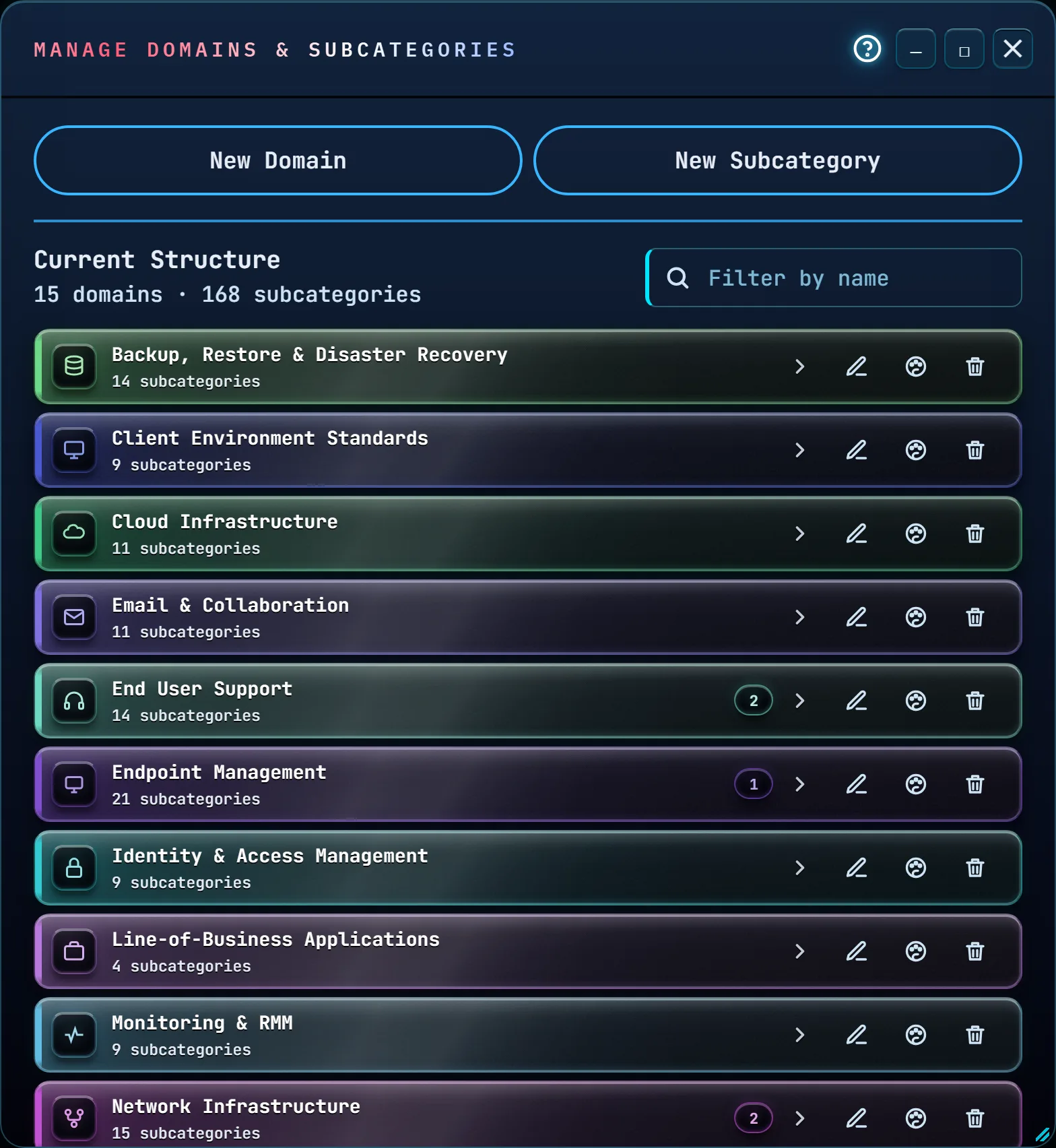
The Domain Manager is where you edit the structure that the sidebar Domains list only lets you browse. It has two parts: a form at the top for adding a new domain or subcategory, and Current Structure below — a color-lit list of every domain you have, mirroring the sidebar, where you rename, recolor, and remove domains and subcategories in place.
The ? in the window's title bar, left of the window buttons, opens this page.
There's no separate Save for the window as a whole — every rename, recolor, add, or remove takes effect the instant you do it, and the Kard library grid, the sidebar, Kard tiles, and every count and color update immediately, without a reload. One nuance carries over from the Domains list: a domain you just added won't appear in the sidebar until it has a Kard, or you switch the sidebar's filter to All — Current Structure itself always shows every domain, with or without Kards.
Here and in every picker, domains are listed in alphabetical order, and so are the subcategories inside each domain. The sidebar lists the domains that hold the most Kards first (alphabetically among equals), with each domain's subcategories in alphabetical order. A new or renamed entry simply takes its place in that order; there is no manual ordering.
How to…
Open the Domain Manager
Click Domains in the Command Center, or press Alt+M.
Add a domain or subcategory
The window opens with the add form folded away, so Current Structure is right there. Click New Domain or New Subcategory at the top to open that form; the one you're on is filled and checked. Click the same button again, or Cancel, to fold the form back.
- New Domain needs a name; a subtitle is optional. Pick an Accent Color from the 15 preset swatches, or click the color-wheel swatch at the end of the row for anything else — it opens your system's color picker, and the color is applied the moment you confirm it, showing on that swatch. Click Add Domain.
- New Subcategory needs a parent domain and a name — nothing else; the app doesn't show icons for subcategories, so the form doesn't ask for one. Parent Domain starts on Choose a parent domain — nothing is picked for you. The subcategory inherits its parent domain's color — subcategories don't carry their own. Click Add Subcategory. With no domains at all, the form says so and offers Go to New Domain.
If something needs fixing, the reason appears in red under that field and the cursor goes to it; nothing is added until every field is fine. After adding, a green line beside the buttons confirms it, the new row's color rail lights up briefly in Current Structure, and the form clears itself, ready for the next one. Typing into a field and then clicking Cancel, or closing the window, discards it — nothing is created until you click the Add button.
Naming rules
The same rules apply everywhere a name is typed — these forms, renaming in place, and the sidebar's right-click Rename and Add Category:
- A name is required and can be up to 60 characters. Spaces at either end are dropped and a run of spaces inside becomes one.
- Names that differ only in capitals or accents count as the same, so Alpha, ALPHA and Álpha can't sit side by side. Domains must be different from every other domain; a subcategory only from the others in its own domain.
- Uncategorized and all can't be used as domain names — the app already uses both words for something else.
- A subtitle can be up to 80 characters. Control characters (such as a tab) aren't allowed in names or subtitles.
- You don't pick a domain's icon — the app does, from the domain's name and the names of its subcategories, and it re-picks whenever any of those change. A name such as Firewalls gets the network glyph; one that says nothing the app recognizes gets a folder until its subcategories say more. The icon shows as the tile on the domain's row here and in the sidebar, and as the emoji beside it in the Command Palette.
A name that was saved before these rules existed keeps working as it is. Renaming it asks for a name that follows them.
Rename a domain or subcategory
Click the pencil icon on its row in Current Structure. The name becomes an editable text field right there — no popup, no separate dialog. Press Enter or click the check mark to save, or Esc or the ✕ to cancel. If the new name isn't allowed, the reason shows under the row and the field stays open for you to fix it. Every Kard already filed under the old name follows the rename automatically, in the grid and the sidebar both. A domain's subtitle — the line shown under its name in the Command Palette — is kept when you rename the domain; if you never gave it one, it was simply the domain's name, and it follows the new name.
Recolor a domain
Click the palette icon on a domain's row to open a strip of the same 15 preset colors from the New Domain form. Click one — it applies immediately, and the small dot next to the domain's name always shows its current color. Only domains have a color; subcategories visually inherit theirs. The strip stays open so you can try another; close it with its ✕ or the palette icon.
At the end of that strip, the color-wheel swatch opens your system's color picker for anything outside the fifteen — any color you like, applied the moment you confirm it.
The fifteen presets were chosen to stand out against the app's dark sidebar; a free color can't be. If the one you pick would be hard to spot, the strip says so and names the figure — "Hard to see — this color sits at 1.42:1 against the sidebar, under the 3:1 mark." It's a note, not a veto: the color is applied either way. Pick a deliberately quiet domain if that's what you're after.
The same choice is one right-click away in the sidebar itself: right-click a domain row, choose Color, and you get the same presets and the same color-wheel swatch. That popover is too small for the note, so a hard-to-see color is called out in the confirmation message instead.
Move a subcategory to a different domain
This one isn't done from this window — it's a right-click action on the sidebar Domains list. Right-click the subcategory there and choose Move to Domain…, then pick the new parent from the list that appears. Every Kard filed under that subcategory moves with it; the subcategory keeps its name and gets a new color from its new parent domain.
Remove a domain or subcategory — and what happens to its Kards
Click the trash icon on a domain or subcategory's row — here, or on its row in the sidebar's right-click menu. A confirmation dialog opens and tells you, before you commit to anything, exactly what will happen to the Kards involved, down to a one-line count — nothing is ever deleted:
- Removing a domain removes it and its subcategories from the list. If it's empty, the dialog says so plainly: "This domain is empty. Removing it will not affect any Kards." If it has Kards, you choose where they go under Move its Kards to: — Uncategorized (the default) or any other domain — and the count line underneath shows the result, for example "3 Kards → Uncategorized · 0 deleted". Moved Kards keep their title, tags and content exactly as they were; they lose only their subcategory, which belonged to the removed domain. An uncategorized Kard won't show under any domain in the sidebar until you give it one again. Editing it keeps it there: Edit Kard opens with its Domain set to Uncategorized, and saving it leaves it uncategorized (its tile also simply won't show a category line, so nothing false gets printed on it). A built-in domain you remove comes back if the AI Kard Generator later files a new Kard under it.
- Removing a subcategory only removes that one entry — its domain and every other subcategory in it are untouched. An empty subcategory's dialog says "This subcategory is empty. Removing it will not affect any Kards." A subcategory with Kards in it keeps them exactly where they are, in the same domain, and only clears that one label — "2 Kards stay in "<Domain>" · 0 deleted".
The confirm button says exactly what it does — Remove Domain or Remove Subcategory — and Cancel (or Esc) backs out without changing anything.
After a removal, a bar at the top of Current Structure says what happened, for example "Removed "Cloud" · 3 Kards → Uncategorized", with an Undo button. Undo puts back the domain or subcategory exactly as it was — its name, subtitle, icon, color and subcategories — returns the Kards it moved to where they were (any you have moved somewhere else since stay where you put them), and restores its pins in their places. The bar stays until you make another change to your domains, anywhere, or close the window. A removal made from the sidebar shows the same bar above the sidebar's Domains list.
Saving to your account
When you're signed in, your domains and subcategories are kept on your account as well as in this browser, and every change is sent there as you make it. The line beside the buttons shows Saving… and then Saved. Everyone who shares your library can add, rename, recolor and remove domains — there is one set for all of you, with no separate permission for editing it.
- If a change can't reach the server — you're offline, or the server is busy — the app tries once more a few seconds later. If that fails too, a banner at the top of this window and above the sidebar's Domains list says "Not saved to the server. Your change is kept on this device." Click Retry when you're back online. The change stays on this device in the meantime, even if you close and reopen the app.
- If someone else changed the domains while you were working, nothing is overwritten on either side. The banner says your domains were also changed elsewhere and offers two choices: Keep mine puts your copy on the account in place of theirs; Use the server's replaces your copy with the account's, and then runs Integrity Check so any Kard whose domain no longer exists is flagged. The same choice appears when you sign in with a change that never reached the account and the account has changed since.
Filter a long structure
Type into Filter by name above the list to narrow it down by name as you type; a matching domain auto-expands to show why it matched.
Tips & tricks
- Everything you do here saves the instant you do it — closing the window with Esc or ✕ never asks "are you sure," because there's never anything unsaved to lose. (Signed in, a change that hasn't reached your account yet is kept on this device — see Saving to your account.)
- If you remove every domain, the list stays empty — the app's starting domains don't come back on their own. Add the ones you want from the New Domain form. (Signed in, the list stays empty on every device that has already loaded your domains. A device signing in to your account for the first time while it has no domains keeps the ones it already has, and its first change saves them to your account.)
- Tickets keep the category text they were created with. Renaming or removing a domain or subcategory doesn't change existing tickets — that text is a record of what was chosen at the time, not a link.
- Current Structure shows each domain and subcategory the way the sidebar does, with the same counts. Under a domain's name you see how many subcategories it has and, once it holds Kards, how many — that number also sits in the pill at the right. Each open subcategory shows its own Kard count in a pill.
- Drag the title bar to move the window, drag any edge or corner to resize it, and use the Minimize, Maximize and Close buttons at the top right — the same window controls as the AI Generator, Settings and the Tools windows. While the window is maximized, Maximize becomes Restore.
Troubleshooting
- "I deleted a domain — where did my Kards go?" Nowhere. They moved to Uncategorized and are still in your library under All Kards — see Remove a domain or subcategory above for the exact wording the app showed you before you confirmed.
- "I can't find a way to move a subcategory in this window." That's expected — it's a sidebar action. See Move a subcategory to a different domain above.
- "I renamed or recolored a domain and the sidebar still shows the old one." Both update immediately in every normal case. If the domain has zero Kards, double-check the sidebar's coverage filter isn't set to hide it — see Show domains with no Kards yet.
Shortcuts
| Keys | Does |
|---|---|
| Alt+M | Open the Domain Manager |
| Enter | Save the name you're editing; in either add form, add it (except while the Parent Domain list is open, where Enter picks the highlighted domain) |
| Esc | Close only what's on top: an open list, then a remove confirmation, then the rename you're editing; with nothing else open, close the window |
| ↑ ↓ | In Current Structure, move between domains and the subcategories of an open domain |
| → | Expand the focused domain; on an open domain, move to its first subcategory |
| ← | Collapse the focused domain, or from a subcategory jump back to its domain |
| Any letter key | Jump to the next domain whose name starts with that letter |
| Home End | Jump to the first or last row of Current Structure |
These are the same keys the sidebar's Domains list answers. Tab from a row reaches its Rename, Recolor and Remove buttons. After an action, focus stays where you'd expect: on the domain you expanded, on the Rename button of the row you just renamed (wherever it sorted to), and back in the name field after an Add.
A remove confirmation opens with Cancel selected, so a stray Enter removes nothing. Tab moves between its buttons and stays inside it until you answer. Cancelling puts you back on the Remove button you pressed; confirming puts you on the row that takes the removed one's place.