Getting Started
Demo Data & Starting Fresh
The sample Kards the app ships with, and how to reset your library.
At a glance
Kashic Kards™ doesn't start empty. It ships with eight sample Kards spread across five Domains, so there's something real to look at — and learn from — the first time you open the app:
- Restart the Windows Print Spooler Service
- Flush the DNS Resolver Cache on Windows
- Clear the Microsoft Teams Cache
- Reset Windows Update Components After a Failed Update
- Inspect TLS Certificate Expiry and Chain with OpenSSL
- Identify Which Process Is Holding a TCP Port
- Force a Group Policy Update and Confirm It Applied
- Reclaim Disk Space by Cleaning the WinSxS Component Store
They're real, usable Kards, not placeholders — open any one and read it end to end. They're marked Official Kard, and the app protects them from individual deletion (there's no Delete option for them, even in the Edit dialog). If you want them out of your library entirely, use Reset, below — it replaces your whole library, official Kards included.
How to… start fresh
Reset your Kard library
- Click Reset in the Command Center, or press Alt+Z (it's also in Settings → Kard Library & Data).
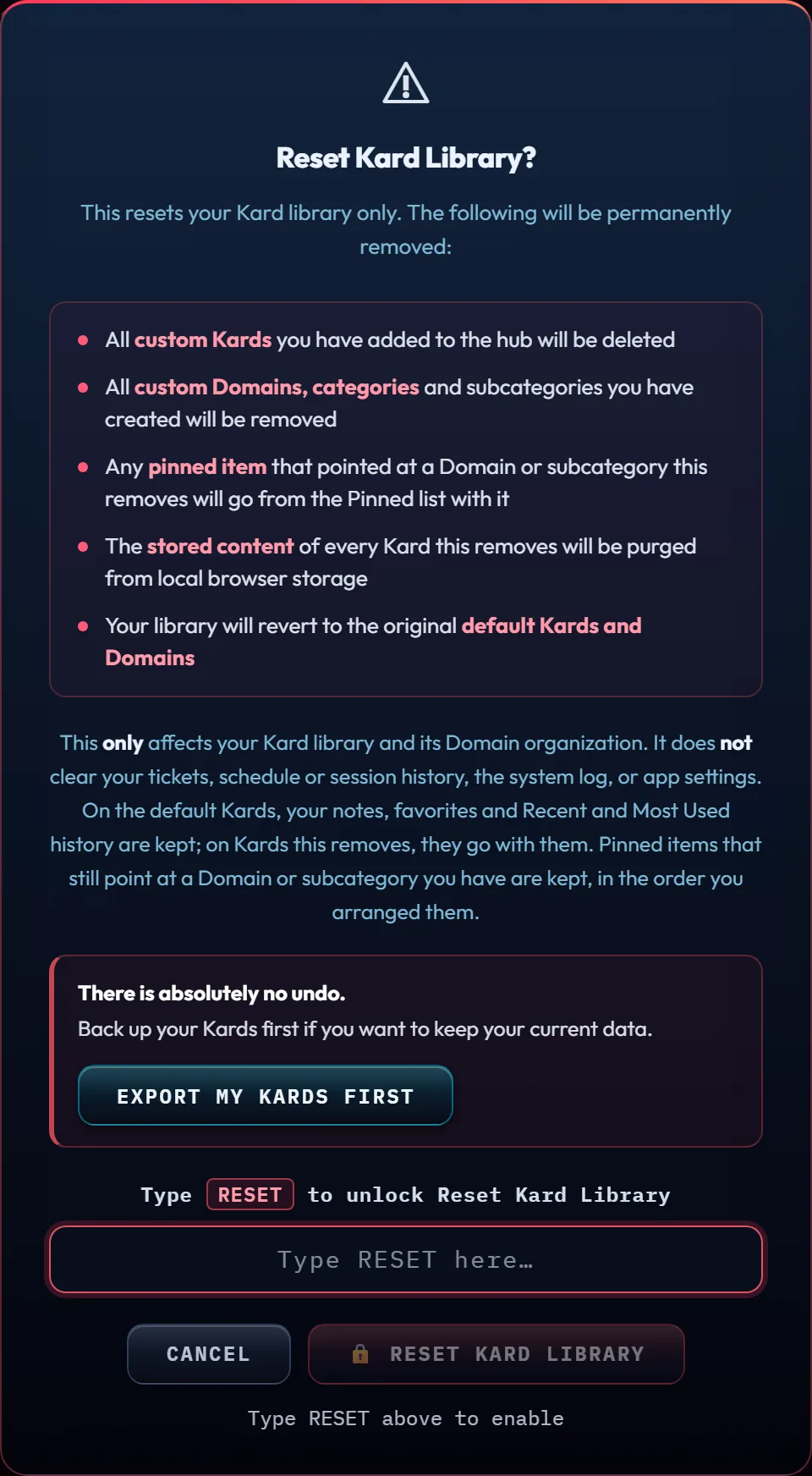
- Read the dialog. It's specific on purpose: it lists exactly what gets removed, and says plainly that it does not clear your tickets, your schedule and session history, the system log, or your settings — only your Kards and Domains. The notes, favorites and Recent and Most Used history of the Kards it removes go with them; on the default Kards they are kept.
- If you want a copy first, click Export My Kards First right there in the dialog. It closes Reset and opens Export — come back with Alt+Z when you've saved your file.
- Type RESET into the box (case doesn't matter) to unlock Reset Kard Library, then click it. The dialog stays up while it works and tells you when it's done. Cancel (or Esc) backs out.
There is no undo. If you've customized anything — added your own Kards, renamed or recolored Domains — export first (the button in the dialog, or Ctrl+E) if you want to keep it.
Three things worth knowing before you confirm
- Notes follow their Kard. Notes you wrote on the default Kards stay put. Notes on Kards that Reset removes go with them — the Kard is gone, so the note has nothing left to be attached to. The same goes for favorites and open counts.
- Pinned items follow what they point at. A pin is a shortcut to a Domain or a subcategory, so a pin that pointed at a custom one Reset removes has nowhere left to go, and it is removed from the Pinned list too. Pins that still point at something you have — including the default Domains Reset restores — are kept, in the order you arranged them. The dialog says so before you confirm.
- If a Kard is generating, Reset stops it. The dialog says so before you confirm. A generation that gets stopped can't be resumed, and anything you've already been charged isn't refunded — so if a Kard is mid-build, it's usually worth letting it finish first.
If saving fails part-way through — browser storage full, most often — Reset doesn't half-happen. It tells you it failed, leaves your library exactly as it was, and changes nothing.
What Reset actually leaves you with
Here's what we tested: the moment you confirm, your library doesn't stay on the eight Kards above, and it doesn't go empty either — it switches instantly to a different, smaller built-in set (six longer runbook-style Kards). That's expected, not a bug. Those eight sample Kards are loaded fresh from the app every time it starts, so as soon as you reload the app (refresh the page, or close and reopen it), your original eight sample Kards are back. Either way, Reset always leaves you with a full, working library — right after confirming it's just a different one, until you reload.
Tips & tricks
- The Official Kard and AI Generated tags on a tile just tell you where a Kard came from — the app ships it, or the AI Generator wrote it. Neither tag changes what you can do with the Kard, other than protecting Official ones from deletion.
- Reset is also reachable from Settings → Kard Library & Data, next to Export, Import, and "Back up everything" — handy if you'd rather back up first from the same screen.
Troubleshooting
- "The Reset button won't unlock." Type RESET exactly into the confirmation box — the button stays locked and disabled until it matches.
- "My screen looks completely different after I hit Reset — did it break?" No. See what Reset actually leaves you with, above — reload the app and the familiar sample Kards return.
- "I can't delete one of the sample Kards." That's by design — Official Kards are protected one at a time. Use Reset to clear them along with everything else.
Shortcuts
| Keys | Does |
|---|---|
| Alt+Z | Open the Reset Kard Library confirmation dialog |