System & Settings
Settings
The preferences console — every section, and which settings live where.
At a glance
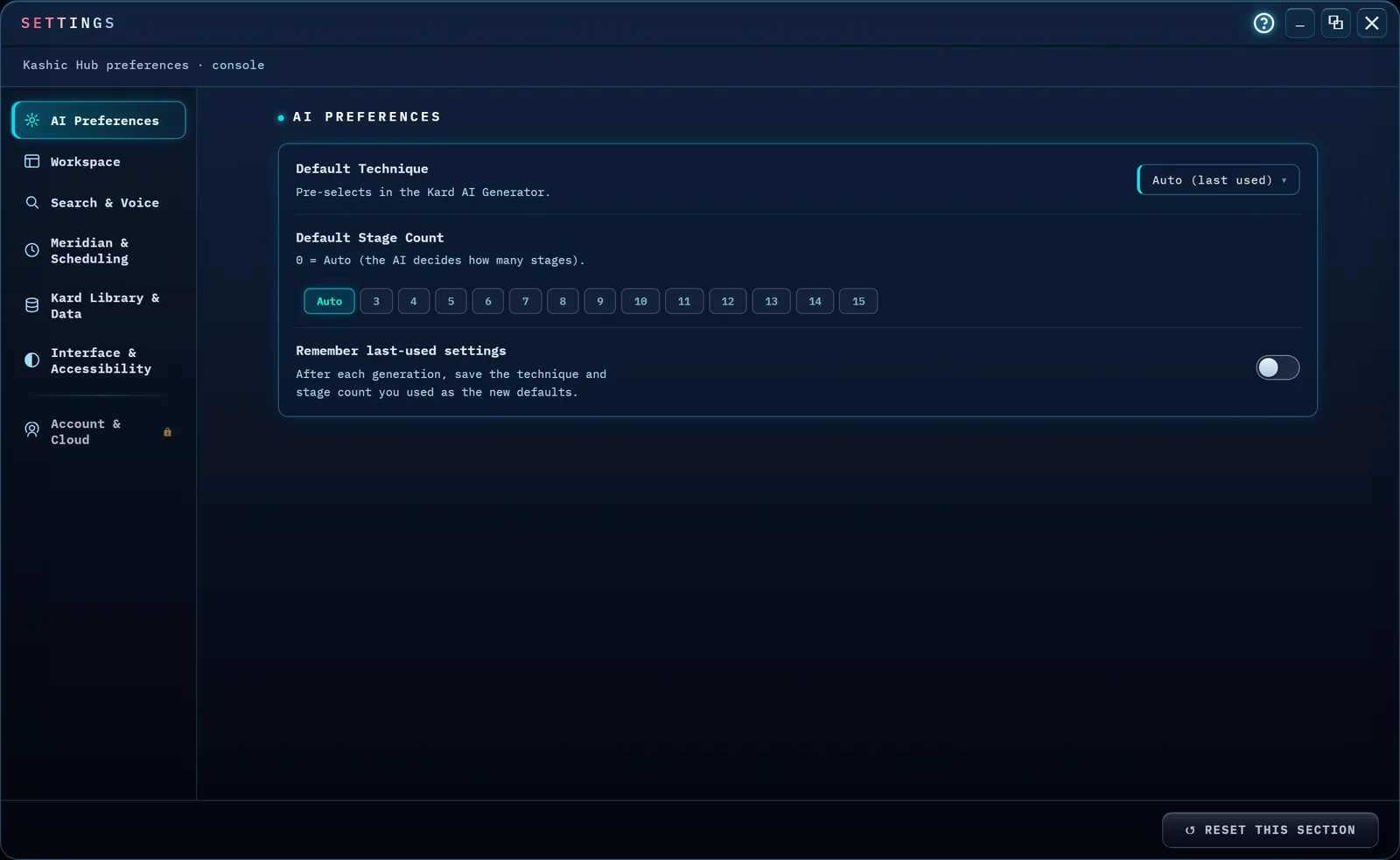
Settings is a left-rail console: seven sections down the left side, the controls for whichever one you've selected filling the pane on the right. Six sections are live and change something real the moment you touch them — everything saves itself, there's no separate Save button. The seventh, Account & Cloud, is visible but inactive — signing in and Kard sync work today, and the features listed in that section have not been built yet.
The ? in the console's title bar, left of the window buttons, opens this page.
The console remembers which section you were last looking at — close it and reopen it and you land back where you left off, for as long as this browser tab stays open. Reload the page (or open a fresh tab) and it starts over on AI Preferences, the first section in the rail.
It opens full screen — two columns of controls read better with room than they do in a small box. The buttons at the top right are the usual three: Restore () drops it back to a centered window you can drag and resize by its edges, Minimize parks it in the dock so you can use the app and come back to it, and Close () puts it away. Double-clicking the title bar switches between full screen and windowed. Whatever you leave it as, the next launch opens full screen again.
How to…
Open Settings
Press Alt+,, click the Settings gear in the Command Center, or choose it from the Kashic Hub. Click a section in the left rail to switch to it — or use the arrow keys, Home and End while focus is on the rail.
AI Preferences
Where the AI Kard Generator's starting point lives. Default Technique pre-selects a generation technique in the Generator; Default Stage Count pre-selects how many stages a new Kard opens with — pill buttons for Auto (the AI decides) through 15. Turn on Remember last-used settings and the app quietly saves whichever technique and stage count you used on your last generation as the new defaults, so you don't have to reset them every time.
Workspace
Shapes how the Kard library looks when you arrive. Startup view picks what the grid shows on launch — Last used, or force it to Grid or List every time. Signed in, Last used follows your account: the layout and sort you last chose on any of your devices appear as soon as the app has loaded your settings. Kard density tightens or relaxes the spacing between tiles (Compact / Standard / Expanded); the same selector sits in the Kashic Hub's Customize Your Workspace row. Reopen last domain on launch re-expands whichever domain you had open the last time you closed the app.
Search & Voice
Voice search enables the microphone when your browser supports speech recognition; turning it off stops active voice input. Your browser may send audio to an external speech service. Remember recent searches controls this tab's history independently of Privacy Mode, which masks client data and always hides and pauses recent searches. Switching either control does not delete retained terms. Clear recent searches deletes this tab's stored terms without removing pins or Kards. See Search & privacy settings for retention, sign-out cleanup and browser-session restoration.
Meridian & Scheduling
Mostly a signpost rather than controls of its own. Time zones, clock & chime is a link — click Open Meridian settings and Settings closes behind you, dropping you straight into the Meridian panel's own gear icon, where zones, 12/24-hour format, DST and the hourly chime actually live. Default scheduling duration is the one real control here: the length (15 to 120 minutes) pre-selected when you schedule a block from Meridian onto the board.
Kard Library & Data
A column of action buttons, not toggles: Export Kards and Import Kards open the same dialogs as their Command Center buttons (see Import, Export & Backups); Back up everything downloads a single JSON file covering your Kards, domains, tickets, sessions and every preference on this page; Restore from backup reads one back in, after a confirmation, and reloads the app — a safety snapshot is taken first, and while one exists an Undo last restore button appears here to put back what you had; Clear generation log & usage stats wipes the AI Generator's history and usage counters without touching your Kards. Below the buttons, Reset Kard Library is the same reset covered in Demo Data & Starting Fresh — it needs you to type RESET to confirm, and it only ever touches Kards and domains.
Interface & Accessibility
Three toggles, a size control, and the seasonal theme (a list and a switch). Reduced motion calms animations across the app. It also stops the cycling colors on the three sidebar window buttons and makes their expand/collapse actions immediate. Your operating system's reduced-motion preference also applies. See Sidebar window buttons. High-contrast mode boosts text and border contrast on reading surfaces without changing the brand colors. Command Center labels shows or hides the text captions under the Command Center's buttons — the same switch as Ctrl+L, and it stays in step with it. Text size scales the text and controls of the sidebar, the workspace, the footer and Settings itself in four steps (Small / Standard / Large / Extra large); the Kashic Hub and the floating tool windows keep their own size. The same selector sits in the Hub's Customize Your Workspace row, and the two always agree.
Seasonal theme dresses the domain list in the sidebar for the season. It ships Off. Ten seasons are available — New Year, Winter, Valentine's Day, St. Patrick's Day, Easter, Memorial Day, Independence Day, Halloween, Thanksgiving and Christmas — and Automatic (follow the calendar) shows the right one on its own, naming today's pick in its own description right here. Choosing a season by name pins it and ignores the calendar. It is presentation only — no domain, subcategory, count or Kard is changed, moved or hidden, and each row's icon keeps its own domain color. Seasonal motion below it controls the slow ambient light inside a theme; turning it off keeps the color and removes the movement. Reduced motion above, and the reduced-motion setting in your operating system, switch that movement off either way. See Domains & Organizing for every season, its dates, and what it looks like.
Account & Cloud
Seven rows, every one grayed out behind a lock icon and a Not yet available pill: Account profile, Subscription, Cloud sync, Organization, Integrations & API keys, Usage limits, and Data retention. The section says exactly why, right at the top: "Signing in is live, and your Kards, Domains and settings sync with your account. The features below are not built yet — nothing here is active." There's nothing to configure here today — it's a preview of what's coming, not a bug.
Your name and email are not here. They live in Your Account, described below — this section is about subscription, sync and organization features that are still being built.
Your Account
Click ACCOUNT next to your name in the sidebar, or press Ctrl+K and type account. It opens a small window with two things and a way out.
- Your name — the one shown in the app. Change it, click SAVE, and it takes effect everywhere your name appears. It is the only detail you can edit here.
- Your email — shown, but not editable. Your email is what signs you in, so it's managed by your sign-in provider rather than by Kashic Kards. Changing it here would leave the two disagreeing about who you are.
- SIGN OUT — the same sign-out as the sidebar, in the place you'd look for it.
The button only appears while you're signed in. If your session has expired the sidebar offers Sign In instead, because a page that can't save anything isn't worth opening.
If a name is refused, the window says why — usually it's empty, longer than 80 characters, or contains a line break.
Tips & tricks
- Every control saves itself the instant you touch it — a small "✓ Saved" flashes at the bottom of the console so you know it registered. There's nothing to remember to click before you close the window.
- The rail is a real tab list — arrow keys move between sections, and moving switches to that section immediately (no separate "activate" step).
Troubleshooting
- "There's no Reset button on this section." Expected on Kard Library & Data (it has its own Reset Kard Library action instead) and Account & Cloud (nothing there is live yet, so there's nothing to reset).
- "Voice search is grayed out and I can't turn it on." Your browser doesn't offer speech recognition — the toggle says so directly ("Not supported in this browser") rather than pretending to work.
- "I closed Settings and it opened on a different section than I expected." It remembers your last section only within the current browser tab — a full page reload (or a fresh tab) always starts back on AI Preferences.
Shortcuts
| Keys | Does |
|---|---|
| Alt+, | Open or close Settings |
| Esc | Close Settings |
| ↑ / ↓ / ← / → | Move between sections when focus is on the left rail (wraps at the ends) |
| Home / End | Jump to the first / last section when focus is on the left rail |