System & Settings
The Kashic Hub
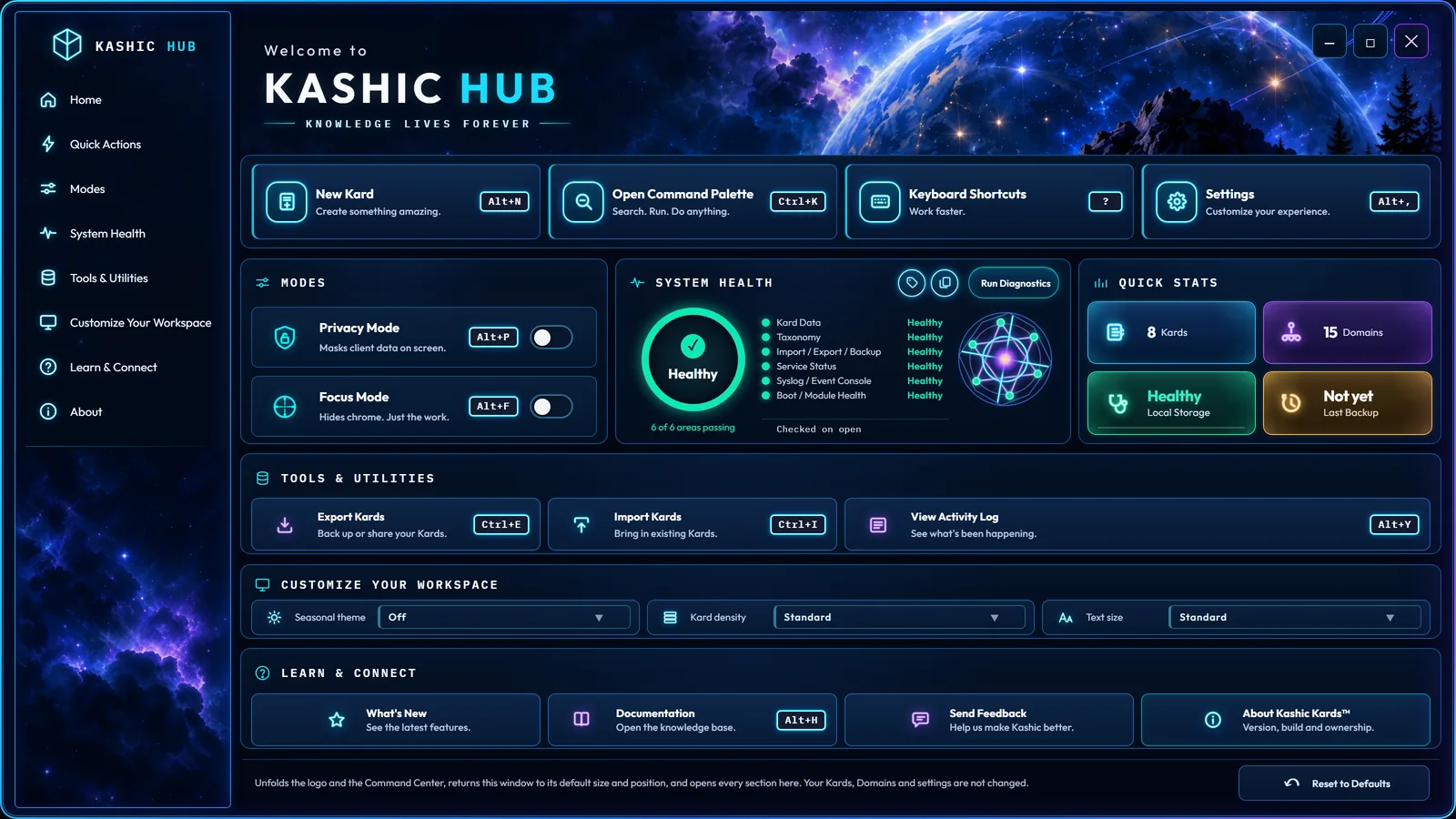
The Kashic Hub is the panel behind the Kashic Kards™ logo at the top of the sidebar. It's your one place for quick actions, app modes, backups, diagnostics, and information about the app.
At a glance
The logo does two things:
- Click the window button at its top-right corner (the Masthead Toggle) to collapse or expand the Kashic Kards™ logo — handy when you want more room. Clicking the artwork itself does nothing.
- Open the Hub to reach the app's controls — command palette, settings, privacy/focus modes, backups, diagnostics, and the About / What's New screens.
How to…
| You're using… | Do this |
|---|---|
| A mouse | Right-click the logo |
| Touch, tablet or pen | Press and hold the logo for about half a second |
| Keyboard | Focus the window button on the logo and press Shift+F10 (or the Menu key) |
The logo reminds you itself. Over the logo the pointer gains a small menu beside the arrow, the sign that a right-click does something here. Rest the pointer on the artwork and its tooltip reads Kashic Horizon™ · Right-click for Kashic Hub (Kashic Horizon™ is the name of the artwork). Rest it on the window button, or Tab to the window button, and you see what the window button will do next along with its shortcut: Collapse Kashic Horizon™ · Shift+F10 for Kashic Hub. With the logo folded away the keyboard hint shortens to Expand Kashic Horizon™; Shift+F10 still works.
To close it: press Esc, or click the ✕ in the Hub's title bar.
The Hub stays open on purpose when you click elsewhere, so you can flip a setting and keep it open. It only closes when you press Esc, click ✕, or pick an action that opens another window.
What's inside
The Hub opens as one window: a section rail down the left, and the sections themselves to the right. Click a rail entry — Home, Quick Actions, Modes, System Health, Tools & Utilities, Customize Your Workspace, Learn & Connect — to open that section on its own: the rest fold down to their title bars, the rail entry lights to mark where you are, and Home opens everything again. About at the foot of the rail opens the About window. On a phone the rail runs along the foot of the window as a strip of pills that scrolls sideways; the lit pill is the section you are in.
Everything in the Hub can be reached from the keyboard. Tab moves forward through every control in turn and Shift+Tab moves back; focus stays inside the Hub, so you can't tab out into the page behind it. The arrow keys are a quicker way around the Hub's action cards and buttons, with Home and End jumping to the first and last of those; the section rail, the window buttons in the title bar, and the dropdowns in Customize Your Workspace are reached with Tab. While a section is folded down to its title bar, the controls inside it are skipped — open it again, or choose Home on the rail, to reach them.
Quick Actions
- New Kard (Alt+N) — open the AI Kard Generator.
- Open Command Palette (Ctrl+K) — search and jump to anything.
- Keyboard Shortcuts (?) — the full list of shortcuts.
- Settings (Alt+,) — open app settings.
Modes
Each row ends in a switch, so you always know its state.
- Privacy Mode (Alt+P) — masks client data on screen (good for screen-sharing).
- Focus Mode (Alt+F) — hides surrounding chrome for distraction-free work.
System Health
The gauge and the six area rows beside it show the last result of the app's integrity check — read afresh every time the Hub opens.
- If the check itself has not loaded, the button reads Diagnostics unavailable and the panel says Integrity Check is unavailable. rather than showing a health result it could not work out. Reload the app to try again.
- Run Diagnostics — runs the check right here. Every row's dot and every point of the star go to "checking", then the six areas come back one at a time. Each row ends in its state in words — Healthy, Warning or Critical — and its dot takes the matching color: green, gold or red. The gauge follows the worst of them, and the line under the list says when the check last ran.
- The two round buttons in the panel's header are Copy version info (the version and build number) and Copy diagnostic info (system, data and environment details for support).
- For the full report with hints, open the Integrity Check from the Local Storage card or with Ctrl+Alt+I.
- Some areas can only be checked while you are signed in to a Kashic account. An area that cannot be checked reads Not checked rather than healthy or unhealthy, a line under the list says why, and it is left out of the count beneath the gauge — so 5 of 5 checked areas passing means five areas were checked and all five passed.
Quick Stats
- Live Kards and Domains counts. Signed in to a Kashic account these are your account's. Before you sign in they read — with Sign in to view beneath: your library is in the account and has not been opened yet, so there is no number the app can honestly give.
- Local Storage — how much room this browser still has for your Kards, domains, notes and settings. It reads Healthy, Warning or Critical from whichever of the browser's two storage areas is fuller, so it warns before either one runs out. The thin bar along the bottom of the card is how full that area is — see The bar on the Local Storage card below. Click the card to open the Integrity Check.
- Last Backup — when you last exported, and how many Kards have changed since; click it to back up now. When a backup is overdue, a reminder strip with a Back up now button appears just beneath it. The reminder counts only what it can be sure of: Kards of your own that are stored on this device and are in no export yet. Official Kards come with the app, and Kards in a Kashic account are kept by the account, so neither is counted.
The bar on the Local Storage card
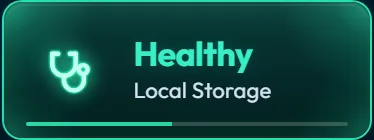
The filled part of that bar is the real figure, with no minimum. On a browser that has barely been used it is a sliver at the far left, only a pixel or two wide — easy to read as a stray mark rather than a meter. It isn't one: it means almost nothing is stored yet. The fainter line it sits on is the room still free.
The bar takes the same color as the word above it: green for Healthy, gold for Warning, red for Critical. So the word tells you where you stand and the bar tells you how close you are to the next step — and on a fresh browser, how far you are from needing to think about it at all.
Tools & Utilities
Each remembers when you last used it: once you have, the line under the card's name shows when — Last export, Last import, Last opened — in place of its description.
- Export Kards (Ctrl+E) — save a backup file of your Kards.
- Import Kards (Ctrl+I) — load Kards back in from a backup file.
- View Activity Log (Alt+Y) — see recent app activity. The log floats over your workspace and leaves it usable, and this item always brings it to the front — it never closes a log you already have open. Close it from the log's own ✕.
Customize Your Workspace
- All three are selectors right here, and each takes effect the moment you choose. The same three selectors are in Settings — Seasonal theme and Text size under Interface & Accessibility, Kard density under Workspace — and the two places always agree.
- Seasonal theme dresses the Domains list for the season, or follows the calendar on Automatic.
- Kard density tightens or relaxes the Kard grid — Compact, Standard or Expanded.
- Text size — Small, Standard, Large or Extra large — scales the sidebar, the workspace, the footer and Settings; the Hub itself and the floating tool windows keep their own size.
Reset to Defaults
Reset to Defaults sits on its own at the foot of the Hub, apart from the selectors above, because it resets none of them. It unfolds the logo and the Command Center, puts the Hub back at its default size and position, and opens every section again if you had picked one. Your Kards, Domains and settings are not changed. Most of what it restores sits behind the Hub, so the button says Restored for a moment to confirm it ran.
Learn & Connect
- What's New — what changed in this version.
- Documentation (Alt+H) — opens this help.
- Send Feedback — report a bug, share an idea or send praise. Your version and environment are attached automatically, and nothing leaves the page until you choose Copy Report or Email Support.
- About Kashic Kards™ — version, build and ownership.
Sidebar window buttons
Three small four-pane window buttons control space in the sidebar. Hover a button to see whether its next action is to expand or collapse.
- Hero (Masthead) Toggle — at the top-right of the Kashic Horizon™ graphic. Hides or restores the graphic to make more room for the controls below. This choice is remembered on this browser. Right-click the button or the artwork to open the Kashic Hub.
- Command Center Toggle — below Search, at the top-right of the Command Center. Hides or restores the button grid to make more room for Domains. This choice is also remembered on this browser.
- Domains Toggle — beside the Domains heading. Expands every domain when any domain is closed; collapses them all when every domain is open. It changes the subcategory lists, not the visibility of the Domains section. Domains start collapsed on a new visit. See Domains.
The red, white and blue colors cycle clockwise for decoration. They do not indicate loading, errors, severity or status. The four panes keep the same shape in both states.
In Settings → Interface & Accessibility → Reduced motion, turn movement off to keep the colors still and make these expand/collapse actions immediate. Your operating system's reduced-motion preference also stops movement.
The Command Palette's Collapse All Sections command folds the hero and Command Center together; Reset to Defaults in the Hub unfolds them. Hidden Command Center buttons are skipped during keyboard navigation.
Keyboard and screen readers
- Press Tab to reach the window button on the logo. It is the first control in the sidebar. The logo artwork itself is a picture, not a control, so Tab never stops on it.
- Press Enter or Space on the window button to fold the logo away or bring it back.
- Press Shift+F10 (or the Menu key) on the window button to open the Hub. Focus moves into the Hub, onto its first control. Press Esc to close the Hub; focus returns to the window button.
- A screen reader announces the window button as a button, by the action it will take next — Collapse Kashic Horizon™ while the logo is showing — along with its expanded state and the Shift+F10 shortcut for the Hub.
- The small hint that appears beside the window button when you Tab to it is there for sighted keyboard users. A screen reader does not read it a second time, because the button already says the same thing.
What to expect
- Modes flip their switch immediately and the Hub stays open.
- Copy actions show a brief "Copied" confirmation.
- Actions that open another window (Settings, Export, the Integrity Check, and so on) close the Hub so that window is fully usable, and the Hub comes back when you close it. Run Diagnostics runs in place and keeps the Hub open.
- The Hub can be dragged by its title bar and resized from its bottom-right corner. Both last for as long as it stays open — the Hub deliberately opens centered at its natural size every time, so it can never drift off to somewhere you left it days ago.
Tips & tricks
- "Clicking the logo didn't open the Hub." A click on the artwork does nothing, and a click on its window button only collapses/expands the logo. To open the Hub, right-click (mouse), press-and-hold (touch or pen), or use Shift+F10 (keyboard). Holding a mouse button down does not open it — that gesture is for fingers and pens.
- "The Hub didn't close when I clicked away." That's intentional — use Esc or ✕.
- "My counts show — or 'Not yet'." The app is showing you it doesn't have that value yet (for example, no backup has been made). It is not an error.
- "Privacy Mode hid my data." That's the point — toggle it off from the same panel.
Troubleshooting
- The Hub opened off the edge of the screen / on the wrong monitor: it re-centers itself automatically every time it opens; Reset to Defaults also puts it back at its default size.
- An action seems to do nothing: that feature may not be loaded yet in your session. Reload the app and try again. Run Diagnostics in the System Health panel can confirm core systems are healthy.
- You need to send a report to support: use Copy Diagnostic Info, then paste it into your message. Sensitive details (like your account folder name in a local path) are automatically masked.