System & Settings
The Command Palette
One keystroke to anything — search commands, Kards and tools; aliases, pins and saved searches.
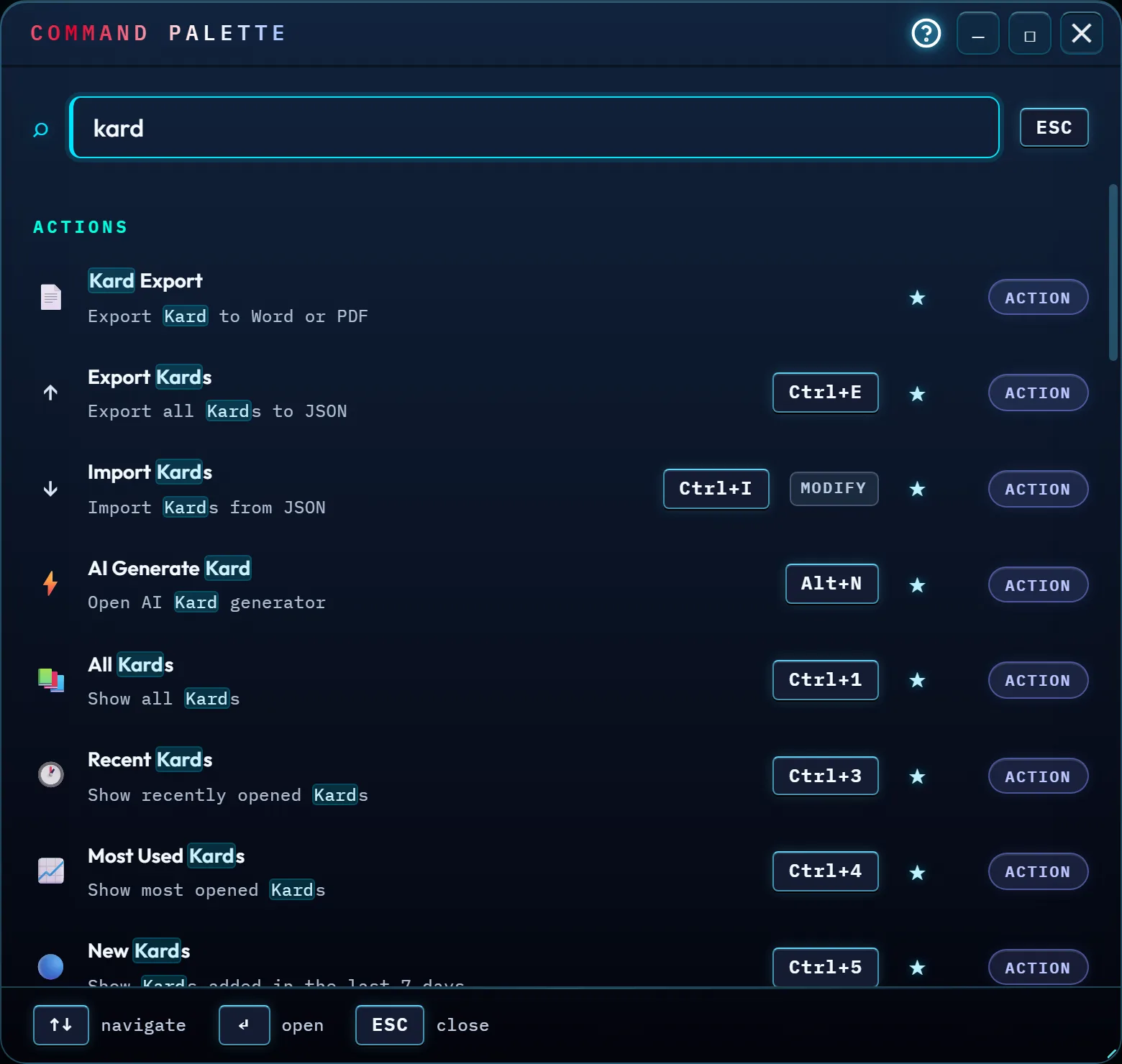
At a glance
The Command Palette is one search box that reaches everything: your Kards, every Command Center action, every Toolbox tool, the Kashic Hub's actions, and your domains. Open it, start typing, and results group themselves into labeled sections — Kards first, then Actions, Workflows, Quality and Fixes — each section ranked on its own, so a Kard that happens to match your text always leads.
The ? in the palette's title bar, left of the window buttons, opens this page.
Nothing runs by accident. Commands marked DESTRUCTIVE, COSTLY or ADMIN always stop for a confirmation before they do anything — a confirmation dialog, or, for Reset Kard Library, the Reset window itself, so it asks once, not twice. Commands marked MODIFY either stop for that same confirmation (Hard Refresh and the Fixes group's clear-and-reset commands do) or open their own dialog or file picker (Import Kards) — nothing changes until you confirm on that screen.
How to…
Open it and search
- Press Ctrl+K, or click Palette in the Command Center.
- Start typing. Results update as you go — a blank box shows Pinned, Recent, your Kard library and the everyday Actions; typing narrows everything to what matches.
- Use ↑/↓ to move, then Enter to run the highlighted result — or just press Enter with nothing highlighted to run the very first one.
Narrow the search with a scope
Type one of these at the very start of your search to search only that one surface — a small chip in the corner confirms which scope is active:
| Type | Searches only |
|---|---|
k (k, then a space) | Kards |
t (t, then a space) | Tools |
> | Actions (plus Workflows, Quality and Fixes) |
# | Domains |
Pin a command and revisit recents
Hover any pinnable result and click the ★ star — or press Shift+Enter on the highlighted result — to pin it. Pinned commands are the first thing you see the next time you open the palette with an empty box. Every command you actually run is also remembered as a Recent, right below Pinned, so the thing you did five minutes ago is one keystroke away again.
Jump straight there with a built-in alias
A handful of short, memorable words jump straight to a specific command no matter what
else matches your search — type gen for the AI Generator, tjb or
tsb for the two boards, grid or list for the library
view, focus, labels, domains, ticket,
export, import, fav or recent. Typed
inside the Actions scope (>tjb, for example), the
matching command always lands first. Honest limit: these are the built-in set —
there's no menu yet for adding a word of your own. If you ever see a Reset Command
Aliases entry in the Fixes group, that's forward-looking: it clears any custom
aliases without touching the built-in ones, ready for whenever that control arrives.
Save a search
Type a search that actually matches something (two characters or more) and a Save This Search result appears. Click it and that exact text is saved — it shows up again, ranked with your other results, any time you type a search close to it, and the full list lives under Saved Searches on an empty box too.
Recognize a destructive command
A command that can change or remove data carries a colored badge next to it — DESTRUCTIVE in red for anything that can't be undone, MODIFY for a smaller, recoverable change. Selecting or highlighting one never runs it. Reset Kard Library, for example, always shows its DESTRUCTIVE badge the moment it matches your search — running it (Enter, or a click) opens the Reset Kard Library window, which lists exactly what it removes and keeps, and stays locked until you type RESET (see Reset your Kard library). Every other destructive command opens a confirmation dialog first, where Cancel is always the safe default — it is the button focus lands on, so pressing Enter a second time out of habit cancels instead of running the command.
Get help from the palette
Every help topic doubles as a command here — look for the 📖 icon. Type help:
plus the topic you want — like help: settings or help: tjb — and
the matching Help: result rises to the top. Selecting it closes the palette
and opens that help page in a new browser tab.
Tips & tricks
- On a Kard result, Shift+Enter does something different than on a command — it opens that Kard straight into Focus Mode instead of pinning it.
- PageDown / PageUp jump 8 results at a time — faster than arrowing through a long list one row at a time.
- Recent commands and Saved Searches both sit behind Privacy Mode — turn it on and neither shows, so a screen-share or a walk-by can't reveal what you've been searching for.
- Half-way through a search and need to go look at something? Press − (Minimize) in the title bar instead of closing. The palette parks as a chip at the bottom of the screen — labeled with what you'd typed — and the app is fully usable again while it waits. Click the chip, or press Ctrl+K, and you're back exactly where you left off. The chip's × closes it for good.
Troubleshooting
- "Ctrl+K didn't open anything." The palette is deliberately locked out while the AI Kard Generator is open and while the New Ticket form is on screen — finish or close that window first. On a Mac, the Control-K chord inside a text field belongs to the field (it deletes to the end of the line); the Command-K chord opens the palette from anywhere.
- "I can't find where to name my own alias." That control doesn't exist yet — see the alias section above for what's real today.
- "A command has a red DESTRUCTIVE badge — will pressing Enter just do it?" No — anything marked DESTRUCTIVE, COSTLY or ADMIN always stops for a confirmation first: a dialog with Cancel as the default button, or, for Reset Kard Library, the Reset window, which stays locked until you type RESET.
Shortcuts
| Keys | Does |
|---|---|
| Ctrl+K | Open or close the palette; brings back a minimized one (blocked while the AI Generator or the New Ticket form is open) |
| Esc | Close the palette |
| ↑ / ↓ | Move the highlighted result (wraps at the ends) |
| Home / End | Jump to the first / last result |
| PageUp / PageDown | Jump 8 results at a time |
| Enter | Run the highlighted result (or the first, if none is highlighted) |
| Shift+Enter | Pin/unpin a command, or open a Kard result in Focus Mode |