Kards & Library
The AI Kard Generator
Turning a problem description into a finished Kard — the five-step flow.
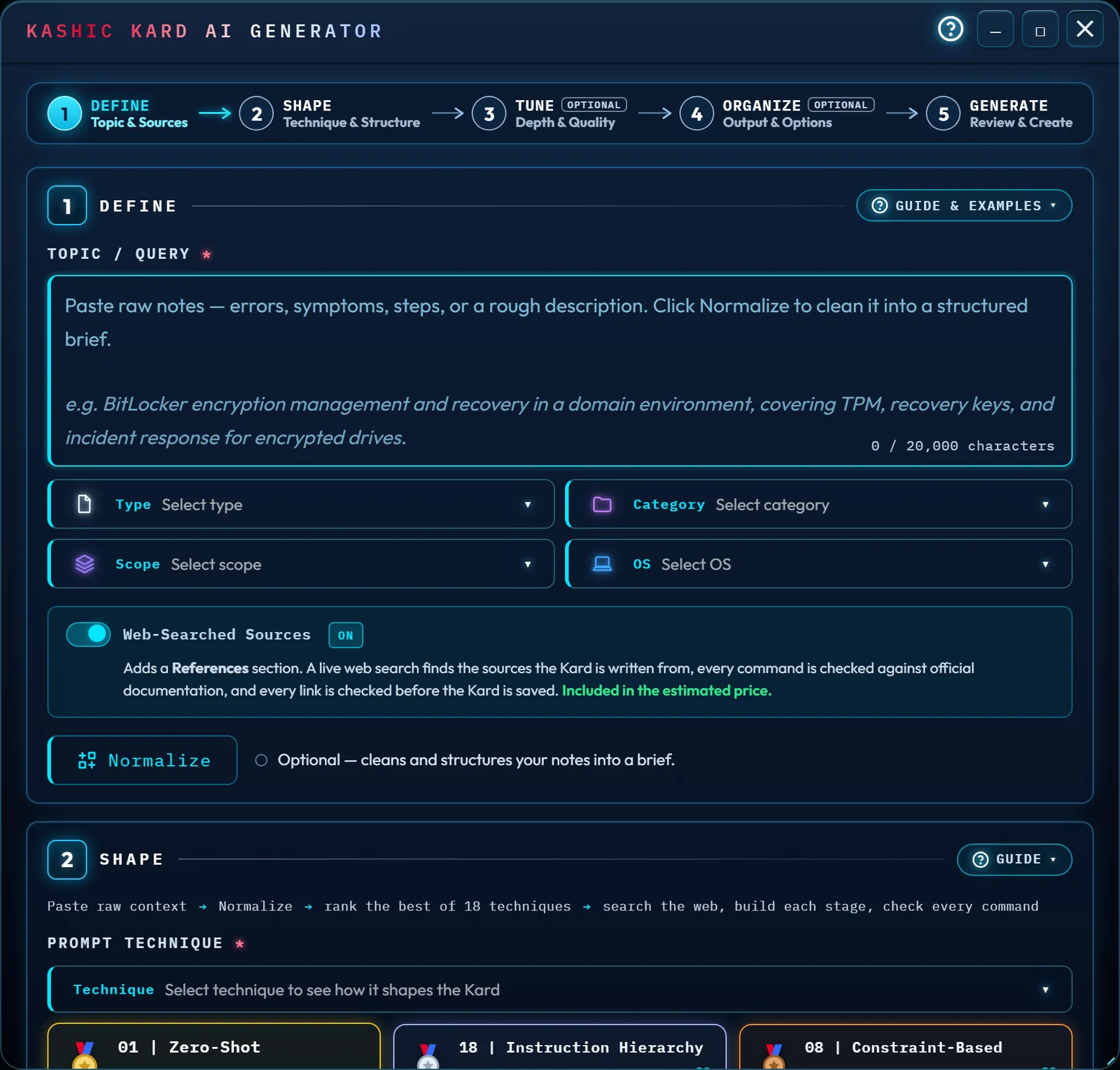
At a glance
Click Add Kard in the Command Center, or press Alt+N, and a panel opens with five steps running top to bottom: Define and Shape are required; Tune and Organize are optional; Generate is last. A numbered circle for each one runs across the top of the panel, joined by arrows, with a line under each name saying what the step covers; Tune and Organize carry an OPTIONAL tag. The current step (the first unsatisfied required step) is lit in cyan, a finished step shows a check after its name, and Generate turns green with an arrow once both required steps are done, so you always know what's left.
The ? in the title bar, left of the window buttons, opens this page. Each of the first four steps has a Guide button (Guide & Examples on Define) that opens a short summary of that step in place, with a link to its section here.

While this panel is open, it holds on to the keyboard: none of the app's other shortcuts respond until you close it — see Shortcuts, below.
How to…
1. Define
You never enter an API key. Generation runs on the Kashic Kards service's own connection to the AI provider, so there is nothing to paste, save or clear, and nothing to re-enter after a reload. Settings → AI Preferences sets your default technique and stage count for next time.
What "not ready" looks like: until both required steps are filled, the Generate button at the bottom stays disabled and names the reason, working through them in order: "Enter a topic (Step 1) to generate." first, then "Select a Prompt Technique (Step 2) to generate." The step map agrees with that hint at every point — the pill it rings as the current step is always the one the message is asking you for.
Describe the problem in the Topic / Query box — paste raw notes, error text, symptoms, whatever you have; the empty box shows an example of a good topic. A topic can be 20,000 characters long; the counter in the box's lower-right corner shows how much of that it uses, and a longer topic has to be shortened before Normalize or Generate will run. Below that, four dropdowns — Type, Category, Scope, OS — frame the brief; leave any of them unset and the app infers it from your text later. Type matters most: it sets the posture the finished Kard takes — an Incident reads as chain-of-reasoning troubleshooting, a Runbook as a numbered operational sequence, a Policy as constraints-first — rather than locking you into a rigid ticket category. MSP work has postures of its own: Onboarding and Offboarding read as checklists, a Migration as a phased cutover with a rollback path, and a Post-Incident Review as a client-facing report. Scope sets who the Kard is written for: Multiple Clients writes for a response across many client tenants, VIP / Executive for a high-visibility user who needs the fastest safe fix and plain-language updates. Category, Scope and OS are skipped entirely for the two non-IT Types (Business, Education). Web-Searched Sources is on by default. Before anything is written, a live web search finds official documentation and other sources for your topic, and every stage is written from what it found; the References section lists the sources the stages cite. A source counts as official only on the vendor's own documentation, knowledge-base or security-advisory pages; a forum, a wiki, a shared document or anything else people can publish is labeled Community, even on the vendor's own domain. Once the Kard is written, every command and setting it shows, and every portal path its text walks you through, is checked against official documentation: a wrong one is corrected and cited, and a command that could not be confirmed is listed under Requires Validation right after the code block or paragraph that holds it, so you know to test it first. A command that an official page already quoted word for word in the research counts as confirmed. The check runs as two checks at the same time and their answers are combined: a command either one confirms counts as confirmed, a problem either one finds is shown, and a command the two disagree on is listed under Requires Validation rather than changed. The check also reads each stage the way a technician would follow it: a real command used for the wrong job is marked Not right for this step with what it actually does and, when an official page documents one, what to use instead; a stage whose commands cannot show what it says they show is marked Not proven by this stage with a check that does; and a statement the documentation contradicts gets a Correction note. A statement the Kard already cites to an official page gets a Correction only when both checks raised it; when only one did, two official pages disagree, and the statement is left as written with no note. A command an official page shows is wrong as written, with no drop-in replacement, keeps its text, carries the Corrected mark, and its Correction note beside it says why. The check also reads the Kard against three writing rules and notes each miss in the stage concerned: Not set up by an earlier stage names a state a stage relies on that no earlier stage established, with the command that establishes it when a page documents one; No compensating control names a security exception (an MFA or Conditional Access exclusion, a bypass) that no stage pairs with a compliant-device, trusted-location, app-scope or sign-in-frequency control; Credential handling missing names a shared credential the Kard hands out without saying where it is kept, who holds it, when it rotates and that the ticket records it. These two last notes state the Kard's own writing rules and cite no page. The check also reads the finished Kard for its risk and its lessons: a Kard that calls itself Read-only while a stage changes something takes the check's level and reason instead, and a Kard written stage by stage takes the check's risk and, when it wrote at least three, its Key Takeaways, since the outline wrote those before any stage existed. A Kard with no command at all is still read: its stages, prose, writing rules, risk and lessons get the same treatment, and its badge simply shows no command count; when that reading could not run, the badge reads Not checked. A note about one command sits right after that command; a note about the whole stage sits above the stage's Handoff box. Each note, and each command it suggests, cites its official page, and one whose page did not resolve when the links were checked is left off the Kard; a correction whose page did not resolve is undone, the command put back as written and listed under Requires Validation, and a command marked Not right for this step on such a page is listed under Requires Validation instead. None of the notes rewrites a step for you. The check catches many errors, but not every one: a command it confirmed was found in official documentation, which is not a guarantee it is right for your system. Test before relying on it. A note is the check's reading of official documentation and can itself be mistaken; open its cited page before you act on it. The Kard's first badge says how many commands were confirmed and how many sources it cites, for example 17 of 19 commands confirmed · 6 sources cited. Every command the check read carries a small mark of its result — ✓ Confirmed, ✎ Corrected, ! Not right for this step, ? Not confirmed — beside a command in the text, or in the margin of its line in a code block; the mark is never copied with the command. The Evidence Map in the Kard's Intelligence panel repeats the badge and counts each mark, for example 15 confirmed as written · 2 corrected · 1 not right for this step · 1 not confirmed. If the check cannot run, the Kard and the success banner say Commands not checked instead, and a warning box on the Kard reads "The check against official documentation did not complete for this Kard. Confirm each command before you run it." Every link is checked before the Kard is saved and any that does not resolve — a page that is gone, refused or unreachable — is removed instead of shipped; a page whose site answers with a server error is kept, because the page is there and the site is misbehaving. If the link checker cannot be reached, the Kard says its links are unconfirmed. This works the same for every technique; Step 2's pipeline line says whether the stages are built one by one or written in one pass. A Kard whose run searched the web and had its links checked carries the verified-sources shield. Leaving the option on is priced higher, and that is already reflected in the estimated price shown in Step 5, as a range, because how much the search and the check read varies from topic to topic. Switch it off and the Kard is written with no search, no References section and no command check, and the pipeline line says so.
Click Normalize and the app rewrites your raw notes into a clean, structured seven-part brief — Problem, Environment, Scope, Evidence, Constraints, Unknowns, Artifact Type — shown back to you as read-only cards. The line beside the button says where things stand: optional (not run yet, or the topic changed since), normalizing, normalized, or that it did not finish and your notes are unchanged. The topic box is read-only until it finishes, so nothing you type meanwhile is overwritten. Any Type, Category, Scope or OS it infers is only a suggestion: change it and the brief stays. Editing the topic itself is what retires the brief. Normalize only cleans and structures what you typed; it does not pick a technique. That happens next, informed by what Normalize just built.
2. Shape
This is where you pick the Prompt Technique — one of 18 (Zero-Shot, Chain-of-Thought, Few-Shot, Socratic, Critique, and so on), each shaping the Kard's structure and voice differently. A ranked "podium" of three chips sits under the dropdown — gold, silver, bronze — each carrying a Fit score from 0 to 100 and, next to the gold pick, a plain-English reason ("Recommended: Chain-of-Thought — you mentioned troubleshoot/diagnose/debug, a multi-system topic"). Click a chip to accept it instantly, or open the full dropdown to browse all 18, each with a one-line description under its name. On a completely empty form the podium starts out ranked by efficiency rather than fit — it says so — and sharpens toward a real fit ranking the moment you add a topic or normalize it. When the top picks share a Fit score, the line says they are tied and that the less costly technique comes first; choosing a Type usually separates them. When a change to the topic or the brief moves gold to a different technique, your selection moves with it, and a line under the podium names the new pick. A skeleton preview below shows how the technique you've picked will shape each stage.
3. Tune (optional)
Content Stages is a slider from 3 to 15. Auto (the default) hands that decision to the AI, across the same full range: it reads the topic and picks anywhere from 3 to 15. It is asked to keep a narrow, single-subsystem question to three or four stages and to give something spanning several subsystems, with branching failure modes, or covering more than one platform ten or more — but it plans each Kard itself, so the count it picks can land in between. Padding a simple topic out to look thorough is treated as a fault, not a feature — so a small number is Auto working, not Auto giving up.
Every Kard teaches the reasoning behind its steps, not only the steps. Its first stage, How It Works, lays out the system the Kard works on: the parts involved, the path through them, and which part can cause each symptom. It is one of the stages you choose, so a 10-stage Kard is How It Works plus nine steps. Every other stage opens with Why This Works, the mechanism behind its step and what the step proves or rules out, and closes with Reading the Result, a table of what you might see, what it means and where to go next. A troubleshooting Kard establishes what happened from the service's own records (for a missing email: when it arrived, who sent it, which folder it is in, and what moved it) before it asks you to change anything.
Because Auto genuinely does not know the size until it has planned the Kard, Step 5 shows a range rather than one figure — for example 3–15 stages · ~$0.07–$0.28. Pin the slider to a number and the stage count becomes that one number; with Web-Searched Sources on the price stays a range, because the web search and the command check read more for some topics than others. Model Tier offers Sonnet 5 (standard — fast, the recommended default) or Opus 5 (deep — slower, more careful); both run the same prompt pipeline. Auto plus Sonnet is a reasonable default for most Kards — reach for Tune when you specifically want a fixed size, or extra depth.
4. Organize (optional)
Collapsed by default — click its header to open it. Choose a Domain (defaults to auto-detecting one from your topic, or create a new one on the spot), a Subcategory once a Domain is picked, an icon override, extra tags, and an Auto-create Ticket toggle that drops a new ticket into the Ticket Board's In Progress column, linked back to the Kard. Leaving this step alone is fine — auto-detect does a reasonable job from your brief. A topic that is not IT work is filed under Other. When a Kard is filed under one of the built-in domains your library no longer has, that domain is added back, so the Kard shows in the sidebar; if you renamed that built-in domain, the Kard is filed under its new name instead. A domain you create on the spot follows the Domain Manager's naming rules, and a name that matches a domain you already have (ignoring capitals and accents) files the Kard under that domain rather than adding a second one.
5. Generate
Preview Prompt shows every prompt the run sends, in the order it sends them, each as its system prompt and its user message: Outline for a technique that builds the Kard stage by stage, Research with Web-Searched Sources on, Writing, and Verification with Web-Searched Sources on, which is sent as two checks at the same time and says so. What only the run can supply, such as the evidence the research finds or the commands the finished Kard shows, is named in brackets where it goes. For a technique that builds the Kard stage by stage, the Writing prompt is shown for the first stage; every stage is sent the same prompt with its own number, title, description and evidence. It is worth a look before committing. In the Generate header, beside the estimated price, a Fit chip recaps Step 2's score for the technique you picked: how well that technique matches what you have told the form, from 0 to 100. Every technique starts near 30; the Type moves the score most, then the Scope and the words in your topic or normalized brief. After the number the chip says Recommended when your pick is the current gold medal, or Your pick when you chose another technique. A low number beside Recommended means the field is still close to even — gold won a near-tie — and setting a Type usually separates it. The chip turns teal at 67 and above and blue from 40, and stays neutral below that. It is guidance only: it changes neither the price nor the Kard. The estimated price and stage count update live as you change the form. On Auto both are shown as a range, because the AI has not planned the Kard yet and the app will not invent a number it cannot stand behind. With Web-Searched Sources on, the price is a range for a pinned stage count as well: the web search and the command check read more for some topics than others. The price is calculated by the server, so the figures Step 5 shows come from the same place the confirmation uses, and the confirmation shows the same estimate — a range whenever Step 5 shows one. Either way, you are charged the exact price of what runs, and when a Kard finishes on your account its completion banner shows that charge, for example Charged $1.71, once every call of the run has been measured; the Event Console records it beside the quote. Normalize is priced as its own small run and is not part of that figure. The estimate follows the technique as well: the sequential techniques write the whole Kard in a single pass, which is priced differently from the stage-by-stage pipeline the other techniques run. A pricier-than-usual run is flagged in words next to the figure, not by color alone: HIGHER for a run priced above a typical one, and CONFIRM for one large enough that the app will stop and ask first. Click Generate Kard and, above roughly 75¢, the app asks you to confirm the price first; canceling that dialog puts your cursor back on the Generate button so you can carry on from the keyboard. If pricing cannot be reached, the readout says unavailable rather than showing a misleading $0.00, and the app asks you to confirm before running a generation it could not price.
The i beside the estimate explains it in a sentence. Under the buttons, Ready to Generate lists what Generate is waiting on: the topic and the technique, which are required, and Normalize and Web-Searched Sources, which are optional. It reads the same state as the step pills and the line under the button, so the three always agree, and it repeats the same estimated price.
While it runs, a live stage rail — one chip per expected stage — lights up alongside a status line narrating what's happening. Stop genuinely cancels: it aborts the in-flight request rather than just hiding the progress bar, so nothing more is sent and nothing is saved from a canceled run. What was already generated before the stop has still been charged, the same as any stopped generation — Stop ends the run; it doesn't refund what already ran.
When it finishes, a success banner appears. With Web-Searched Sources on, it carries the same result as the Kard's first badge, for example 17 of 19 commands confirmed · 6 sources cited, or Commands not checked when the check could not run. The AI's own rating of what it wrote is never shown, and a Kard with no command check (Sources off, or no commands to check) shows no result. Alongside it are three buttons: Open Kard, Regenerate (rerun with the exact same inputs), and Edit & Regenerate (back to the form to change something first). The banner stays until you choose one of them or close the panel; nothing opens by itself. Open Kard closes the panel and opens your new Kard — see Reading a Kard for what happens from there. After a finished run, Esc closes the panel without asking, because the Kard is already saved. ⌫ Clear empties the form without closing the panel, and it asks before it does — a normalized brief takes a real call to produce, so it is not discarded on one stray click. It is deliberately styled apart from Cancel beside it (its own rose rim and a ⌫ mark) so the button that destroys your work never looks like the one that just closes the panel. Cancel and the ✕ close it outright, no questions asked, even with a half-typed brief — only Esc checks first (see Shortcuts).
If a generation is interrupted
A Kard is only written once every stage is finished, so closing the tab — or losing the network, or a browser crash — part way through used to lose everything the run had produced so far, even though those stages had already been generated and charged.
They are now kept. Each stage is stored on this device the moment it lands, and the next time you open the Generator a cyan strip appears at the top of the panel headed Unfinished Kard. It names the topic and says how much is already done — for example, 4 of 6 stages already generated and paid for. Finishing it generates the remaining 2 stages.
- Finish it picks the run up where it stopped. The stages already on the device are reused rather than generated again, so you are only quoted and charged for the ones still missing. The price confirmation, if one appears, is for that remainder — not for the whole Kard.
- Discard throws the run away. It asks first, and says how many stages you are discarding, because generating the same topic again buys that work a second time.
Three things are worth knowing about what is and isn't kept:
- Stopping is not the same as being interrupted. Clicking Stop on a run you just started discards it — you asked for it to end, so it is not offered back to you afterwards. Stopping a run you are finishing is different: the stages the earlier session had already paid for stay, and the strip offers them again. Stop ends the attempt; it never throws away work you have already been shown and chosen to keep. Only Discard does that, and it asks first.
- A failed run is kept. If generation fails part way, the stages that did land are held for you and the strip offers them the next time you open the panel.
- It lives on this device only. An unfinished run is not part of your account: it does not follow you to another browser or machine, it is cleared when you reset your Kard library, and it is cleared if a different account signs in here. It is also kept for seven days, then discarded.
Only the fast pipeline can be resumed. Techniques that generate the whole Kard in one pass have no stage boundary to pick up from, so an interrupted run using one of those starts over.
Tips & tricks
- The step map at the top is a live progress read-out, not decoration — glance at it any time to see exactly what's still needed before Generate lights up.
- Preview Prompt is the fastest way to see what the AI is actually about to receive, before you spend anything real generating it.
- "The result isn't what I meant" often isn't a technique problem — Type, back in Define, sets the Kard's posture. Try a different Type, or refine the brief and normalize again, before reaching for a different technique.
- The Shape podium re-ranks live — typing more into the brief, or normalizing it, can reshuffle which technique wins gold.
Troubleshooting
- "Generate won't light up." Read the one-line reason printed directly under the button — it names exactly what's missing: a topic, a shorter topic (over 20,000 characters), or a picked technique.
- "I clicked Generate and it just failed." The progress bar turns red and the status line says which side failed and what to do — the Kashic API restarting or unable to reach the provider, the provider rate-limiting or overloaded, or an expired sign-in — and Generate becomes Retry Generation so you can try again without reopening the panel. A failure that a retry cannot fix (a declined topic, an expired sign-in) is reported once; the app never re-sends it for you.
- "It says I have reached my limit for the hour." There is a limit on how many Kards one person, and one team, can generate in a rolling hour. It is a backstop against a runaway script, not a quota you are meant to meet — a Kard takes one to three minutes, so the limit sits far above what anyone can produce by hand. It counts Kards, not the individual AI calls a Kard is built from, so a Kard that needed repairs counts as exactly one, and resuming an interrupted Kard does not count as another. The allowance frees up as your earlier Kards age out of the hour. If the message says the generation made an unusual number of requests, that one run has been stopped: start a new generation rather than retrying it.
- "It says the Kard has not reached my account yet." The Kard was generated, but your account could not be reached when it was saved. It is kept here and sent again automatically, and a message says when it is saved. If the page is reloaded first, open the Generator: the Unfinished Kard strip offers Finish it, which saves it without generating anything again. A Kard from a technique that writes the whole Kard in one pass has no such copy, so keep the page open until it says the Kard was saved.
- "It says my sign-in has expired." The account strip in the sidebar now shows Sign In again even though your name is still there. Sign in, then retry — nothing you entered is lost.
- "Some stages say 'Stage Requires Review'." Those stages failed even after a repair attempt; the Kard is saved with the rest, and the finished run lists the affected stages under Stages flagged for review, so you can regenerate it. If no stage could be generated, nothing is saved and the status line names the reason.
- "It says Commands not checked." The check against official documentation did not complete, so nothing on this Kard was confirmed and no command is marked Requires Validation. The Kard is saved as written, with a warning box under its badges. Treat every command as unconfirmed and test it before you run it, or regenerate the Kard to run the check again.
- "It says the AI provider declined this request." The provider's usage policy refused the topic itself, so the same wording sent again is declined again — nothing is retried automatically. Rephrase the topic, or narrow it to the specific task you need documented, and generate again.
- "It says the provider paused a long web-search turn." With web search on, the model can run so many searches that the provider pauses the turn before the Kard is written. Turn web search off for that attempt, or narrow the topic, and generate again.
- "It's taking forever." Click Stop — it cancels cleanly at any point, mid-stage or not. Nothing more is sent and nothing is saved from a canceled run, though what was generated before the stop has still been charged.
- "I closed the panel and lost my draft." Clicking ✕ or Cancel closes immediately no matter what you've typed. Press Esc instead next time — with unsaved text in the topic box, it asks "Discard this draft?" first.
- "My tab closed part way through a generation." Reopen the Generator. A strip headed Unfinished Kard appears at the top of the panel with the stages that had already been generated — click Finish it and only the missing stages are generated. See If a generation is interrupted.
- "The unfinished Kard strip isn't there." It only appears when finishing the run would actually save you something — so not for a run that stopped before its first stage landed, not for one you stopped yourself, and not for one older than seven days. It is also per-device: a run started in another browser or on another machine is not offered here.
- "The result isn't what I meant." See Reading a Kard for how to read what you got, then use Edit & Regenerate to adjust the brief or Type and try again.
Shortcuts
| Keys | Does |
|---|---|
| Alt+N | Open the AI Generator |
| Esc | Close the panel — asks first ("Discard this draft?") if you've typed a topic |
While the panel is open, it's the only thing listening: none of the app's other shortcuts (Alt+G for Grid View, Ctrl+1 for All Kards, and so on) respond until you close it.