Boards & Time
TJB — The Ticket Board
Capturing and working tickets — severity view, schedule view, and the mini New Ticket.
At a glance
TJB is where you capture live work fast and keep it moving. It is deliberately a mini-ticket, not a full PSA: the New Ticket form itself says it plainly — "Log a ticket to your board to track work." There's no SLA clock, no billing or rate fields, no queues, and no approval chain. If you need those, TJB isn't trying to replace your PSA; it's for the ticket you need to log right now without leaving the app.
Every ticket you create is saved to your account, so it is there on any computer you sign in from. TJB and its sibling board, TSB — the schedule board, share one panel above the Kard library (the "boards band"): TJB's Severity view is what you land on by default, and Schedule is TSB's view of the same tickets laid out across your week. See TSB for owning your time; this page is about capturing and working the tickets themselves.
How to…
Read the severity board
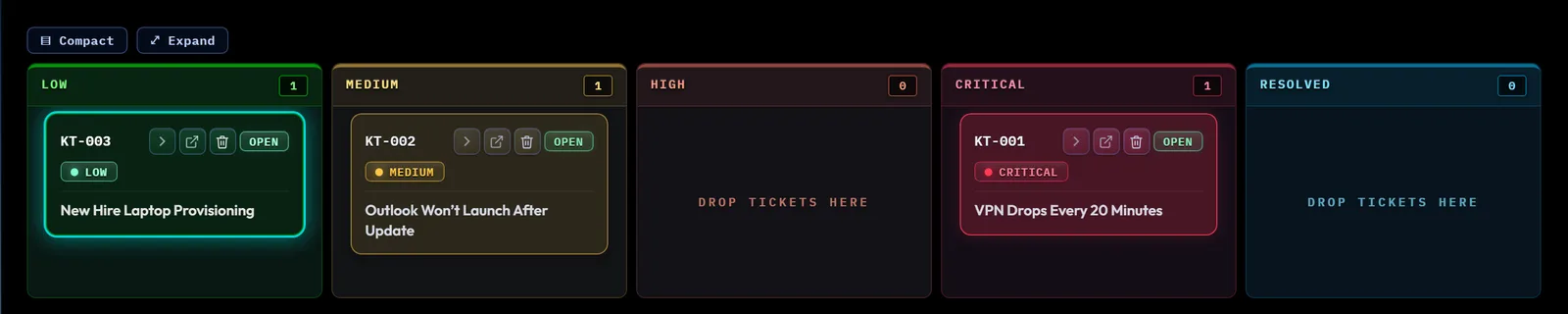
Press Alt+V, or click TJB in the Command Center, to land here (if the boards band is hidden, this opens it). Tickets sit in one of five lanes — Low, Medium, High, Critical, and Resolved — each with a live count. A card starts collapsed, showing its id, an OPEN/CLOSED badge, its severity badge, its three actions, its title on up to two lines (hover it for the whole title), and — when they apply — a small ⬡ KARD flag (the ticket is linked to a Kard: made from one by the Generator or in the Kard editor, or resolved with one — the expanded card names which, as "Generated from Kashic Kard:", "Created from Kashic Kard:" or "Resolved with Kashic Kard:") or a 📎 attachment flag. When the linked Kard is in your library, the flag is a button that opens it. Click the chevron to expand it and see everything: the schedule status and session controls, a "Next:" hint, the title and client, description, contact info, tags, any reference link, and two rows of metadata (category, age, status, due date, owner, source, last activity, note count, blocked reason, confidence, and a "needs attention" flag if you've set one). Each card remembers whether you left it expanded. Due shows only a real due date; an older or imported ticket that carries a written target instead ("Friday") reads "No due date" with that target on a Target: line beneath it, because the Schedule Board plans and ranks by dates only.
An empty board shows one panel under the lane headers, so the five lanes and their zero counts stay in view around it. It reads Your board is clear, lists the three steps a ticket takes — Log (its severity picks the starting lane), Move (drag the card, or focus it and press Ctrl+→) and Resolve (say whether a Kard helped) — and offers + NEW TICKET (Alt+T). The panel fits the height you have given the board: a low board shows the title and button on one row, a lower one the button alone, and a board too low for even that shows just the lane headers — New Ticket is still in the Command Center. Signed out, the panel offers SIGN IN instead (see Where your tickets live).
Each lane header shows its count, and — when it applies — what that count is made of (2 blocked · 1 flagged). Nothing is shown when neither applies; the number stands on its own. In a narrow lane that line is shortened to fit — hover it for the whole line.
On a narrower window the lanes keep a readable width and the board scrolls sideways instead of squeezing them — use the scrollbar under the lanes, a trackpad, Shift and the mouse wheel, or a swipe. On a phone each lane fills most of the screen. Tabbing to a card, or moving one with Ctrl+→, brings its lane into view.
Two controls sit above the lanes. ▤ Compact tightens every card — a collapsed card keeps one title line with less room around it, and an expanded card hides its lower-detail rows — so a full lane fits without scrolling (your data is untouched — one click brings it back, and the app remembers your choice). ⤢ Expand gives the board more of the screen by collapsing the Kard grid below it; while expanded it reads ⤡ Restore — click it to bring the Kard grid back.
Moving several tickets at once: Ctrl-click (or press Space on a focused card) to select cards — a bar appears showing how many are selected, with ◀ Lane / Lane ▶ to move them all one lane and Clear to deselect. Bulk moves stop at Critical: resolving is a one-ticket-at-a-time decision because each one asks about linking a Kard.
Drag a card to a different lane to change its severity, or focus a card and press Ctrl+←/→ to move it one lane at a time without a mouse — including all the way into Resolved. Moving a card into Resolved, by drag or by keyboard, asks the Kard question, as every way of resolving a ticket does — see below.
Use a card's action menu
Right-click a card — or focus it and press Shift+F10 or the Menu key — for its action menu. Everything in it is also somewhere else on the card or in its detail panel; the menu just puts it one step away:
- Open details — the ticket's detail panel.
- Severity ▸ — move it straight to Low, Medium, High or Critical.
- Status ▸ — To Do, In Progress, Scheduled, Waiting Client or Waiting Vendor.
- Resolve (or Reopen on a resolved ticket) — resolving asks the Kard question, as every way of resolving does (see below).
- Block / Unblock — marks the ticket blocked with the reason "Blocked" (type a real reason in its detail panel), or clears it.
- Needs attention — the flag, on or off.
- Session timer ▸ — Start / Pause and Reset.
- Delete — asks you to confirm first; there is no undo.
In the menu, ↑ / ↓ move between items, Enter or → opens a submenu, ← goes back, a letter jumps to the next item starting with it, and Esc closes it and returns you to the card.
Where your tickets live
Your tickets are stored in your account, the same way your Kards are. Your computer keeps a copy so the board paints instantly, but the account is the one that counts. Three things follow, and all three are worth knowing.
The board is empty until you sign in. Your tickets belong to your account, so they are not shown to a signed-out browser — the same way your Kards are not. Nothing has been deleted: sign in and the board comes back exactly as you left it. While signed out you cannot add a ticket either, because there is no account to add it to — so the empty board reads Sign in to see your tickets and offers SIGN IN in place of New Ticket. New Ticket says so instead of opening: "Sign in to add a ticket — your tickets live in your account."
Just after a refresh, while your board is still on its way from your account, the panel reads Loading your tickets… instead of either message above, and offers nothing until the board is known. It is usually gone in a moment.
They follow you between computers. Create a ticket at the office and it is on the board when you sign in at home. If a browser is cleared, or you switch to a new machine, signing in fetches the board back from your account.
Nobody else sees them. Your tickets are kept in your account's own space and are invisible to every other account. If a different account signs in on this computer, the local copy is cleared so that one person cannot see another's work. Tickets already in your account are untouched and are still there when you sign back in. A ticket that never reached your account — made while offline and not yet saved to it — is cleared with the local copy rather than handed to the other account, so let the board finish saving before someone else signs in here.
Log a new ticket
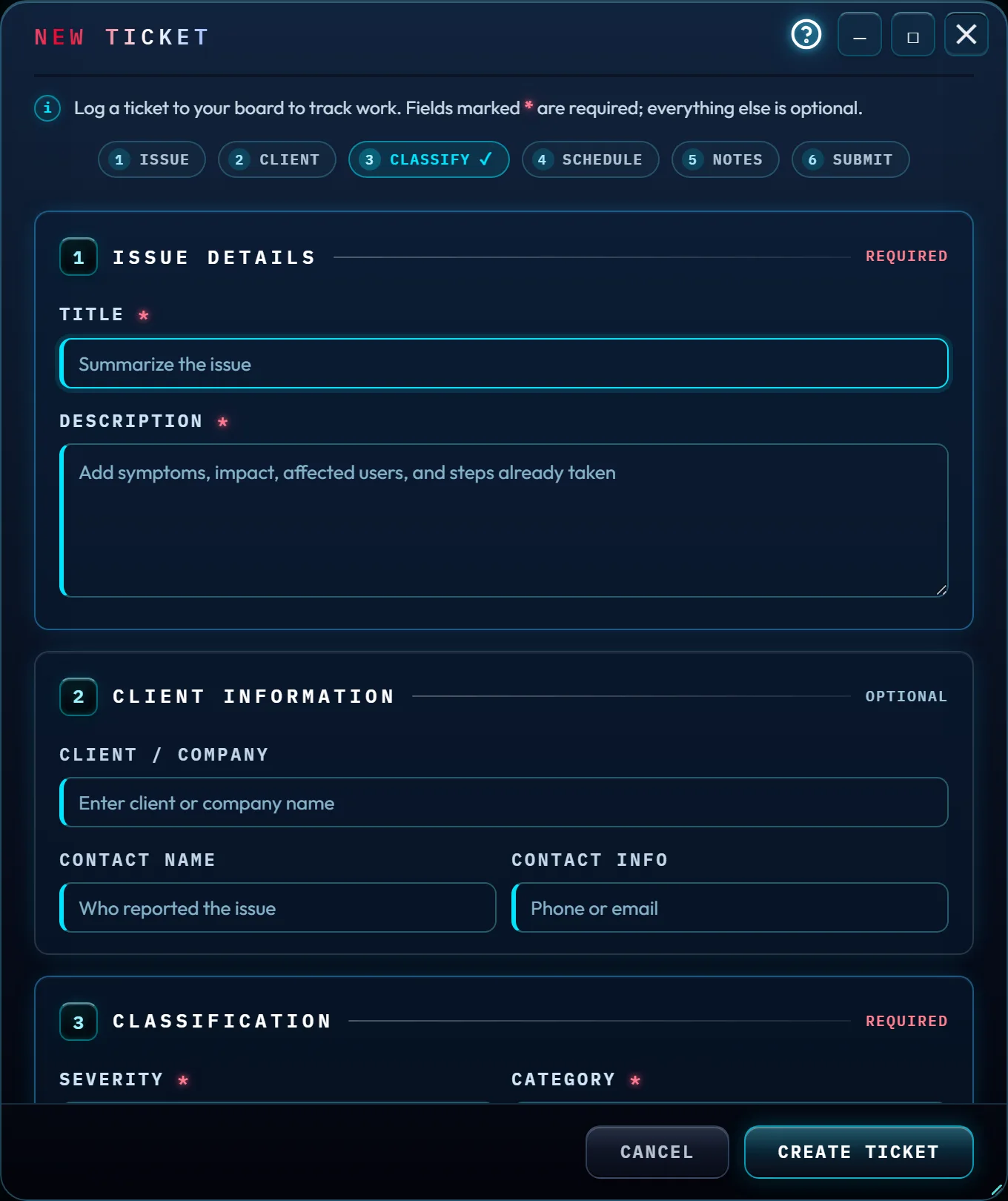
Press Alt+T, or click New Ticket, to open the form. It's organized into six sections with a step-map across the top that fills in as you go:
- 1. Issue (required) — Title and Description. This is the one section you actually have to fill in yourself.
- 2. Client (optional) — Client/Company, Contact Name, Contact Info.
- 3. Classify (required) — Severity (Critical / High / Medium / Low), Category (Hardware / Network / Security / Software), Status (To Do / In Progress / Scheduled / Waiting on Client / Waiting on Vendor), and an optional Assigned To (blank shows as Unassigned). Severity, Category and Status all start on sensible defaults, so this step is usually already checked off before you've typed anything.
- 4. Schedule (optional) — a Due Date, plus a Work Day and Time if you want it to show up on the schedule board right away.
- 5. Notes (optional) — Tags, a Reference Link, and internal Notes.
Type a tag and press Enter (or a comma) to turn it into a removable pill;
pasting
vpn, urgent, m365and pressing Enter adds all three at once. Backspace on the empty field removes the last one. You get eight tags, and repeats are ignored — either way the form tells you rather than quietly dropping what you typed. The Reference Link takes a web address, an email address, or a file path: bare domains likeexample.com/pagebecomehttps://…automatically, and file paths — a share (\\fileserver\screenshots\err.png), a drive path, or afile://URL — are stored exactly as you type them. Web and email addresses become clickable on the ticket; file paths show as text you can copy, because a browser can't open them from a web page. Anything else is turned away with a note rather than saved as something the card could never use. - 6. Submit — Create Ticket. Nothing is created until you submit.
The ? in the form's title bar, left of the window buttons, opens this section.
Cancel, Esc, the window's ✕, closing it from the dock, and opening another ticket for editing all clear the form — but if you've typed anything, each one asks first, because there's no getting a discarded draft back. Refreshing or closing the tab gets you the browser's own "leave site?" warning for the same reason. Minimize (the ─ button) is the option that keeps everything: it parks the whole form in the dock with your work still in it, so you can go look something up and come back.
Inside the form, Esc closes an open dropdown first and leaves the rest of the form alone; press it again to close the form itself.
While the form is on screen, the app's other keyboard shortcuts are paused, so a keystroke can't open something behind it. The one exception is Alt+R (Refresh), which asks before it discards your draft. Minimize the form (─) to use the others; Alt+T brings it back with your draft.
The ticket is given a sequential id (KT-001, KT-002, …) and
saved to your account. The number is issued by the server, so two computers can never end
up with two different tickets both called KT-003. Editing an existing ticket
reopens this exact same form, prefilled, with the button relabeled
Save Changes.
If the save can't be written — the usual reason is that your browser's storage is full — the form says so in red next to the button, keeps everything you entered, and creates nothing. Free up some space and press Create Ticket again.
If your account can't be reached when you create the ticket, it is still created on this computer, and the board tells you it will retry. It is sent with your next change and the next time the app loads, and stays on this computer's board until it arrives.
Work a ticket
Click the open-detail icon on a card to see its full write-up in one panel: Issue (description, contact, tags, link), Details (priority, category, status, owner, dates, source, confidence), and Notes & Status. That last section is where you actively work the ticket:
- Blocked reason — type why (or leave it blank if it isn't).
- Needs attention — a checkbox flag that shows up on the card.
- Technician Notes and Resolution — free-text areas.
All four save themselves — the three text fields about half a second after you stop typing, the checkbox the moment you tick it — to this computer and to your account, like the rest of the ticket. Notes and Resolution confirm it with a small "✓ Notes saved" or "✓ Resolution saved". If a save can't be written, that line says so instead — "⚠ Notes not saved — storage is full", or "— sign in first" when you are signed out — and stays on screen until a save lands; the blocked reason and the checkbox say it in a toast ("Blocked reason not saved — storage is full."). Closing the panel any way (a Close button or Esc) immediately saves whatever you were still mid-typing, so you can't lose the last few words by closing quickly. Edit reopens the full New Ticket form on this ticket; Mark Resolved (or Reopen, once it's resolved) flips its stage; resolving asks the Kard question here too.
Answer "Did a Kashic Kard help resolve this?"
However a ticket is resolved — dragged into the Resolved lane, moved there with Ctrl+→, Resolve in its action menu, Mark Resolved in its detail panel, or Mark complete on the schedule board — a small dialog asks exactly that, naming the ticket by title. Answering is optional: the ticket is resolved either way. Your options:
- Yes — Link a Kard — reveals a search box over your own library. Type two letters and the best matching Kards appear; pick one with the mouse or with ↑ / ↓ and Enter. The ticket then carries a real link: its ⬡ KARD flag becomes a button that opens that Kard. If nothing matches, you can still confirm what you typed — it's kept as a plain label (the flag stays, but it isn't clickable, because there's nothing to open), and the app tells you which of the two happened. Confirming with the field empty won't quietly do nothing: it tells you to enter a name or choose No / Skip.
- No / Skip — both simply close the dialog without linking anything. There's no functional difference between them.
Resolving also ends the ticket's session, running or paused, and logs its time, as ending the session yourself does (a session under a minute is too short to log).
Hide or show the whole board
Press Alt+J, or click TJB / TSB in the Command Center — both collapse and expand the same shared band (TJB and TSB together, whichever view is active). See the tip below for resizing it instead of hiding it.
Tips & tricks
- Drag the thin handle at the bottom edge of the board to resize how much of the screen it takes up — the app remembers your height. From the keyboard, Tab to the handle and press ↑ / ↓ (Page Up / Page Down for bigger steps, Home / End for the smallest and largest). Double-clicking that same handle, or pressing Enter on it, collapses or expands the board, the same as Alt+J.
- A ticket you log with no Work Day or Time is still fully valid — it just won't appear on the schedule board's day grid until you give it one, from either the New Ticket form or the 📅 / time dropdowns right on its card.
- Delete a ticket with the trash icon on its card, or Delete in its action menu. It's permanent and asks you to confirm first — there's no undo. (The ✕ elsewhere on the board — on the detail panel, the New Ticket form and the Kard question — only closes.)
Troubleshooting
- "Create Ticket says my storage is full." Your computer keeps a copy of the board so it paints instantly, and that copy is written the moment you create or edit a ticket. If that write fails — almost always because the storage is full — nothing is created: the form stays open with everything you typed, says so in red beside the button, and no card appears. Clear out some space (old Kards and attachments are the usual culprits) and press Create Ticket again. The Event Console (Alt+Y) keeps a "ticket board save failed" record either way.
- "A ticket didn't reach my account." If the network drops while you are working, the board keeps everything on this computer and says so in the Event Console (Alt+Y). Nothing is lost — it retries with your next change and the next time the app loads, and your tickets stay on this computer's board until they land.
- "The board says a ticket was not saved to my account." Your account checks every ticket it is sent. If one breaks a rule — a field longer than the account accepts, for example — the board names the field: "Ticket KT-005 was not saved to your account — your account does not accept its Notes as it is. Change it and the ticket is sent again." The ticket stays on this computer, it isn't sent again until you change that field, and the message isn't repeated meanwhile. The form and the detail panel keep every field within what the account accepts, so this is rare; a ticket saved by an older version of the app can still meet it.
- "One of my tickets has a new number." A ticket made on this computer gets its number from your account when it reaches it. If another computer took that number first — both made a ticket while one of them was offline — yours gets the next one, and the board says so: "Ticket KT-003 is KT-004 on your account." It is the same ticket. A ticket still waiting to reach your account can also move: if your account gives its number to another ticket that got there first, the waiting one takes the next free number, and the board says so: "Ticket KT-005 is now KT-007 — your account gave KT-005 to another ticket."
- "I deleted a ticket while offline — will it come back?" No. The delete is kept on this computer and carried out as soon as your account can be reached; until then the ticket stays off your board, and the Event Console notes that the delete is still waiting to reach your account.
- "My board is empty on a different computer." Check you are signed in to the same account. Tickets follow the account, not the machine, so a signed-in board that looks empty means the account really has none — not that they were left behind somewhere.
- "My newest ticket's id looks out of order." Ids are handed out in order and never reused, even after you delete one — so a gap (KT-003, then KT-005) just means KT-004 was deleted at some point, not that anything is broken.
Shortcuts
| Keys | Does |
|---|---|
| Alt+T | Open New Ticket |
| Alt+V | Severity View |
| Alt+D | Schedule View (TSB) |
| Alt+J | Hide/show the boards band |
| Ctrl+← / → | Move the focused card one lane (Low ↔ Medium ↔ High ↔ Critical ↔ Resolved) |
| Space | Select / deselect the focused card for a bulk move |
| Shift+F10 / Menu | Open the focused card's action menu |
| ↑ / ↓ on the resize handle | Make the board shorter / taller (Home / End: smallest / largest; Enter: hide / show) |