Toolbox
Security & Certificate Tools
SSL Certificate Checker, JWT Decoder, Password Generator and MAC Address Lookup.
At a glance
These four tools live together in the Toolbox, and split into two shapes. JWT Decoder and Password Generator do their whole job locally in your browser and never touch the network — nothing you type or generate ever leaves the page. SSL Certificate Checker and MAC Address Lookup both ask Kashic's server, once you're signed in: SSL Checker for a live TLS handshake with the host, MAC Lookup for the vendor name, sending it only the vendor prefix of the address.
SSL Checker's certificate data and MAC Lookup's vendor name are real, live results, not canned examples — expect different numbers than the ones on this page. JWT Decoder and Password Generator don't look anything up: you control every input, so what comes back depends only on what you typed in or which settings you chose.
How to…
Every tool below opens the same way: press Alt+X, or click Toolbox in the Command Center, then click its tile. See The Toolbox for moving, resizing, and closing the tool window itself — the steps below pick up from there, one tool at a time.
SSL Certificate Checker
What it answers: is the certificate this host is serving valid right now — who issued it, when does it expire, and can it actually be trusted?
How to run it: enter a Domain / Hostname —
a bare name like github.com, or add a port the way the field's own
placeholder shows, example.com:8443, for anything other than 443 —
and click Check Certificate or press Enter. At
kashic.ai you need to be signed in: signed out, the tool says "Sign in to
check a certificate" and offers the Sign in button rather than sending
anything.
Where it checks from: Kashic's server in Azure completes a real TLS handshake with the host and reads the certificate it is serving. The result's banner says so.
Reading the result: the banner reads LIVE TLS HANDSHAKE with the TLS version, then a validity badge (✓ Valid — Nd left, ⚠ Expires in Nd under 30 days, or ✕ Expired Nd ago) beside a Trusted & hostname-valid badge, or a Not trusted badge that names its reason. Below them: Subject, Issuer, Valid From, Expires and Serial; a SAN list headed by the certificate's true SAN count, saying how many are shown if it carries more than the tool returns; and the certificate's SHA-256 fingerprint, which changes with every new certificate. Checked from Kashic's server, the card also shows the Key (such as EC P-256 or RSA 2048) and the Signature algorithm. A field the certificate does not carry reads "Not present in certificate" rather than being filled in from the name you typed.
What "Trusted" actually means: the chain validated, and the hostname matched. The chain is judged against Mozilla's root list (certifi) on Kashic's server — not your browser's store. It does not include a revocation (OCSP/CRL) check, and only the host's own certificate is shown, not the chain above it. The result card says this beneath the badge every time. A verdict of Not trusted always names its reason as the handshake reported it: certificate has expired, self-signed certificate, Hostname mismatch…, or an untrusted-issuer error. When a certificate fails verification, its contents are still shown beside that reason — the two facts sit together and are never merged.
Public hosts only: the check opens a real outbound
connection, so it is restricted to public internet addresses. A name that
resolves to a private, loopback, link-local or otherwise reserved address is
refused — the tool cannot be pointed at an internal network or a cloud metadata
endpoint. Ports other than 443 are fine on a public host
(example.com:8443, imap.example.com:993). The check
needs TLS from the first byte: a port that starts in plain text and upgrades
(STARTTLS, as mail on 587 does) reads as no TLS handshake. Port 25
can't be checked from Kashic's server, because Azure blocks outgoing
connections on it.
Limits and the record: a certificate check connects to a host and port, as Port Reachability does, so it follows the same rules. Signed in, checks are limited per account and per host — and the per-host count is shared with Port Reachability — and past a limit the tool says "Too many certificate checks — try again in 40 seconds." Every check is recorded with your account — the host, the port and the result — and kept for 90 days, so a report about a connection from Kashic's address can be traced.
When a check doesn't finish: each state says why. Live TLS check failed is about the host, in a sentence: it refused the connection on that port, didn't answer in time, didn't complete a TLS handshake, or there was no route to it. Check timed out means no answer came back inside the tool's 25-second budget.
Search CT Logs: a separate question — which certificates have been issued for the name. It asks crt.sh, a public third party that collects Certificate Transparency logs, and only when you click it; the name you typed goes to crt.sh. The banner reads CERTIFICATE TRANSPARENCY LOG and shows the most recently logged certificate that names the host itself, or by a wildcard one label up — certificates for its subdomains are not counted as its own. Its validity is a plain fact, As issued — expires <date>, with no trust verdict, because a log entry describes what was issued, not what the host is serving. crt.sh is sometimes down; then the tool says so, and Check Certificate is unaffected.
JWT Decoder
What it answers: what does this JSON Web Token actually claim — and do its own timing fields say it should still be considered valid?
How to run it: paste a token into JWT
Token — there's no button to click, it decodes as you type or paste.
Paste it the way you copied it: an Authorization: header line, a
Bearer prefix, surrounding quotes and the line breaks of a
wrapped log are taken off first, and a line under the box says what was
removed. Clear empties the box. The window opens large;
narrow it and the panels stack.
Reading the result: a status line comes first. It reads
Not expired — expires in 49 min in teal while the token's
exp is still ahead, Expired 3 days ago in red once it has
passed, Not valid yet while its nbf is still ahead, and
No expiry when the token has no exp at all. Beside it:
the algorithm, when the token was issued, and signature not
checked. Three panels follow. Header is usually
alg, typ and a kid naming the signing
key. Payload lists every claim as its own row, with a plain
name under the ones the standards and Microsoft Entra ID define —
aud is Audience, tid Tenant ID,
scp Delegated scopes — and no name for a custom claim.
The timing claims (exp, nbf, iat,
auth_time) show the raw Unix number, then the UTC date and the
time from now. Signature shows the raw signature string and
what checking it would take. The copy button on Header and Payload copies
that part as JSON.
Warnings sit above the panels — red for a fault, violet for a caution:
- alg: none — the token is unsigned. A server that accepts one is a real vulnerability.
- No signature — the header names an algorithm, but the signature part is empty.
- No algorithm — the header has no
alg. - Repeated names — a claim appears twice. Parsers disagree on which copy wins, so a verifier should reject the token; the panel shows the last copy.
- A header carrying
jku,x5u,jwkorx5csupplies its own key, or where to fetch one. A verifier must use keys it already trusts. The tool never fetches those addresses. - A timing claim in milliseconds, too large to be a time, or not a number
at all. A verifier misreads or ignores it, and an
explike that reads Expiry unreadable.
A five-part token is an encrypted JWE: the status line says Encrypted token (JWE) and only its header is shown, since the claims can't be read without the decryption key.
Honest limits: this decodes the token — it does not verify the signature, and it says so right in the tool. A JWT's header and payload are just base64url, not encryption, so anyone can read them; a token decoding cleanly here proves nothing about whether it's genuine. Actually confirming that needs the signing secret (HMAC) or public key (RSA/EC) checked against the signature — something only the system that issued the token, or one you explicitly hand that key to, can do. Decoding happens in your browser: nothing is sent, logged or saved, and closing the window discards the token. A token that hasn't expired is still a live credential — don't share it, or a screenshot of it. A paste over 100,000 characters is refused as longer than any real token; a part with more than 300 claims shows the first 300, and a value over 2,000 characters is shortened on screen, while copy carries all of it.
Password Generator
What it answers: gives you a strong, random password on demand — nothing to remember, nothing saved.
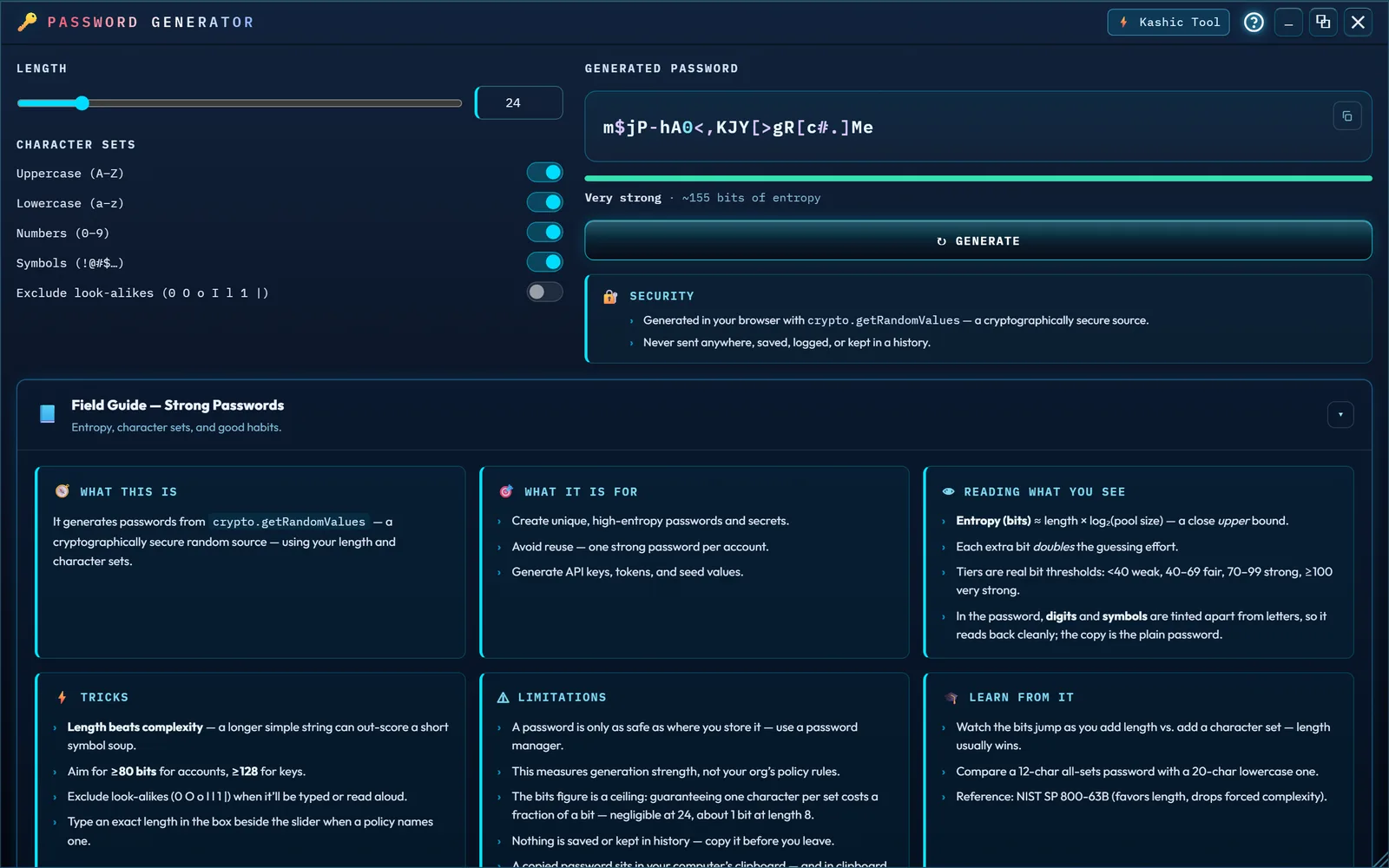
How to run it: drag Length (8–128
characters, starts at 24), or type the exact length in the box beside the
slider when a policy names one — the box waits until you've typed a whole
number in range, and pressing Enter or leaving it holds anything
else to 8–128. Toggle which Character Sets to draw from —
Uppercase, Lowercase,
Numbers and Symbols are on by default, and
Exclude look-alikes drops 0 O o I l 1 | once you
turn it on — then click ↻ Generate. It also regenerates
automatically the moment you move the slider, type a length, or flip a
toggle.
Reading the result: the password itself in the readout, a strength bar, and a label — Weak under 40 bits, Fair at 40–69, Strong at 70–99, and Very strong at 100 or more — with its entropy in bits next to it (length × log₂ of however many characters are in your selected sets, which is a close upper bound rather than an exact figure — see below). In the password, digits are tinted cyan and symbols violet so it reads back cleanly when you type it from the screen or read it aloud; the tint is display only, and what you select or copy is the plain password. Click the small copy icon in the readout's top-right corner to copy it.
Honest limits: "cryptographically secure" is a specific,
checkable claim here, not a slogan — every character comes from
crypto.getRandomValues() through rejection sampling rather than a
plain % poolSize, which would otherwise skew slightly toward the
low end of your character set. If that generator is ever unavailable the tool
says so and produces nothing, rather than falling back to something weaker.
What the guarantee costs: the password always gets at least one character from each set you turned on, then a secure shuffle so those guaranteed characters aren't predictably placed. That guarantee is a deliberate trade and it is worth being exact about, because it means the draw is not perfectly uniform. Within the free part of the password every character is equally likely; the guaranteed slots, though, pull from one set each, so characters from your smaller sets turn up a little more often than pure uniform sampling would give — with lowercase plus numbers, a digit lands about 1.2× as often as any given letter. It costs a fraction of a bit too, which is why the bits figure is an upper bound rather than an exact measurement: roughly 0.08 bits at the default length of 24, and about 1 bit at the minimum length of 8, where nearly half the combinations the formula counts can't be produced at all. At everyday lengths the difference is far too small to matter; the guarantee buys you passwords that satisfy composition rules.
Where it goes: nothing about a generated password — the
value, the settings, a history of past ones — is written to storage, logged, or
kept anywhere the app can read back later; close the tool and it's gone for
good. Copying is the one moment the value leaves the readout: on a secure
origin it goes straight to the clipboard. Two things send it down a second
path instead — a plain http:// origin (a LAN address, say), where
the browser withholds the clipboard API entirely, and a secure origin that
refuses the write, which the browser does in situations as ordinary as the
window not being focused. Both land on the same fallback: a hidden, off-screen
field that is torn down in the same breath, even when the copy is refused. If a
copy doesn't go through, you're told it failed rather than told it worked. Once
copied, the password sits in your computer's clipboard until something
replaces it — and in clipboard history or a synced clipboard, if you have those
turned on. A web page can't clear either, so paste it where it's going and
move on.
MAC Address Lookup
What it answers: which company a MAC address's prefix belongs to, from the IEEE registry — plus what the address itself says: one device or a group, and whether a manufacturer or software assigned it.
How to run it: enter a MAC Address — colons, hyphens, dots or none, 12 hex digits, or just the first 6 — and click Identify Vendor or press Enter. A typing mistake gets a sentence under the box, and nothing is sent.
Reading the result: the vendor comes first —
"Google, Inc." for 3C:5A:B4:12:34:56, with its country,
the size of the block IEEE assigned, and the prefix that was asked about.
Below it, rows the tool works out from the address alone: the full MAC, the
Vendor prefix (OUI), the Type (unicast — one
device — multicast or broadcast, with well-known groups such as IPv4 and IPv6
multicast named) and Assigned by (the manufacturer, or
software). A full address also gets four copyable formats: colons, hyphens,
Cisco's dotted lowercase, and bare hex.
Some answers aren't a company name, and each says why:
- No vendor — randomized or set by software. The second hex digit is 2, 6, A or E: software made the address up. Phones and laptops do this per Wi-Fi network for privacy. Nothing is sent.
- Multicast group address or Broadcast address. The address names a group, or everyone, not one device. Nothing is sent.
- Shared prefix — enter the full address. IEEE splits some prefixes into small blocks for many companies, so the first 6 digits name only IEEE itself. With the full address, the tool asks once more with the first 9 digits and names the company that owns the small block.
- Assigned — name kept private. The owner paid IEEE to leave its name off the public listing.
- No vendor listed. The registry has no owner for the prefix: it may be unassigned, or the address mistyped.
Honest limits: the address facts are always accurate — they're arithmetic on the bytes you typed. The vendor name needs a server, because a web page can't read the vendor service directly: Kashic's server asks it, for signed-in accounts. Signed out, the tool offers Sign in for the vendor and still shows the facts. Only the vendor prefix leaves the page — the first 6 digits, or 9 for a shared block — never the device half, and nothing is logged or saved. Lookups are limited per account (about 30 a minute); past that, the tool says how many seconds to wait. The registry names the maker of the network chip, which isn't always the brand on the device.
Troubleshooting
- "SSL Checker says 'Sign in to check a certificate.'" At kashic.ai the live check runs on Kashic's server for signed-in accounts. Sign in; Search CT Logs works without signing in.
- "SSL Checker says the host did not complete a TLS handshake." Nothing on that port answers in TLS from the first byte — often a mail or directory port that starts in plain text and upgrades with STARTTLS, or a web server that only speaks plain HTTP there.
- "Search CT Logs says the certificate log is unavailable." crt.sh, the outside service it asks, didn't answer. Try again later; Check Certificate doesn't use it.
- "MAC Lookup says 'Sign in to look up the vendor.'" At kashic.ai the vendor lookup runs on Kashic's server for signed-in accounts. Sign in; the address facts underneath are already accurate.
- "MAC Lookup says 'Vendor lookup failed.'" The sentence under it says why: the vendor service was busy or slow, or too many lookups in a minute (wait the seconds it names).
- "MAC Lookup says 'Shared prefix — enter the full address.'" IEEE splits that prefix between several companies. Enter all 12 digits so the tool can reach the right block.
- "JWT Decoder says 'Invalid JWT' and won't show anything."
A signed token has exactly three dot-separated parts, and the message says
how many it found. A
Bearerprefix, quotes and line breaks are taken off for you, so a count other than three (or five, for an encrypted JWE) usually means only part of the token was copied. With three parts but Could not decode, the message names the part — header or payload — and what is wrong with it: not base64url, not UTF-8 text, not JSON, or JSON that isn't an object. - "Password Generator's box just says 'Select at least one character set.'" Every Character Sets toggle is off. Turn at least one back on and it generates immediately.