Toolbox
Message Header Analyzer
Paste an email header — hop timeline, SPF/DKIM/DMARC results, anomaly hints.
At a glance
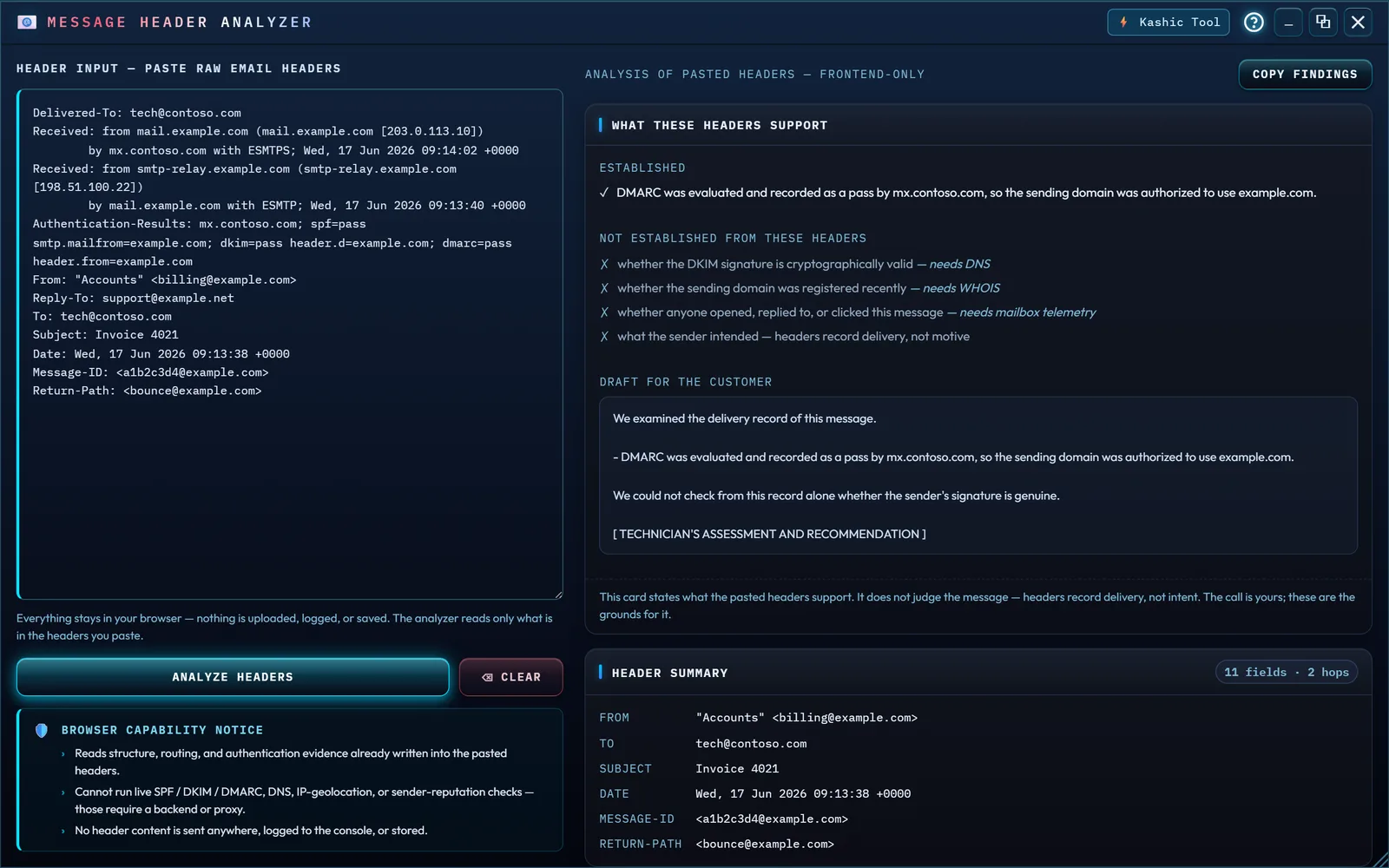
Paste a raw email header block in, and this tool reads the structure that's already written into it — no live lookups. You get a hop-by-hop routing timeline, the SPF, DKIM and DMARC results exactly as the receiving mail system recorded them, and a list of anomaly hints, each honestly categorized. Nothing here is a verdict: a clean pass on every check is a good sign, not proof of anything, and a hint being present isn't proof the message is bad either.
Privacy, prominently: analysis happens entirely in this browser. The
analyzer's own code makes no network request of any kind — no fetch, no
XMLHttpRequest, nothing — so a header you paste here is never uploaded, logged, or
sent anywhere, which the tool says outright right next to the input box: "Everything stays
in your browser — nothing is uploaded, logged, or saved." The tradeoff is real limits: it
can't run a live SPF, DKIM, or DMARC check, look up DNS, geolocate an IP, or check sender
reputation — those all need a backend the tool deliberately doesn't have.
How to…
Press Alt+X, or click Toolbox in the Command Center, then click the Message Header Analyzer card. See The Toolbox for moving, resizing, and closing the tool window itself.
Get the raw header out of your mail client
You need the full raw header block, not the message body and not a forwarded copy. Two common paths:
- Gmail (web): open the message, click More (the ⋮ next to Reply), then choose Show original. It opens in a new window with the full header shown and its own Copy to clipboard button.
- Outlook: in classic Outlook for Windows, double-click the message to open it in its own window, then File → Properties — the headers are in the Internet headers box. In new Outlook or Outlook on the web, open the message, choose More actions, then View → View message details.
Other clients vary — look for something named Show original, View message source, or Message details, usually behind a "more actions" or overflow menu on the open message.
Paste and analyze
Paste the header block into Header Input and click Analyze Headers — it doesn't run automatically as you type. An empty box shows a message under it instead of doing nothing silently. Clear resets the input and the results back to empty. In a narrow window the results sit below the paste box, so the analyzer scrolls them into view.
What These Headers Support
The first card is a summary you can act on. Established lists what the pasted headers actually support; Not established lists what they cannot settle and why — a signature's validity needs DNS, a domain's age needs WHOIS, and whether anyone opened the message needs mailbox telemetry. Grounds for action proposes next steps, each naming the finding that justifies it.
Draft for the customer is the same evidence written in plain English, ready
to paste into a ticket update or a reply — it appears whenever anything could be established.
It ends at a blank marked [ TECHNICIAN'S ASSESSMENT AND RECOMMENDATION ]: the tool
supplies the findings, you supply the conclusion and sign it. Copy findings
puts the draft in the clipboard along with the rest of the report.
The card never says a message is phishing, malicious, or safe. Headers record delivery, not intent, so the judgment is yours — the card exists to make that judgment defensible.
The rule it turns on is DMARC's own: a message is corroborated when either the SPF
identity (smtp.mailfrom) or the DKIM signing domain (header.d) matches
the From domain. This matters because "SPF passed" alone is the most common misread in the
business — mail sent through a provider passes SPF for the provider's domain, which is
normal, and a spoof passes it for the attacker's. Legitimate provider mail is corroborated by
its DKIM signature, so the card stays quiet and proposes nothing. When neither identifier
matches, that is the finding. Where the receiving system already recorded a
dmarc= result, that verdict is cited as well — it was evaluated with DNS in hand,
which this tool cannot do. A recorded dmarc=pass is taken at its word; a recorded
dmarc=fail is stated alongside the uncorroborated-sender finding rather
than in place of it, so a gateway that reports DMARC always gives you more to act on, never
less.
Forwarded mail and mailing lists routinely break SPF while the DKIM signature survives, which
is why the receiving system can record a component spf=fail and a
dmarc=pass on the same message. Where it did, the card treats that failure as the
forwarding artifact it is: it is not listed as a finding and it proposes nothing. The
Authentication Evidence card below still reports the spf=fail
exactly as it was written, and says it is what forwarding usually leaves rather than calling it
suspicious; Header Anomalies lists it as "SPF failed, but DMARC
passed".
The card stands only on the receiving system's own record — the topmost
Authentication-Results header. A result that only a lower header or an ARC record
reports never reaches it: those were written before delivery, and could have been written by
the sender.
Read the results
Header Summary lists From, To, Subject, Date, Message-ID and Return-Path
straight from the pasted text, plus a field and hop count. Authentication
Evidence gives SPF, DKIM and DMARC one line each: a badge (PASS,
FAIL, NONE, PERMERROR,
SOFTFAIL, or NOT REPORTED if the header simply isn't there),
a category
(Confirmed from header, Suspicious pattern, or
Inconclusive — never a bare safe/unsafe call), and a plain sentence — for
example, a recorded dkim=pass reads as "Authentication-Results reports
dkim=pass. A DKIM pass was recorded — read from the header, not re-checked here."
A DKIM-Signature header being present at all gets its own note that presence alone doesn't
prove validity — that needs the signing domain's public key over live DNS.
Microsoft 365. When Microsoft delivered the message — the last hop, the
topmost Received header, is a Microsoft server — the card adds a
COMPAUTH line: Microsoft's composite verdict, which weighs SPF, DKIM, DMARC and
other signals against the From domain, with its three-digit reason explained (for example,
"Reason 000: failed explicit authentication: DMARC failed and the domain's policy is
quarantine or reject"). The DMARC line shows the action Microsoft recorded, and a
dmarc=bestguesspass is explained: the domain publishes no DMARC record, but the
message would have passed if it did. The recognized Microsoft 365 host names are
outlook.com and office365.com.
Who recorded it matters. Any mail server along the way can add an
Authentication-Results header, including one under the sender's control, so each
result names the system that claims it — "Recorded by mx.contoso.com — the result is only
as trustworthy as that system" — and the card tells you how many such headers the message
carries. When there's more than one, the analyzer reads the topmost, because relays add theirs
to the top: the last one written is the one added nearest delivery, after the message left the
sender's hands. A result that only a lower header — or an ARC record — reports is still shown,
marked "Only a lower Authentication-Results header reports…", and left out of the
findings. If a header doesn't say who wrote it, the tool says that instead of guessing; Microsoft
365 writes its header that way, so when Microsoft delivered the message the card says the
results are most likely Microsoft's own record.
Routing Path Analysis walks the relay chain origin-to-delivery: each hop
numbered, who handed it to whom, a delay tag, and the protocol, TLS version, IP, and UTC
timestamp the header itself carries. A delay reads green for a normal gap and violet past five
minutes; a hop stamped earlier than the one before it shows red with a minus sign
(−30s) — a sign of clock skew or a forged header. Each timestamp is read with the
time zone it was written in, never your own. Delays are only measured between two neighboring
hops that both carry a readable date: if one hop has no timestamp, the next reads
Δ unknown rather than being charged for time it may not have taken, and a
stamp that names no time zone is marked "time without a zone" and left out of the
delays.
Spam Filter Signals appears only when the message actually carries filter
headers — an Exchange SCL, a SpamAssassin score, a Barracuda or Rspamd verdict and
so on. Each is shown exactly as written, next to the header that carried it, and none of them
ever becomes an anomaly finding: every vendor uses its own scale and every tenant sets its own
thresholds, so a score is only meaningful inside the system that assigned it.
Microsoft is the one exception, because Microsoft documents what its filter writes. When
Microsoft delivered the message, What Microsoft's filter recorded explains its
fields in plain words — the threat category (CAT), the spam verdict
(SFV), direction, the connecting IP and its country, the bulk complaint level, and
the SCL with Microsoft's own note that in Microsoft 365 the SCL doesn't decide how a message is
handled. These are Microsoft's verdicts, reported as such. They stay unexplained, and the card
says why, in two cases: when the last hop isn't one of the Microsoft 365 host names the tool
recognizes (outlook.com and office365.com), because then anyone along
the path could have written them, including the sender; and when the message carries a second
copy of one of Microsoft's filter headers, because nothing says which copy Microsoft wrote.
Header Anomalies lists whatever the parser can honestly infer — a reported auth failure, a Reply-To on a different domain than From, out-of-order timestamps, a timestamp that names the wrong weekday for its date (mail servers take both from the same clock, so a mismatch suggests a hand-written or edited header), and the like — sorted worst first. Finding nothing does not mean the message is safe; the card says so directly when it's empty: "No suspicious patterns were inferable from these headers. This is not a verdict that the message is safe — it means nothing actionable surfaced from frontend-only analysis. Confirm authentication with live DNS/DMARC tooling when in doubt."
Copy the findings
Copy findings, above the results, copies a plain-text report of everything interpreted above to your clipboard — never the raw header block itself — ready to paste into a ticket or a message to a colleague. It carries the same caveats the screen does: who recorded each auth result, any spam-filter values verbatim, and a closing note that nothing in it was re-validated.
Tips & tricks
- A clean "no anomalies" result is reassuring, not a guarantee — treat it the way the tool itself does, as "nothing surfaced," not "confirmed safe."
- A DKIM-Signature header being present tells you a signature exists, not that it's valid — checking that for real needs live DNS, which this browser-only tool doesn't have.
- Check who recorded a pass before you lean on it. A result attributed to your own mail
boundary is worth far more than one attributed to a host you don't recognize — and if the
card reports more than one
Authentication-Resultsheader, the extras were written further back down the chain. - Pasted something huge and only part of it got read? The tool reads the first 512 KB or 20,000 lines and says so — almost always it means the message body got included along with the headers.
Troubleshooting
- "It says No recognizable headers found." You likely pasted the message
body, or a forwarded copy, instead of the raw header block — it needs lines in
Name: valueform, likeFrom:orReceived:. - "Nothing happened when I clicked Analyze Headers." The input box was empty — the message under it asks you to paste headers first.
- "The Microsoft fields aren't explained." They're only explained when
the last hop is a Microsoft 365 server the tool recognizes (
outlook.comoroffice365.com) and each Microsoft filter header appears once. Otherwise the card says "These Microsoft fields are not explained here" and why: anyone along the path could have written them. - "It says Couldn't analyze that input." Something in the pasted text stopped the parser. Re-copy the complete raw headers and try again; nothing you pasted was sent anywhere, even on failure.
- "It says No SPF (or DKIM, or DMARC) result is recorded." The header block you pasted didn't include an Authentication-Results (or Received-SPF) header — the receiving system may not check that, or the header was stripped before you got the copy.