Toolbox
Encoding & Data Tools
Base64 Encoder/Decoder and Kard Export to Word or PDF.
At a glance
These two tools live together in the Toolbox, and neither one is a lookup. Base64 Encoder/Decoder turns text into Base64 and back, entirely in your browser. Kard Export turns a Kard you already have into a Word or PDF file, also entirely in your browser. Nothing about the Kard is uploaded, and neither tool asks a server anything about it.
How to…
Every tool below opens the same way: press Alt+X, or click Toolbox in the Command Center, then click its tile. See The Toolbox for moving, resizing, and closing the tool window itself — the steps below pick up from there, one tool at a time.
Base64 Encoder / Decoder
What it answers: turns readable text into Base64 and back —
for the places that only accept plain ASCII (config files, data:
URLs, email attachments, API payloads) or for reading what a Base64 blob
actually says.
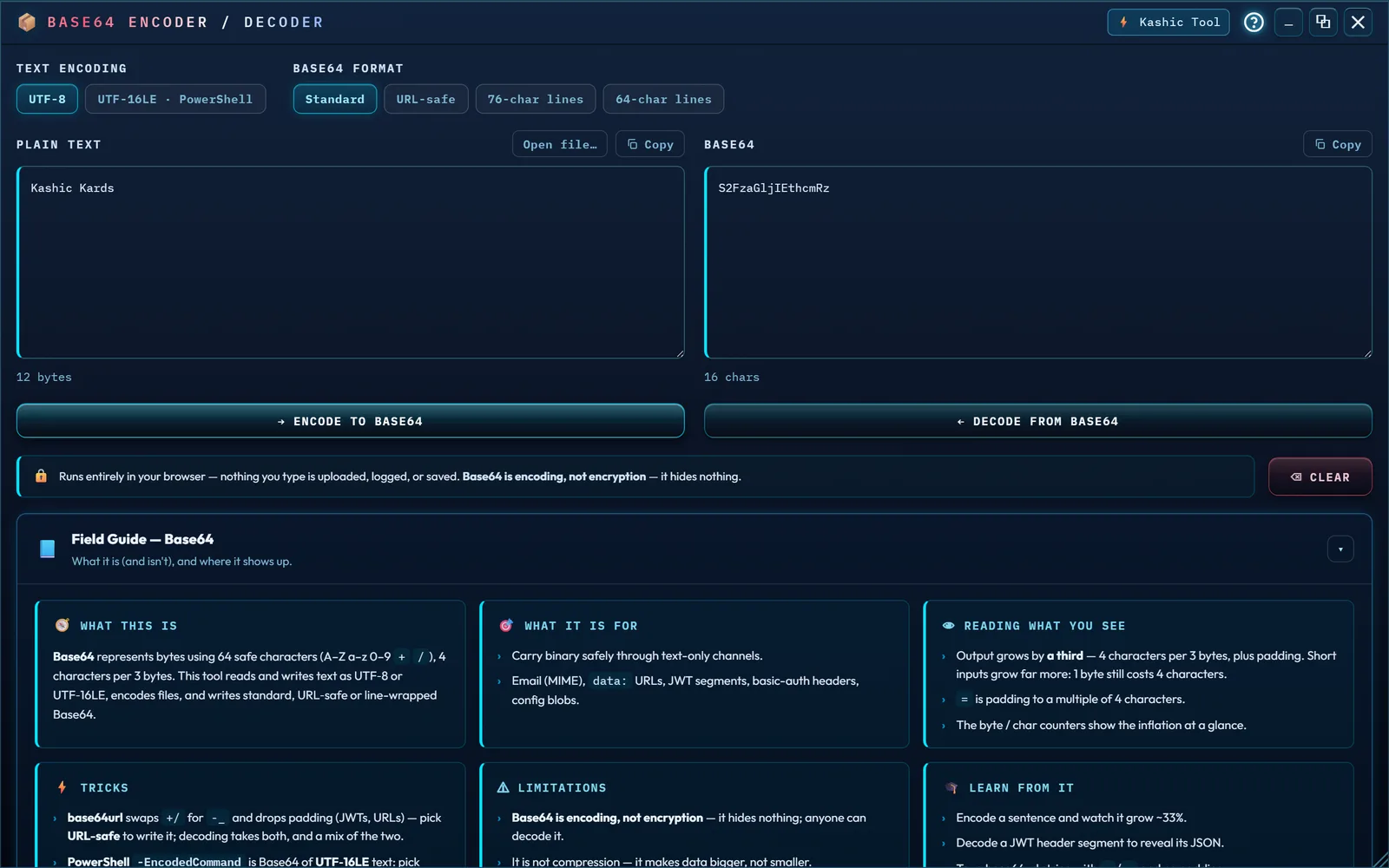
How to run it: type or paste into Plain
Text and click → Encode to Base64, or paste into
Base64 and click ← Decode from Base64.
Open file… encodes a file's bytes instead of typed text.
Copy, above each box, copies exactly what's in that box;
Clear empties both. Two rows of choices sit above the boxes:
Text encoding — UTF-8, or UTF-16LE ·
PowerShell — and Base64 format —
Standard, URL-safe (- and
_, no padding, RFC 4648 §5), 76-char lines (the
MIME line length) or 64-char lines (the line length inside a
PEM file, without its BEGIN and END lines). Wrapped output uses LF line
endings. Changing a choice redoes the conversion on the spot, from the same
bytes.
Reading the result: the other box fills in immediately —
encoding Kashic Kards, for example, fills Base64 with
S2FzaGljIEthcmRz. Each box's footer keeps a live count (bytes for
Plain Text, characters for Base64) and a note line for anything worth telling
you. When one box can't be converted, the note says exactly what stopped it —
type a stray @ on the end of that S2FzaGljIEthcmRz and
you get "Not valid Base64 — @ at position 17 is not a Base64
character", naming the character and counting you straight to it.
The box you aren't editing is never emptied. A conversion that can't run reports the problem and leaves the other box alone — it just marks it with a dashed edge and "Does not match the Base64 on the right", so a pair that no longer belongs together is never shown as if it did. Fix the character and the pair snaps back into agreement. Emptying a box doesn't empty the other one either; Clear is the button for that, and it says so.
Honest limits: decoding is forgiving on purpose, confirmed
by pasting real messy input — whitespace and line breaks inside a pasted
Base64 string are stripped before decoding (S2FzaGlj IEthcmRz with
a stray space still decodes to Kashic Kards), the base64url
variant (-/_ in place of +//)
is accepted — including a string that mixes both alphabets — and missing
trailing = padding is added back automatically. It only refuses
input with a character plain Base64 can't contain, padding somewhere other than
the end, or a length that could never be valid either way.
Not every blob is text. Decode a Base64'd PNG and the left
box shows a readable-ish dump peppered with � — and says so.
Pasting the smallest valid PNG produced "Not text — 70 bytes of binary,
shown as best it can be; � marks bytes with no text form.
Re-encoding this pane will NOT reproduce the original bytes; Download bytes
saves the real data." A Bytes panel opens under the boxes
with the real size (70 bytes, not the length of the dump), a
guess at the file type from its first bytes ("Looks like: PNG image"),
a hex dump of the first 256 bytes, and Download bytes, which
saves the exact data — as decoded.png here. A blob that starts
like a Windows or Linux program is named as one and saved as
decoded.bin, never under a runnable extension. Real text,
including accents, CJK, emoji and right-to-left scripts, round-trips exactly —
a leading byte-order mark included.
PowerShell -EncodedCommand. PowerShell's
encoded commands are Base64 of UTF-16LE text, not UTF-8. Paste one and
the tool recognizes it: the Text encoding choice moves to UTF-16LE ·
PowerShell, the note reads "Read as UTF-16LE: these bytes are
UTF-16LE text, the form PowerShell -EncodedCommand takes," and the command
comes out as clean text — without the hidden NUL characters a UTF-8 reading
leaves between the letters, which look right and paste wrong. To build one,
pick UTF-16LE · PowerShell and type the command:
Get-Process gives RwBlAHQALQBQAHIAbwBjAGUAcwBzAA==.
Other UTF-16LE text can be read by picking that choice after decoding.
Clear puts the choice back to the one you picked.
One more limit, and it's a number: a single conversion is capped at 8 MB. Both boxes convert as you type, so an unbounded paste would stall the tab rather than merely take a while; past the cap it refuses and tells you the size instead. A file over the cap is refused before any of it is read. And — worth saying plainly, since the name invites the mix-up — Base64 is encoding, not encryption: it hides nothing, and anyone can decode it back exactly as easily as this tool did.
Kard Export
What it answers: turns a Kard you already have into a file you can hand to someone who isn't in Kashic Kards™.
How to run it: pick a Kard from Kard — every Kard in your library, A to Z; type the first letters of a title to jump to it — choose Word (.docx) or PDF under Format, then click Export Kard. The window is modeless, so a Kard you generate while it's open appears in the list the next time you use it. With nothing in your library yet, the panel shows No Kards to export yet instead of an empty list.
Reading the result: the status line under the button names the file and counts what went into it, so you can tell the whole Kard made it. Exporting the demo Print Spooler Kard reads "✓ Downloaded Restart_the_Windows_Print_Spooler_Service.docx — 5 sections, 2 code blocks, 1 table, 2 callouts." Word downloads a real Word document to wherever your browser saves downloads: each section is a Word heading, so the Navigation pane lists them; lists are real bulleted and numbered lists; code keeps a monospace face; tables, callouts, flows and the Field Lesson grid come through as tables and tinted panels. In Word the sections run on one after another, ready to edit. PDF opens the Kard's print-ready page in a new tab and your browser's print dialog right away — the status reads "✓ Opened the print view — … Choose Save as PDF in the print dialog." — and that is the next step: choose Save as PDF as the destination. The print page starts each section on a new sheet and uses the paper size the print dialog is set to.
What is and isn't exported: the title, both lines under it, the Kard's badges, category and tags, then every section — its label, heading and description, and everything in it. The Notes stage is left out: its notes live in this browser, not in the Kard. Bold and code styling inside a sentence come through as plain text; code blocks keep their monospace. Buttons, navigation and the progress bar are not part of the document.
Honest limits: the PDF route needs pop-ups allowed for this site, since opening the print tab is technically a pop-up — block it and the status says "The print view was blocked as a pop-up. Allow pop-ups for this site, then export again." instead of reporting success. Both formats are built entirely in your own browser; nothing about the Kard is uploaded. Signed in, the Kard is first read from your account, the same way the viewer opens it.
Troubleshooting
- "Base64 says 'Not valid Base64.'" Read the rest of the
note — it names the character and its position, or says the length can't be
right even with padding restored. Whitespace, missing padding, and the
base64url
-/_variant are all fine; anything past that needs fixing by hand. Your Plain Text is still there while you fix it. - "Kard Export's dropdown is empty, or it says 'No Kards to export yet.'" There's nothing in your library yet. Generate or open a Kard first — see The AI Kard Generator or The Kard Library — then come back.
- "I clicked Export Kard and nothing happened." Check the status line under the button — if it reads Choose a Kard first., pick one from the list before exporting.
- "The PDF tab never opened." The status line says the print view was blocked as a pop-up. Allow pop-ups for this site and click Export Kard again.
- "It says 'Couldn't read this Kard from your account.'" Signed in, the export reads the Kard from your account first, and that read failed — usually the connection. Check it and export again.
- "It says 'This Kard has no saved content to export.'" The Kard is in your library, but its content was never saved — it won't open in the viewer either. Generate it again to get a Kard you can export.