Toolbox
Tenant Licensing Intelligence
The Microsoft 365 licensing workspace — audit a tenant snapshot, pick a scenario, look up plans, and hand the customer a report.
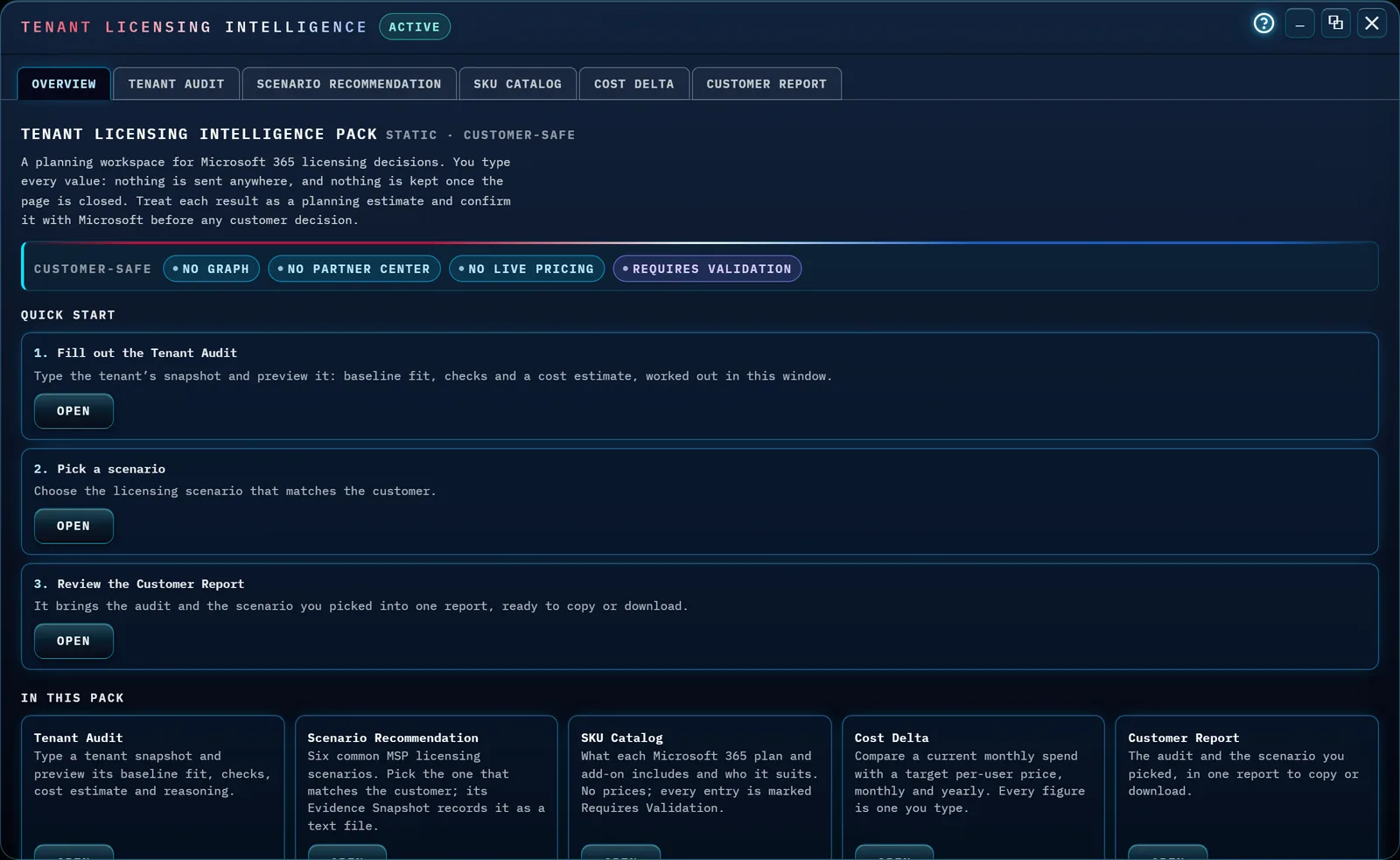
At a glance
Tenant Licensing Intelligence is a place to reason through an MSP customer's Microsoft 365 licensing without touching their tenant. The Overview tab says so itself: "A planning workspace for Microsoft 365 licensing decisions. You type every value: nothing is sent anywhere, and nothing is kept once the page is closed. Treat each result as a planning estimate and confirm it with Microsoft before any customer decision." A trust strip repeats the promise as four pills — No Graph, No Partner Center, No live pricing, and Requires Validation.
The window has six tabs: Overview, Tenant Audit, Scenario Recommendation, SKU Catalog, Cost Delta, and Customer Report. The ? in the window's title bar, left of the window buttons, opens this page.
Tenant Licensing Intelligence is a premium pack. On kashic.ai it opens for the Kashic operator account; for any other account the Toolbox card reads PREMIUM PACK · LOCKED and the window explains that the pack is not enabled for the account.
How to…
Press Alt+X, or click Toolbox in the Command Center, then click the Tenant Licensing Intelligence card. It opens in its own window, maximized, on the Overview tab. Closing the window keeps what you typed, so reopening it picks up where you were; reloading the page clears it.
Read the Overview tab
Below the mission statement and trust strip sits a three-step Quick start: 1. Fill out the Tenant Audit, 2. Pick a scenario, and 3. Review the Customer Report, each with an Open button that jumps to that tab. Below it, In this pack has a tile for each of the other five tabs, each with its own Open button.
Fill out the Tenant Audit
Type the tenant's snapshot: its name and primary domain (both required), its size, the Current Microsoft 365 Baseline and Target MSP Baseline, the license, user and guest counts, the reported Security Baseline Fit, and — for a cost estimate — the current monthly cost and a target per-user price. Then click Preview Manual Audit. The preview shows the Tenant snapshot, the Baseline fit (with an MSP note and, for the target plan, its own note), the Checks, the Cost estimate and Next actions. A value it can't use — a negative count, a decimal where a whole number belongs — is named right under its field.
The checks know Microsoft's limits: Business plans cover up to 300 users each, so a Business Premium target for a larger tenant is flagged as a conflict and the tool asks for an Enterprise target. Change any value after a preview and a note beside the button reads "The form has changed since the last preview — preview again to update the results."
Under the preview, the Licensing Summary is a short text version to paste into a ticket (Copy summary), and Recommendation Reasoning scores five cards — posture, security fit, cost, advisory and next action — that Copy reasoning copies as text.
Pick a scenario
The Scenario Recommendation tab holds six common MSP licensing scenarios, from Baseline Fit to License Consolidation, each with a summary, a recommended direction, its reasoning and an editorial rating (severity, priority, Editorial score and action window). Nothing is picked until you click a card (or use the arrow keys, Enter or Space on it). The picked scenario is the one the Customer Report includes.
Under the cards, the picked scenario is shown in full: summary, licensing posture, rating, recommended direction and reasoning. Copy recommendation copies it as text, and Copy all six copies every scenario. The Evidence Snapshot is a dated text record of the picked scenario: Build snapshot, then Copy or Download (.txt).
Look up a SKU in the SKU Catalog
The catalog holds 61 SKUs across 17 categories. Category chips along the top (All plus one per category) filter the cards, and a live count reads "Showing N of 61 SKUs" as you filter. The banner above the chips states the catalog's as-of date, so the age of the licensing facts is never a guess — re-check anything decided after that date.
Each card is a read-only reference, not a lookup against Microsoft: the SKU's name and category, its Audience / Fit, a list of Key capabilities, Licensing notes, and a Customer-safe caveat — plus a Static reference pill and, on every card, a Requires Validation pill. Microsoft 365 Business Basic, for example, lists its audience as "SMB knowledge workers, web/mobile-first," capabilities including "Exchange Online mailbox (100 GB from July 2026)" and "Microsoft Teams" but "Web/mobile Office (no desktop apps)," and a caveat to "Confirm the seat count, region availability, Teams option and current price with Microsoft before quoting." No card carries a price.
Work out a Cost Delta
Type today's monthly cost, a target per-user price and a user count, then click Compute cost delta. The result shows the target monthly cost and the change a month and a year. Every figure is one you type — no pricing source is consulted — so it's an estimate, not a quote. A value it can't use is named under its field.
After you preview the Tenant Audit, the three fields start from the audit's cost figures, so both tabs work from the same numbers. Type your own to try other figures: the tab keeps yours until you empty all three fields.
Send the Customer Report
The Customer Report tab builds one report from the other tabs each time you open it: the Tenant Audit's last preview, the scenario you picked, and one cost estimate — the Cost Delta tab's result when you've computed one, otherwise the audit's own estimate. A list above the report says what went in — and what was left out, such as an audit whose form changed after its preview. It never includes the tenant's name, domain or your notes, and nothing about the tenant is kept after the page closes.
Copy report and Download report (.txt) send the report as
shown; Raw manifest (.json) is the same report as data. Both files are named
from the time the report was built, for example
tlip-customer-report-20261013-141157.txt.
Tips & tricks
- The window opens maximized — click the restore button in the top-right to make it a smaller window you can drag and resize from any edge or corner.
- Preview the audit and pick a scenario before opening the Customer Report: the report is only as full as the tabs behind it.
- The SKU Catalog's as-of date is the line to check when a customer's question is about a recent Microsoft change.
Troubleshooting
- "The Toolbox card says PREMIUM PACK · LOCKED." The pack is not enabled for the account you're signed in with. Nothing about any tenant is read while it's locked.
- "Sign in to use Tenant Licensing Intelligence." You're signed out on kashic.ai. Click Sign in; the pack opens if your account has it.
- "Your account could not be checked." Kashic couldn't read your account just now. Reload the page.
- "The report says Nothing to report yet." Preview the Tenant Audit, pick a scenario or compute a Cost Delta first.
- "The report left the audit out." The form changed after the last preview. Click Preview Manual Audit again.
- "Pressing Esc didn't close the window." Esc belongs to a text field while you're typing in one. Click outside the field first, or use the ✕ in the top-right.
Shortcuts
| Keys | Does |
|---|---|
| Esc | Close the window — not while typing in a text field |
| ← / → / Home / End | Move along the tab row when focus is on a tab |
| ↑ / ↓ / Enter / Space | Move along and pick a scenario card |