Toolbox
Service Status
The NOC dashboard — the health ring, the incident deck, the intelligence rail, and where every number comes from.
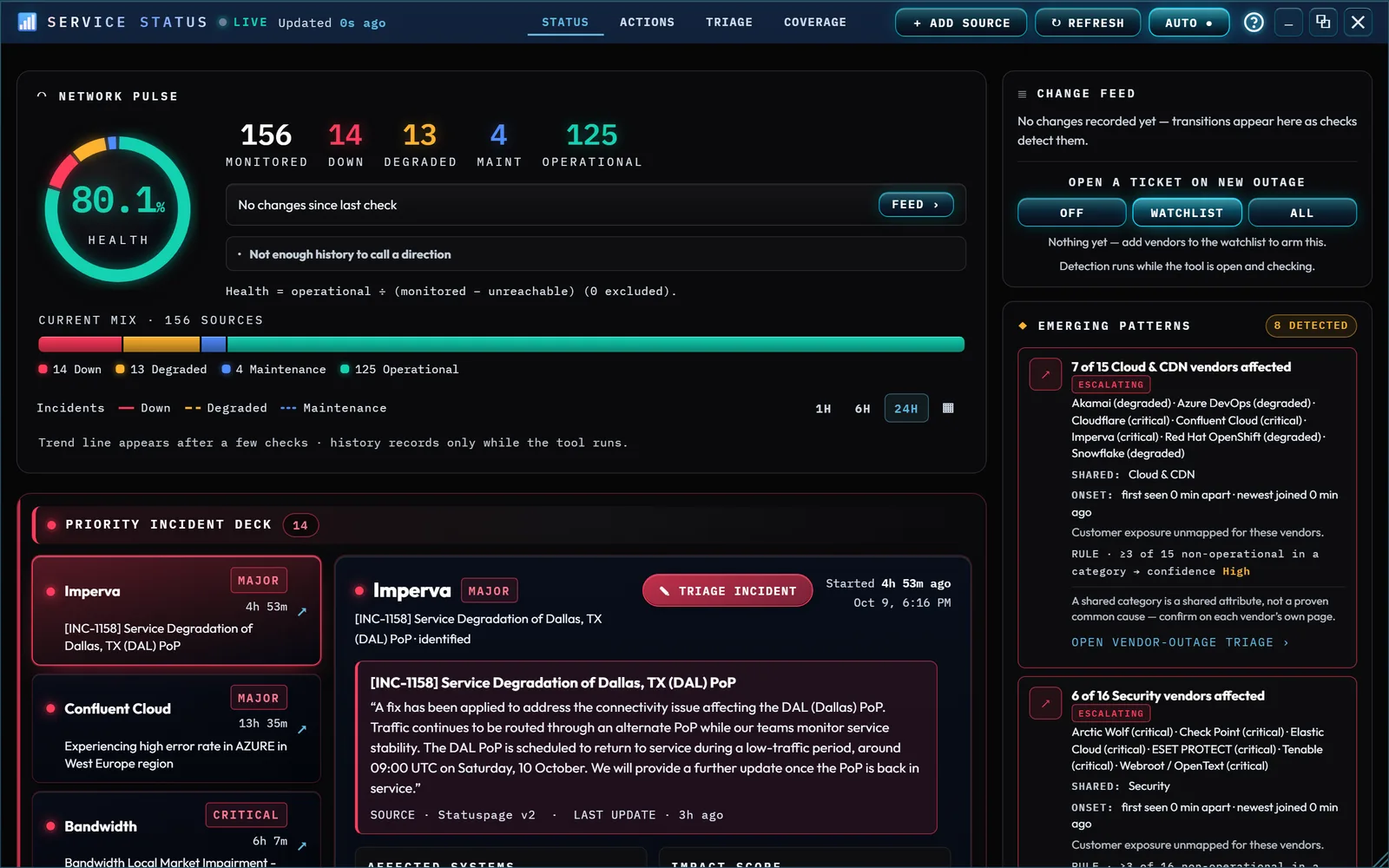
At a glance
Service Status is a single-page NOC cockpit for the outside services IT work actually depends on. Its board checks 156 vendors live, straight from your browser, against each one's own public status feed — Cloudflare, GitHub, Zoom, DocuSign, Twilio, and a long run of security, identity, RMM/PSA and backup vendors among them, across 17 categories: AI, Cloud & CDN, Networking, DNS & Domains, Identity, Security, Email Security, RMM/PSA, Remote Access, Backup & Storage, Dev & Automation, Monitoring & Alerting, Email & Comms, Voice & CX, Productivity, Business Apps and Vertical Apps. Every result is live — it will differ from the screenshot above, and from one refresh to the next.
Honesty, plainly: this board can only repeat what a vendor has published to its own status feed — it isn't independent monitoring. A vendor that's slow to update its own page, or hasn't noticed its own outage yet, looks exactly as green here as one that's genuinely fine.
Four tabs sit centered in the window's title bar, above the readout row. Status is the live board itself — the rest of this page. Actions lists 31 direct-launch investigation and remediation tools (Have I Been Pwned, MXToolbox, VirusTotal, and more), grouped by use. Each one is a card you click anywhere on to open that tool in a new tab — links, not live status. A tool that needs you to sign in first is marked AUTH.
Triage offers 8 preset scenarios — Email Deliverability, Phishing URL, Vendor Outage, Ransomware, and so on. Pick one and it assembles a playbook underneath, split into what it can read and what it can only link to: Live feeds are the vendors this board is actually checking, worst state first, each opening its own detail; Tools & official pages are the launchers for that situation. A scenario whose own live feeds are down or degraded right now says so on its card — 2 affected, in red when one of them is down — so the board points at the playbook that fits without choosing it for you.
Coverage is the full inventory. It opens with the split — how much of your stack is genuinely live versus link-only — then lists the 156 live feeds grouped by the same categories the board sorts by (Security, Identity, RMM/PSA, and the rest). Enable or disable any of them, add your own, or open a vendor's own status page with ↗. Below that sit 71 vendors that publish an official status page but no feed a browser can read — grouped by the same categories — and those same 31 tools. Every entry on that tab opens the company's own status board.
Those vendors — Slack, Google Cloud, Microsoft 365, Azure, AWS, Okta and others — stay honest links to their official pages: the board never fakes a live reading it can't make.
How to…
Press Alt+X, or click Toolbox in the Command Center, then click the Service Status card. The dashboard opens maximized — a NOC board earns the whole workspace — and the window's ⧉ button restores it to a floating window whenever you want it beside other work. See The Toolbox for moving, resizing, and closing the tool window itself.
The Network Pulse — and what the health number means
The window's title bar carries a LIVE badge that never claims more than the data supports: it reads LIVE only while Auto-refresh is on and the last check is fresh, CHECKING during a check, MANUAL when you refresh by hand, and STALE when the data has aged past two refresh intervals. Next to it is how long ago the last check finished, and at the right-hand end sit Add source, Refresh and Auto — all four tabs share them. In a narrower window the title bar makes room in a fixed order rather than letting anything overlap: the ⚡ Kashic Tool badge goes first, then the tabs move to a row of their own beneath it, then Add source and Refresh shrink to their + and ↻ symbols (hover either one for its name), and in the narrowest windows the last-check time steps aside while the LIVE badge keeps reporting freshness. On a phone, Add source, Refresh and Auto take a row of their own, with their names back, between the title and the tabs.
The raw counts lead the Pulse in its own stat row: monitored, down, degraded and operational, plus MAINT and UNREACH which appear only when non-zero. A screen reader hears that same line read out whenever a completed check changes it.
The health ring is one exact formula: operational ÷ (monitored − unreachable). Unreachable feeds are excluded from the math entirely because a feed this browser can't read is a fetch limitation, not a verdict either way — the caption under the stats states how many were excluded on this check. The ring's missing arc is drawn in severity colors, so you can see at a glance how much of the deficit is outage (red), degradation (amber), or planned maintenance (blue). What changed since last check counts real transitions between the previous check and this one — nothing changed reads exactly that.
The trend line plots incidents — down, degraded, and (when there are any) maintenance counts — from each completed check over 1-hour, 6-hour, 24-hour, or a custom window (▦). It deliberately leaves operational off: with most of the fleet healthy, that line pins to the top of the chart and squashes the counts that actually matter into the baseline. Operational is the ring's readout; this chart is for what went wrong. The axis scales to the incident counts in view and ticks in whole numbers. It is drawn as steps, because counts are steps. Each series runs in its own lane with its own dash — down solid on top, degraded dashed, maintenance dotted below — so on the stretches where they sit at the same count, which is most of the time, the lines run side by side instead of hiding one another. The lanes are a few pixels apart and centered on the true count, so no line strays toward the next whole number, and the legend above the chart shows each dash. And gaps are gaps: history records only while the tool runs, is kept for 24 hours, and hours when the tool was closed render as blank bands labeled honestly, never interpolated. Hovering anywhere on the line gives you the counts at that moment, or tells you plainly that the tool wasn't watching then.
Above the trend, always, sits the current mix: a proportional bar of exactly how the monitored sources break down right now — operational and unreachable included — with each count listed underneath. It shows the board as it stands this check, so the window you pick doesn't change it. Before there are enough checks to draw a trend, the space under the mix says so: the line appears once a few checks have run. And when there is a trend but it covers far less than the window you picked, the chart fits itself to the history that exists and tells you when monitoring began, rather than stranding twenty minutes of data on an empty 24-hour canvas.
That fit measures how much of the window was actually observed, not the stretch between the oldest and newest sample — a board opened for ten minutes this morning and ten minutes now reaches across the whole day while having watched twenty minutes of it. When the observed time is thin, the chart fits to the session you are in and says how many earlier sessions sit outside the view, so nothing is quietly dropped. When enough of the window was observed, nothing is refitted and the dark stretches stay on screen as labeled bands.
The Priority Incident Deck
Anything in a major outage joins the deck, ranked newest-crisis-first by each incident's official start time (a vendor that publishes no start time sinks to the bottom). Selecting a row fills the detail panel: the incident's title and status, the vendor's own latest update quoted verbatim, which feed said so and when, Affected systems with per-component severity, Impact scope, an Activity timeline built from the vendor's own update trail, and a freshness footer — every figure in the panel traces to a checked feed. An Activity update too long for the column ends in an ellipsis; hover it for the full text. When the list of outages runs longer than the panel, the panel stays in view beside it as you scroll. The age beside an incident is always that incident's own start, not the vendor's oldest open one, so a fresh outage never inherits the age of a months-old minor issue sitting behind it. The footer keeps two separate facts apart: Checked is when this board last read the feed, and Vendor last published is when the vendor itself last posted an update. A feed read seconds ago whose newest update is twelve days old is the common case, and the gap between those two numbers is your cue that the vendor has gone quiet. ✎ Triage incident sits at the head of the panel, just left of the timing, and jumps straight into the Triage tab's Vendor Outage scenario. It is in that same place for every incident — including one whose detail feed couldn't be read, which is exactly when you are most likely to want it.
Two Impact-scope numbers are yours, not the vendor's: Customers shows an em dash until you map which of your customers ride on that service (map customers, right in the panel — saved locally, per service), and the deck never invents a Regions or assignment figure it has no data for. Maint window appears when the vendor has published a maintenance window, and shows when it ends.
Because that mapping is yours, it stays on screen even when the vendor's detail feed cannot be read. In that case the panel says so plainly in each column that depended on the feed — Component breakdown could not be read from this source, Update trail could not be read from this source — while Impact scope keeps showing your customers and the control that edits them. Components then reads an em dash rather than zero: no affected components is a finding, a feed you could not read is not one.
Degraded and maintenance strips, and the operational grid
Degraded services and Maintenance appear as compact chip strips — name, the lead incident or window, and impact/status/age facts — and only exist when their count is non-zero. Below them, the Operational grid lists everything healthy with its response time, with a search box (it searches the whole board, not just this grid), a category filter, a sort control (name, fastest, category), and a density toggle. Each tile carries a thin bar along its base showing that service's response time relative to the slowest one currently in view, so the grid reads as a comparison at a glance rather than a wall of identical tiles. Sorting by category additionally breaks the grid into labeled groups — Security, Identity, RMM/PSA, and so on. Anything your browser couldn't read sits in its own Unreachable section — never colored as healthy.
Be precise about what a response time is. It is one round trip belonging to a single check — timed from sending the request until the vendor's response comes back, before its content is read — not a running average. Hover a tile (or let a screen reader read it) and it says so in full: the milliseconds, where the timing was taken, and that it is a single sample from the latest check. The tile states no age of its own, deliberately. Every visible source is read in the same pass, so Updated in the title bar is the age of every figure on the board — and it is the one that keeps counting. An age printed on the tile would instead be frozen at the moment the tile was drawn, and with auto-refresh off it would go on claiming the board was checked seconds ago for as long as you left it open. A source that answers with more data than the tool will read is discarded unread and shown as unreachable rather than parsed.
At the right-hand end of the Operational label sit the two things you do to the board itself. + Add vendor opens the same add-source form the title bar's button does — one form, two doors — and scrolls it into view. ⊘ Remove vendors turns the grid into an edit mode: every tile grows a remove control, and the button becomes ✓ Done. The mode stays on after each removal so you can clear several in one pass, and it is never on when you reopen the tool. Removing a built-in vendor stops monitoring it — it moves to Coverage, where ⊘ switches it back on whenever you want. Only a source you added yourself is deleted outright.
A source you add must be a public https:// address. Addresses on this machine or
on a private network — localhost, 127.*, 10.*,
192.168.*, 172.16–31.*, 169.254.*, .local
names, or a bare intranet hostname — are refused rather than fetched, so a mistyped or pasted
internal URL can't turn the board into something that quietly probes your own network. The same
check runs again when the tool reloads its saved sources, so an edited browser store can't
reintroduce one.
Every tile carries two ways in. The tile itself opens the detail drawer inside the app; the ↗ at its right edge opens that company's own status page in a new tab. It's a real link, so middle-click, Ctrl+click and "copy link address" all work on it.
Each severity sits on its own colored bed — red for outages, amber for degraded, blue for maintenance, cool teal for healthy — so the board's overall state is readable from across a room, not only up close. When everything is well, only the teal zone remains.
The Live Intelligence rail
The right-hand column is derived entirely from data this tool already collected. The Change feed lists real transitions ("ok → degraded", "+1 incident") with when they were detected; it is empty until a check actually detects one. Emerging patterns runs two stated rules and says so on every card: enough vendors down or degraded in the same category to clear that category's own bar — two, plus one more for every six vendors the category holds, so a large category needs more corroboration than a small one (confidence Medium at the bar, High one clear of it — maintenance and unreachable never count as failure evidence), and a service running at twice its own latency baseline and at least 200 ms above it, which only fires after ten checks of history for that service. Both bounds are needed: a ratio alone flags ordinary noise on very fast feeds, and a fixed margin alone flags a slow feed's normal jitter. The tool never claims a trend it hasn't measured.
A pattern card shows its working rather than just the correlation. It names what is actually shared (the category), reports the onset — how far apart the tool first saw these incidents, which is evidence when it's minutes and evidence against when it's days — flags the cluster as escalating when another vendor joined it in the last half hour, and lists which of your customers are exposed where you've mapped them. It ends by saying plainly that a shared category is a shared attribute and not a proven common cause, and offers to open vendor-outage triage. The board will tell you what it observed and how confident the rule makes it; it won't tell you why, because it doesn't know why.
The Network Pulse carries a trajectory line — worsening, improving, or holding steady — weighted so that an outage counts double a degradation, meaning a service climbing from down to merely degraded reads as improvement even though the incident count didn't move. It needs at least three checks across ten minutes before it will call a direction, and says "not enough history" until then. It reports where things have gone, not where they are going: predicting the next hour isn't something the data supports. It compares the two ends of the window, so if the tool was closed for part of it the line adds partly unobserved — the same honesty the sparkline shows as a gap band, rather than letting a span imply continuous watching.
Once the board has watched a vendor's incidents come and go, the selected incident shows a track record — how many incidents it has seen from that vendor in 30 days and their typical resolution time, always labeled as observed by this board. The change feed separates what has happened since you opened the board from what it recorded before this session. The Response timer runs since the newest critical incident's official start; Set targets stores your SLA target and MTTR baseline (minutes, saved locally), and the timer flags when the target is exceeded — both read "not set" until you set them. MTTR measured is different: it is earned, not entered — the tool logs each incident it sees appear and later sees resolve, and averages those observed lifecycles (reading "not yet observed" until at least one resolution has actually been recorded). Its caption states how far back those resolutions reach, because the incident log is kept by count rather than by age and can therefore run further back than the 24-hour sample history the closing band describes. It also only counts incidents it watched through: an incident that was still open when you closed the tool and gone when you opened it again ended at some unknown moment in between, so it is recorded as resolved but left out of the average, and the caption says how many were set aside. Otherwise a night with the tool shut would quietly turn a one-hour outage into a ten-hour mean. The Watchlist pins the vendors you answer for with their live severity; Manage watchlist toggles membership. Watchlist vendors also tap you on the shoulder: any check that finds one of them worsening (or recovering) raises a toast, even while you're working elsewhere in the app — as long as the tool is open and checking.
When the change feed records a vendor going down, the entry carries a ticket › action: one click mints a critical ticket on the Ticket Journey Board — titled for the vendor, described from the vendor's own incident text, sourced "Service Status" — landing in the column its severity warrants. Once a ticket exists the entry reads ✓ ticketed instead, and clicking again while that ticket is still open tells you so rather than minting a duplicate.
Opening a ticket automatically on a new outage
Under the change feed, Open a ticket on new outage decides whether a detected outage becomes work on its own, without anyone clicking:
- Watchlist (the default) — only vendors on your watchlist. Because a new install's watchlist is empty, nothing happens until you have said which vendors you answer for; no tickets appear on your board by surprise.
- All — any monitored vendor going down opens a ticket.
- Off — outages are reported on the board only, and you open tickets by hand with ticket ›.
Only a move into a major outage counts. A recovery, a slide into degraded, an extra incident on a vendor that was already down, and a feed your browser simply couldn't read are none of them a new outage, so none of them open a ticket — an unreadable feed in particular is a fetch limitation, and opening a ticket for it would be asserting something the board doesn't know. One outage gets one open ticket: a vendor that drops, recovers, and drops again won't stack duplicates while the first ticket is still open, and resolving that ticket lets the next genuine outage open a fresh one.
The ticket arrives critical and flagged for attention, tagged vendor-outage
and auto, and its description quotes the vendor's own incident text and records
that Service Status opened it. Detection runs while the tool is open and checking — the
board isn't watching when it's closed, and reopening it re-establishes a baseline rather than
replaying every outage it finds as though it were new.
When several vendors in the same category drop in the same check — the shape a
single upstream event makes — each still gets its own ticket, because each is genuinely its own
piece of work. But they are additionally tagged correlated and each description
names the others it arrived with, so the pile reads as one event to investigate rather than six
unrelated emergencies. The board says they may share a cause; it does not assert that they do.
The closing band — what the board promises
The strip along the bottom of the board makes three claims, and each one is meant literally.
- "Live reads from official vendor status feeds · nothing leaves this machine but the status requests." The only network traffic this tool creates is the requests to the vendor status feeds themselves. Nothing about your board, your watchlist, your customers or your tickets is ever sent anywhere.
- "History · N samples retained (24h, while the tool runs)." The sparkline's sample history is capped at 24 hours and is only recorded while the tool is open — that is why gaps appear as gaps rather than being drawn through. The separate incident log behind MTTR measured is kept by count instead, which is why that figure states its own span alongside it.
- "Monitoring N sources · zero cost, zero tokens." N is the number of live sources actually on the board right now. Nothing in this tool calls a paid or AI service: no request it makes costs money or consumes tokens.
The "all quiet" state
When nothing is down, degraded, or in maintenance, the deck and strips disappear entirely, the ring reads 100%, and the board is just the calm teal grid. That's a different state from turning every feed off in Coverage — with nothing left to monitor at all, the board says "No live services are enabled" instead, which is not the same thing as everything being healthy.
Refresh behavior and clicking through
The board checks all 156 feeds the moment you open the tool, without waiting for a click. Auto is on by default, so it keeps rechecking every 3 minutes for as long as the window is open — minimizing the window pauses it, restoring resumes it. Turn it off and it stays off, on this machine, until you turn it back on. ↻ Refresh repeats the check on demand whether Auto is on or not. While a check is running, the badge reads CHECKING; once it settles, the title bar reads "Updated Xs ago". Every completed check — manual or auto — also records one history sample and any transitions it found.
Click a degraded or maintenance chip, an operational or unreachable tile, or the deck's View all components / View full timeline links to open the detail drawer for that service: its state, the vendor's reported description, category, which feed answered and when, latency, active incidents with the vendor's full update trail (the 10 most recent), affected components, any maintenance window, and the raw feed URL. Once the tool has watched a vendor's incidents come and go, the drawer also shows a Track record (observed) line — incidents first seen in the last 30 days, how many are still open, and that vendor's measured MTTR — always labeled as observed-while-running, and durations are lower bounds when a vendor publishes no official start time. Open official status page ↗ at the bottom is the actual click-through, so you can confirm anything this board shows against the source itself.
When you already know you want the vendor's page and not the drawer, skip the detour: the ↗ goes straight there in a new tab, and it is on every live entry the board shows: operational and unreachable tiles, degraded and maintenance chips, the incident deck's own rows, the feeds a Triage playbook assembles, and every name under Coverage's Live status feeds. Nothing that names a vendor leaves you without a way to reach them.
Tips & tricks
- Use Coverage to mute vendors you don't care about — the board gets a lot calmer once it's 12 feeds you actually use instead of all 156.
- Put the vendors you answer for on the Watchlist and set an SLA target in the Response timer — the rail then does the "is this ours, and are we late" read for you.
- Triage is the fastest way in when you already know the shape of the problem — pick "Vendor Outage" or "Phishing URL" and it hands you the right feeds and tools instead of making you go find them.
- + Add source (top-right) works for any vendor with a public Statuspage feed, even ones not built in — paste its status page URL and, if your browser can read it, it joins the live board.
- The vendor's own page — one click away on every tile's ↗ — is always the real source of truth. This board is a fast read across many vendors at once, not a replacement for checking.
Troubleshooting
- "A vendor I know is having problems still shows Operational." The board can only show what that vendor has published to its own feed. If their status page hasn't caught up yet — or they don't publish a browser-readable feed at all, and sit in Coverage's "Official pages" list instead — this board can't know any better.
- "A service shows Unreachable, not a real status." Your browser couldn't read that feed — usually a CORS block, the request timed out after 12 seconds, or the source answered with more data than the tool will read and it was discarded unread. That's a fetch limitation, not necessarily an outage; use that tile's ↗ to open the official page and confirm. Open the tile's detail drawer and it names which of those happened.
- "The same source has been Unreachable for weeks." That is usually not an outage — it is a status feed that moved, closed, or started refusing cross-origin reads. The board records when each source last actually answered, and once one has been silent for over a week the Unreachable section says so and names the worst offender; hovering any unreachable tile gives that source's own figure. Check the vendor's official page, then remove the source or re-add it at its new address.
- "The board says something was reset to defaults." One of the tool's saved stores — your custom sources, the recorded history, or your settings — could not be read back and was reset rather than guessed at. Live monitoring is unaffected; only what the board had remembered was lost, so re-add any custom sources and re-set your targets and watchlist. The board tells you rather than quietly starting over.
- "The sparkline has a blank band." That's honest, not broken — history records only while the tool runs, so hours when it was closed render as bands marked No data — Tool closed, and hovering one says the same. The line never interpolates across time it didn't observe.
- "The badge says STALE." The last completed check is older than two refresh intervals — hit ↻ Refresh, or turn Auto back on if you switched it off. The badge only ever says LIVE while auto-refresh is on and the data is fresh.
- "Customers shows an em dash." Customer impact is your mapping, not the vendor's data — open the incident's detail panel and use map customers to record which of your customers ride on that service.
- "I can't find a vendor I expected to see." Check Coverage — it may be disabled, or it may only have an official page (no live feed at all), in which case it never appears on the Status board.