Boards & Time
Meridian — The Time Bar
Meridian is the slim time bar that runs across the top of the workspace. On the left it shows your own local time; to the right it shows a row of other time zones you care about — clients, teammates, or offices in other cities. It is also a shortcut: click any zone and Meridian helps you schedule something into your week at the right local time.

At a glance
- The local chip (far left) — a lit chip with a sun or moon icon, the word LOCAL with your zone code in brackets (such as (EDT)), today's date, and the current time ticking by the second. This is always your own time.
- The zone row (middle) — one entry per city you've added, on a single line: a day/night icon, a short label with that city's zone code (such as LA (PDT)), the current time there, and how far it sits from you (−3h, +5h). A small blue dot means it is the same time as yours. When the calendar day there is different from yours, a +1d or −1d badge says so.
- The gear (far right) — opens Meridian's settings, where you choose your zones and clock options. The dot beside it reports whether your Meridian settings are stored: green when saved, amber while a change is on its way to your account, red if a save failed. Hover it, or Tab to it, and a small card spells the state out — Saved on this device, Syncing with your account…, Synced with your account, Not saved on this device or Sync failed — kept on this device; a failed save is also announced in a message so you never have to notice the color.
The icon on each entry tells you what the sky is doing in that city right now: a sun for daytime, a low sun around sunrise or sunset, and a moon at night — drawn at its real phase, with the dark side shown as a ring so the whole disc reads even at a thin crescent — so you can tell at a glance who is likely awake.
Hover any entry for a detail card: the date there, sunrise and sunset (and how long until the next one), that city's business hours with an Open or Closed note, and a plain-English line on how it relates to your time.
It fits your window
Meridian lays itself out from the width it has. On a wide screen every entry sits on one line. On a laptop-width window each entry folds onto two lines — the city code and zone over the time, with the day badge and offset in a narrow column beside them — and the local chip shows its zone and the date over the clock, so the default four cities still fit without scrolling, whatever the hour reads. On a smaller laptop window each entry keeps its city code, offset and time and sets the zone code aside; the local chip keeps its zone and clock. Only a row you have made longer than the bar scrolls; a plain mouse wheel over it moves it sideways, and the faded edges show there is more.

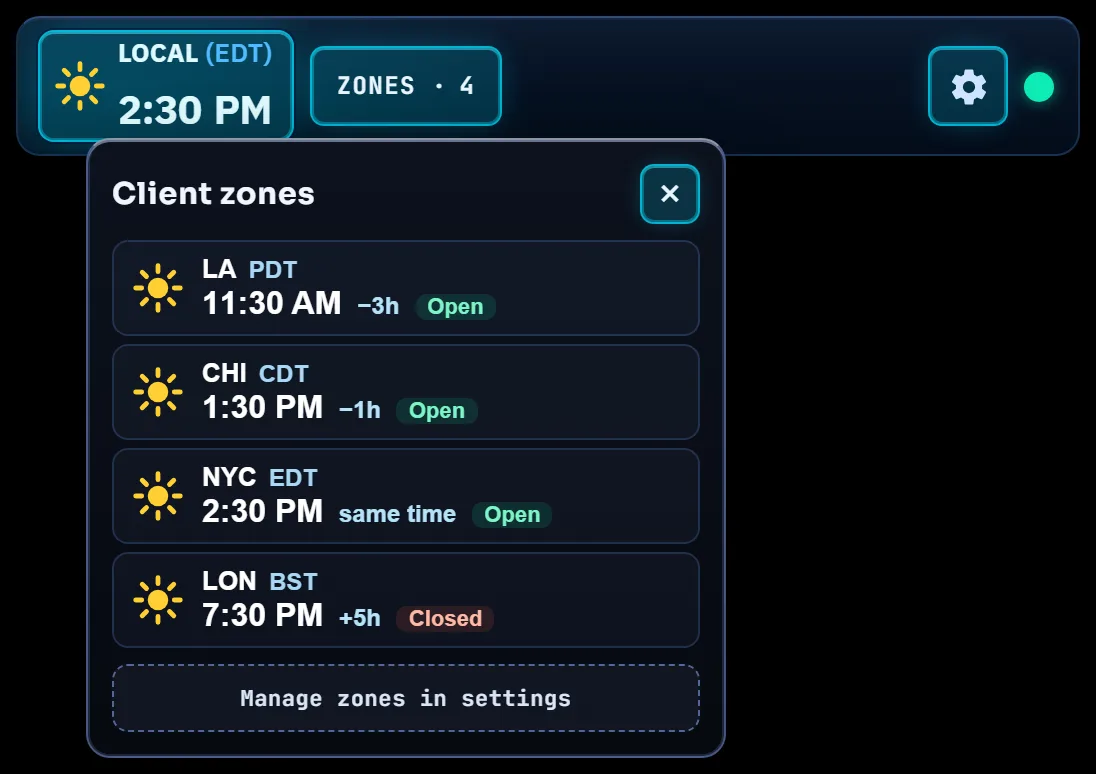
On a narrow window the row folds into a ZONES · N control beside the local chip (the N is how many cities you have). Click it to open the list of your cities — each with its icon, code and zone, the time there, its offset from you and whether it is open or closed right now — and click any city to schedule in its time, exactly as you would from the bar. Manage zones in settings at the foot of the list opens the gear.
When to use it
- You're about to call or message someone in another city and want to be sure it isn't the middle of their night.
- You want to drop a call, follow-up, or focus block onto your week at a time that works for the other person's local hours.
- You just want a steady, always-visible clock while you work.
How to… schedule from the bar
Meridian turns "what time is it there?" into "put it on my calendar." Clicking opens a small Schedule popover, centered under the entry you clicked, that does the time-zone math for you and adds the item to your Schedule board. While it's open, the left navigation and the Meridian bar stay put and everything else goes black so the options stand out — click anywhere outside the popover, use its ×, or press Esc to close it.
| Click… | What happens |
|---|---|
| A city entry | Schedule something in that city's local time — Meridian converts it to your time before saving. |
| The local chip (your time) | Schedule something in your own time, with one-click actions: "Block now", "Follow-up +2h" and "Tomorrow 9 AM." |
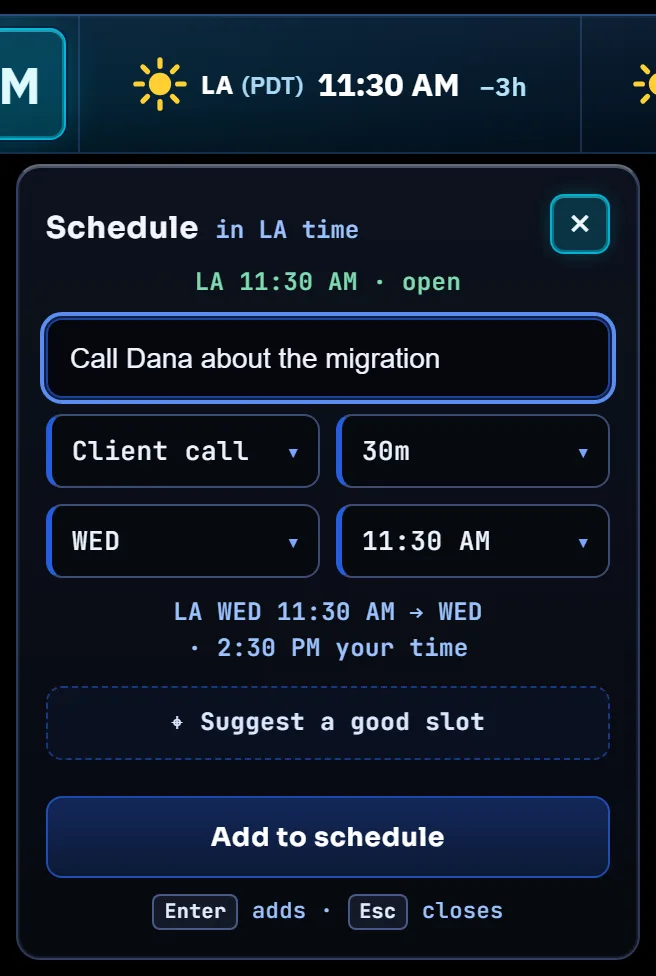
In the popover you give the item a title, then pick from four equal boxes: type, length, day and time. A preview line shows the result in your time. Press Enter in the title, or click Add to schedule, to save it; a message confirms what was scheduled and when, and the popover closes. While you are typing the title a small hint under the button reminds you that Enter adds and Esc closes. One press adds one item: holding the key or pressing it twice never schedules the same thing twice, and your account keeps it that way even if the request has to be sent again. It warns you on two separate counts: when the converted time lands outside your business hours, and when the time you picked is outside that city's. Both matter — a polite 9 AM in London is a 4 AM alarm in New York, and only the first check would catch it. For a city, Suggest a good slot finds times that sit inside both working days, using that city's own hours (see below) rather than assuming they match yours.
Meridian only schedules onto Monday–Friday. If a converted time rolls onto a Saturday or Sunday, it tells you instead of saving — so a late-night call in one zone never silently lands on a weekend in another. This applies to the quick actions too: on a Friday evening, "Tomorrow 9 AM" is dimmed rather than quietly moved to Monday.
Landing outside business hours is a warning, not a refusal — sometimes the 6 AM call is the point. Meridian schedules it and says so.
Settings (the gear)
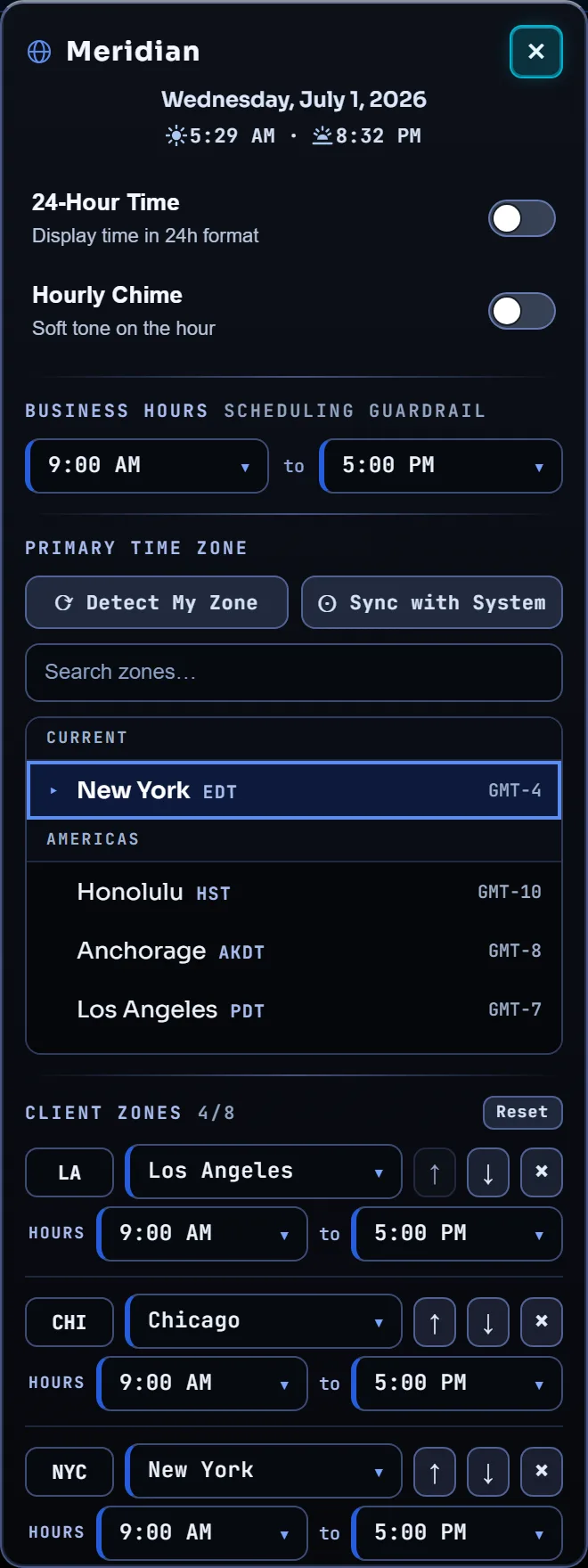
Click the gear on the right to open the settings panel. While it's open the left navigation and the Meridian bar stay put and everything else goes black so you can focus on the controls; click outside it (or press Esc) to close. Your choices are saved on this device and remembered next time.
Clock options
- 24-Hour Time — switch between 1:00 PM and 13:00 everywhere on the bar.
- Hourly Chime — a soft tone on the hour. Turning it on plays a short preview so you hear the volume; the volume slider previews too as you let go of it, and hours sets when it's allowed to sound (all day, daytime, or work hours). The chime follows your primary zone, so it sounds on the hour there even if your computer's clock is set somewhere else. Browsers only allow sound after you have clicked or typed on a page; if the hour arrives before you have, Meridian says so once and sounds from the next hour.
There is no daylight-saving switch to set. Every zone on the bar is read with its real daylight-saving rules, and scheduling uses the offset that applies on the day you're booking — not today's — so a slot booked before a clock change still converts correctly.
Business hours
Set the open/close times that count as your working hours. The Schedule popover uses these to warn you when something would land outside them, and as your half of the Suggest a good slot search. Each city keeps its own hours separately — see below.
Primary time zone (your zone)
- Detect My Zone — sets your zone from your computer's clock setting and, with your permission, uses your device location to make the sunrise and sunset times exact for where you actually are. Location is only used when it sits inside that zone; if you are somewhere else (a VPN, or a laptop still set to home), Meridian tells you and keeps the zone's own city for sunrise and sunset. Your location stays on this device — it is never sent to your account.
- Sync with System — matches whatever your computer is set to right now.
- Search — type a city or zone to pick it from the list.
Each action confirms what it did in a message. The sunrise and sunset line under the date follows your zone's city (or your location, once detected); for a zone outside Meridian's city list it says the times are not known rather than guessing.
Client zones (the row)
- Add zone — add another city to the row (up to eight).
- Label — rename any entry to a short code you recognize (up to five characters).
- Hours — that city's own working day. A new city starts with a copy of your hours; change either side and the other stays put. These are what Suggest a good slot matches against, and what the "open"/"closed" note in the Schedule popover reports.
- ↑ / ↓ — reorder the row.
- ✕ — remove an entry.
- Reset — return the row to the default set of cities (LA, CHI, NYC, LON). It asks first, because the labels and hours you set for each city are not kept.
Keyboard and screen readers
- Press Tab to move to the local chip, each city entry, and the gear in turn.
- Press Enter or Space on a focused entry to open its Schedule popover; press the gear to open settings.
- In settings, the time-zone list is a single stop: Tab into it, then use ↑ ↓ (or Home / End) to move through the cities and Enter to choose one. You don't have to tab past every city to reach the settings below it.
- Press Esc to close the popover or the settings panel. Focus returns to whatever you opened it from.
- Screen readers announce each entry with its city, current time and whether it's daytime, twilight or night there — the clock does not interrupt you as it ticks. The save-status dot after the gear is in the Tab order and reads out its state.
Tips & tricks
- "My local time looks wrong." Open settings and use Detect My Zone or Sync with System to set your primary zone.
- "A city is an hour off." Daylight saving is handled for you, so check the city itself — some places that look alike don't shift together (Phoenix, for instance, doesn't observe it at all). Pick the exact city from the zone list rather than a nearby one.
- "I can't add another city." The row holds up to eight. Remove one with ✕ to make room.
- "My scheduled item didn't appear on a weekend." That's by design — Meridian only places items on Monday–Friday and will tell you when a time rolls onto the weekend.
Troubleshooting
- "Detect My Zone" says location is blocked: your browser has refused location access for this site. Your zone was still set from your computer's setting; allow location for this site to make sunrise and sunset exact, or just pick your zone from the search list.
- "Your location is not in …": your device reports a place outside your zone — usually a VPN or a computer still set to a home zone. Pick the zone you are actually in from the list, then run Detect My Zone again.
- The chime never sounds: check that Hourly Chime is on, the volume isn't at zero, and the current hour is within the active-hours setting. Browsers stay silent until you've clicked or typed on the page at least once; Meridian tells you when that was the reason.
- "Saving a lot at once…": your account asked this browser to slow down after a burst of board changes. Nothing is lost — the board is kept on this device and syncs to your account after the pause the message names.
- Your zones reset unexpectedly: Meridian remembers settings in this browser's local storage (and mirrors them to your account when you are signed in — the dot beside the gear says which). Private/incognito windows, or clearing site data, will return a signed-out browser to the defaults.
- The dot beside the gear is red: the last change could not be saved to your account. It is still kept on this device; hover the dot to read the reason, then change any setting again to retry.