Kards & Library
Domains & Organizing
The sidebar map of your library — domains, subcategories, expanding and jumping.
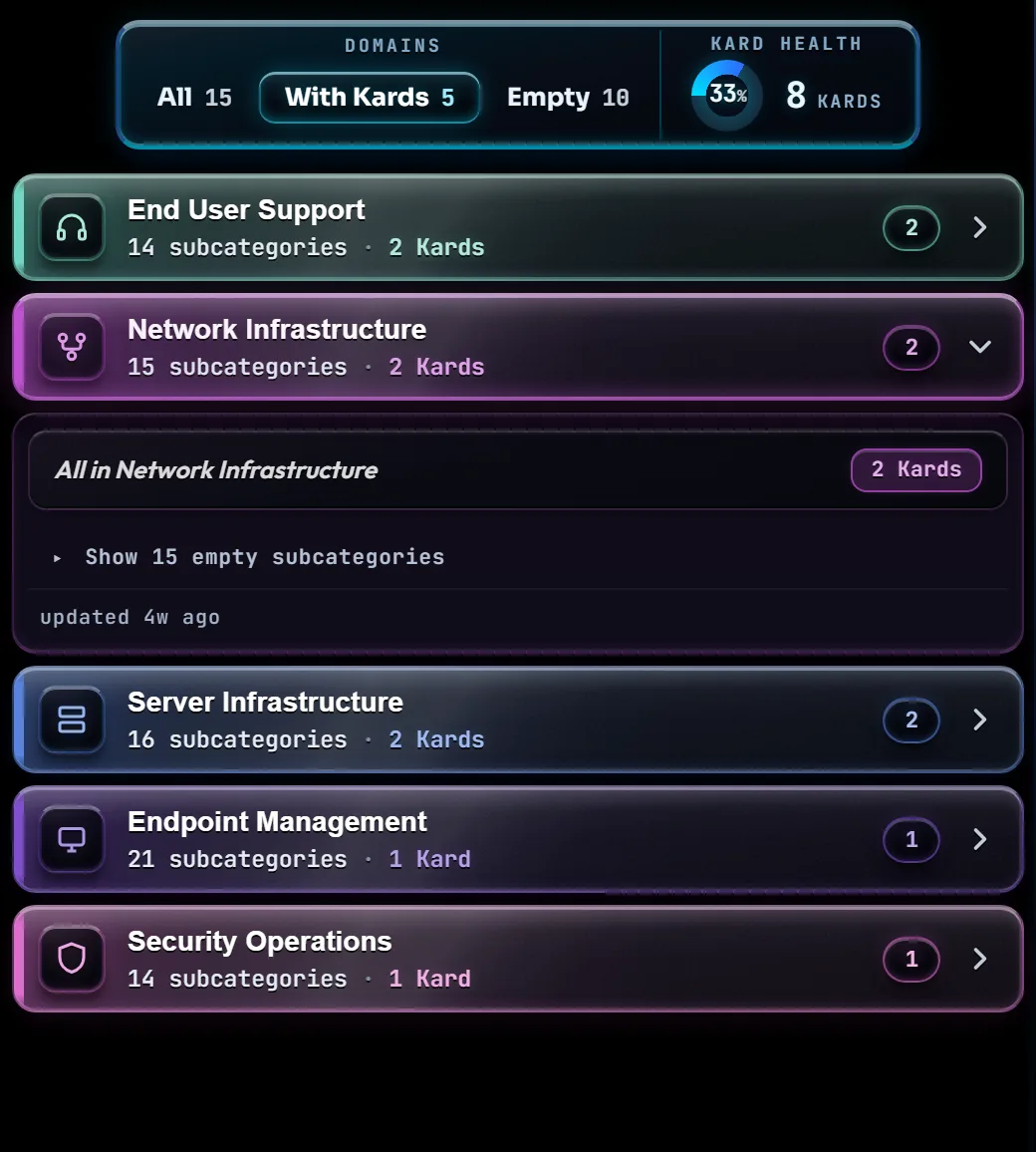
At a glance
The Domains list in the sidebar is the map of your library. Every Kard belongs to one Domain (like Network Infrastructure or End User Support), and optionally one Subcategory inside it (like DNS Resolution). Each domain row shows a live Kard count, and expanding it reveals its subcategories with their own counts.
At the top of the list, a small three-way filter — All, With Kards, Empty — decides which domains show up at all. Each one carries a number: how many domains that choice would show, not how many Kards. It opens on With Kards, so a freshly-installed library leads with the handful of domains that actually have something in them rather than every domain you own. See Show domains with no Kards yet below if a domain you know exists isn't in the list.
Each domain also carries its own color — you'll see it glow in the domain's icon tile and along the left edge of its row here, and it's the same color used on that domain's Kard tiles in the library below.
Sharing that panel, to the right of the filter, is a readout of your library's overall health — see Read the Kard-health badge for what it means; this page is only about the list underneath it. (On a narrow window the panel stacks, and the readout moves below the filter rather than beside it.)
In a narrow window (under 900px wide) the sidebar narrows too: a long domain or subcategory name wraps onto a second line rather than being cut off, a domain's Kard count sits on a line of its own under its subcategory count, and an empty domain's + Add Kard shortcut shows just its +.
How to…
Read a domain and its subcategories
Click a domain's row (or its name) to expand it. This only opens the row to show what's inside — it doesn't change what's in the Kard library grid below. Once it's open you'll see:
- All in <Domain> — the first row inside every expanded domain. Click it to filter the grid to every Kard in that domain, including ones that aren't filed into any subcategory. In a fresh install this is most of them: none of the sample Kards are sorted into subcategories yet.
- Each subcategory — its own row with its own live count. Click one to narrow the grid down to just those Kards.
- Show N empty subcategories — subcategories with zero Kards are tucked out of sight by default so a 15-subcategory domain with only two covered ones doesn't read as a wall of zeros. Click the toggle to reveal the rest.
Only one domain stays expanded at a time — opening a second one closes the first, so the list doesn't grow without bound as you look around.
Expand or collapse everything at once
The four-pane window button in the Domains header expands every domain in one click, and collapses them all again just as fast. Its label and tooltip track which action is next: Expand all domains when anything is collapsed, Collapse all domains once every domain is already open.
If your library has no domains at all, the button dims and stops responding — there is nothing to expand or collapse until you add one in the Domain Manager.
This button opens or closes subcategory lists; it does not hide the Domains section. Domains start collapsed on a new visit. Its red, white and blue cycling colors are decorative, not a status signal. Settings → Interface & Accessibility → Reduced motion stops the color movement and makes expansion and collapse immediate. Your system's reduced-motion preference also applies. See all three sidebar window buttons.
Show domains with no Kards yet
Click With Kards, Empty, or All at the top of the list to change which domains are shown. This is where to look if you just created a new, still-empty domain in the Domain Manager and can't find it here — switch to All (or add its first Kard) and it appears.
The three keys work as one control from the keyboard: Tab to the selected one, then ← → (or ↑ ↓) to move between them, and Home / End to jump to the ends. Moving selects as you go, and the key you land on keeps focus. A choice that matches nothing — Empty once every domain holds a Kard — says so in place of the list rather than leaving it blank.
Jump to a match while you search
Typing a subcategory's name into the sidebar search box expands the domain it lives in automatically — even if that domain was collapsed and the subcategory was tucked away — so the match is visible the moment you finish typing. See Search & Pins for everything else the search box can do.
Dress the list for the season
Open Settings → Interface & Accessibility and set Seasonal theme. The domain list is re-lit in that season's colors — two tones alternating down the list, with a metal on the edges and a single small mark beside the word Domains above it. It ships Off; nothing changes until you choose something.
Pick Automatic (follow the calendar) and the right season appears on its own. Three of them run for weeks; the rest are the day itself, and the app is its normal self in between — which is what makes one showing up worth noticing.
| Season | When | Colors |
|---|---|---|
| New Year | January 1 | Champagne and platinum |
| Winter | January 2 – end of February | Glacier, pewter, frost |
| Valentine's Day | February 14 | Wine, dusty rose, rose gold |
| St. Patrick's Day | March 17 | Emerald, moss, antique gold |
| Easter | Easter Sunday | Sage, lilac, pale gold |
| Memorial Day | The last Monday in May | Muted navy, oxblood, bone |
| Independence Day | July 4 | Navy, brick red, bone |
| Halloween | October 1 – 31 | Burnt orange, aubergine, brass |
| Thanksgiving | November 1 – Thanksgiving Day | Chestnut, olive, brass |
| Christmas | The day after Thanksgiving – December 31 | Evergreen, burgundy, champagne |
October through December runs continuously: Halloween hands over to Thanksgiving on November 1, and Thanksgiving hands over to Christmas the day after. When a one-day holiday falls inside a longer run — Valentine's Day sits inside Winter — the shorter one wins, because it is the more specific occasion. Picking a season by name instead of Automatic pins it and ignores the calendar entirely, so you can have Christmas in July if you want it.
Memorial Day is treated as remembrance, not celebration. It is the one season with no gold, no points of light on the domain rails and no shimmer — muted navy and oxblood with bone edges, and a laurel sprig rather than a flag.
All of it is presentation only. Every domain, subcategory, count and Kard is exactly where it was, in the same order, and the icon on each row keeps its own domain color so you can still find a domain by its color. The tone a row is given alternates by its position in the list, so switching between All, With Kards and Empty can hand a domain the other tone — the list is shorter, so the alternation lands differently. Nothing but the color moves.
Seasonal motion, just below the theme, controls the slow ambient light on the domain rails and the shimmer as you point at a row. Turn it off and the theme keeps its full color with nothing moving. Reduced motion higher up the same page, and the reduced-motion setting in your operating system, both switch that movement off on their own.
The little mark above the list is worth a click.
Tips & tricks
- A domain's color isn't just decoration here — it's the same color that tints that domain's Kard tiles in the library, so you can match a tile back to its domain at a glance.
- Adding and removing domains and subcategories happen in the Domain Manager — this page is mostly for browsing and filtering. Two edits are reachable here too: right-click a domain row for Rename and Color, and the color popover carries the same preset swatches and custom color-wheel the Domain Manager offers.
- You can move focus through the tree with ↑ ↓ ← →, but a row still needs an actual click (or tap) to filter the grid by it — the arrow keys only move you around.
Troubleshooting
- "A Kard I know I have has disappeared." A Domain, Subcategory, or quick filter is narrowing the grid. See The Kard Library's troubleshooting — the short version is: click All Kards in the Command Center.
- "I can't find a domain I just added." The list defaults to With Kards, which hides domains that don't have a Kard in them yet. Click All at the top of the list — see Show domains with no Kards yet above.
- "I arrowed down to a subcategory and pressed Enter, but nothing happened." Arrow keys move you through the tree; click or tap the row you land on to actually filter by it.
- "My domains have changed color and I didn't do it." A seasonal theme is on, most likely Automatic reaching a holiday. Set Seasonal theme to Off in Settings → Interface & Accessibility — see Dress the list for the season above, which lists every season and its dates. Your domain colors are untouched underneath; they come straight back.
- "A domain changed color when I switched filters." That is the seasonal theme. It alternates its two tones down the list by position, so a shorter list gives some domains the other tone. Nothing about the domain itself has changed.
- "Automatic is on but nothing looks different." Most days of the year are ordinary days, and on those the app is meant to look like itself. The theme description under Seasonal theme in Settings names the season Automatic has picked for today, or says it is an ordinary day.
Shortcuts
| Keys | Does |
|---|---|
| ↑ ↓ | Move focus between domains, and (once one is expanded) its subcategory rows |
| → | Expand the focused domain |
| ← | Collapse the focused domain (or, from a subcategory, jump focus back to its domain) |
| Any letter key | Jump to the next domain whose name starts with that letter |