Kards & Library
Import, Export & Backups
Getting Kards in and out — backup files and importing.
At a glance
Everything on this page happens in your own browser — a file downloads, or a file you choose gets read back in. Nothing here is uploaded to your account: these tools read and write files on your machine, and your Kards sync separately whether you use them or not. Two kinds of tool live under this umbrella, and they're not the same thing: Export (Ctrl+E) and Import (Ctrl+I) work with your Kard library itself, while a separate, broader Back up everything / Restore from backup pair in Settings → Kard Library & Data covers more than just Kards. Each is covered below.
The ? in the title bar of the Export and Import windows, left of the window buttons, opens this page.
How to…
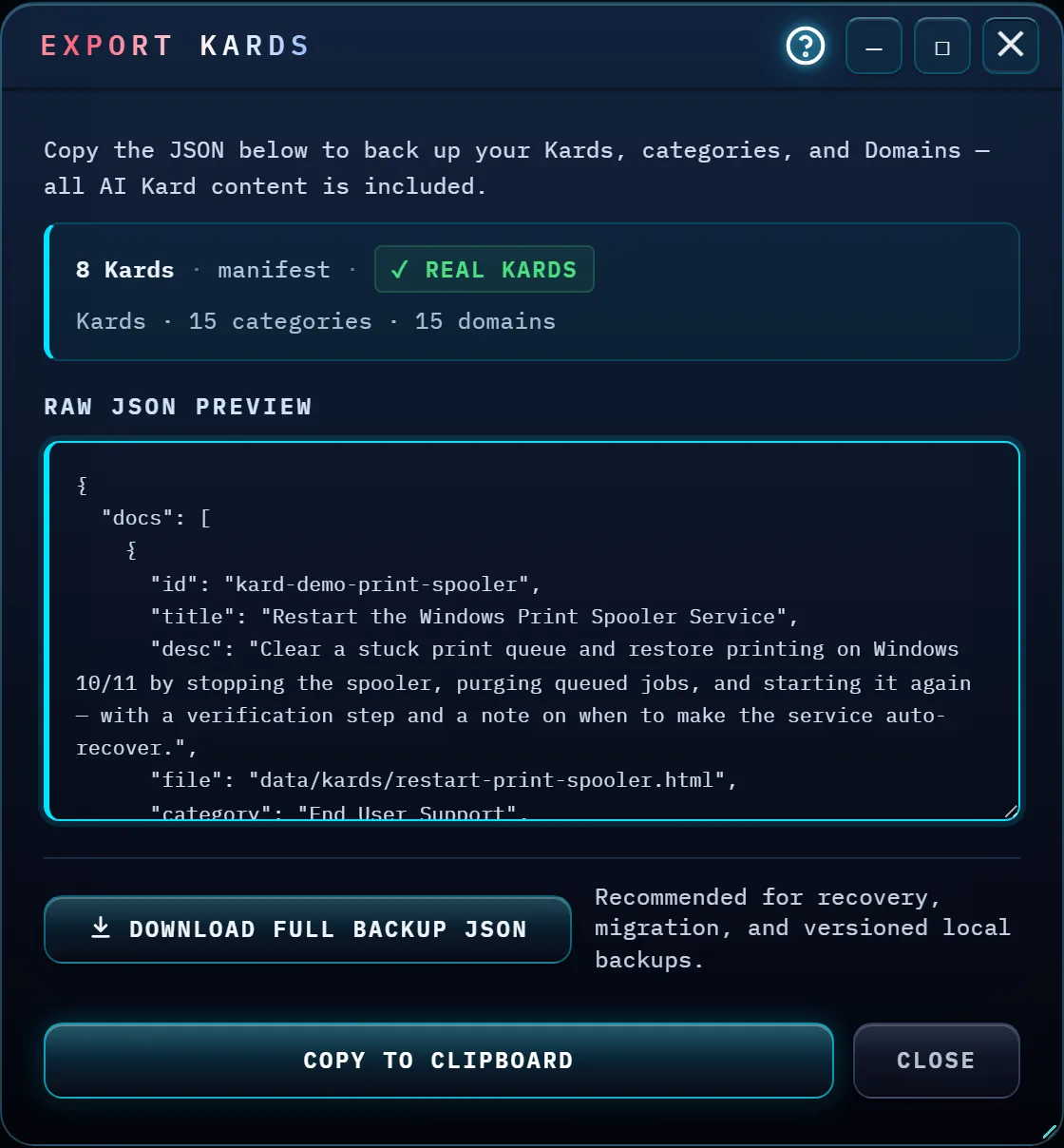
Export your Kards
Press Ctrl+E, or click
Export in the Command Center. The dialog opens with a live summary — how
many Kards, whether they look like your own or the built-in sample set, how many categories
and Domains — and the raw JSON right below it. Two ways to actually get it out:
Download Full Backup JSON (directly under the JSON preview) saves an
actual file, named something like kashic-kards-backup-20260702-143000.json;
Copy to Clipboard (the bottom-most control) copies the JSON text instead.
Either way you get everything: every Kard, every category, every Domain — and for Kards you
wrote with the AI Generator, their full written content along with the metadata, not just a
summary of them.
Import Kards from a file
Press Ctrl+I, or click
Import. Paste JSON directly into the box, or click Load from
file to read a .json file into it instead — either way lands in the same
box for you to review before committing. The dialog recognizes three shapes: a full backup
file, a plain export (Kards + categories + Domains), or a bare list of Kards from an older
export — it tells you which one it found. If the box is empty, the JSON can't be read, or a file
goes over a limit, the reason appears in red right under the box; editing the box clears it.
Import replaces your library — it does not merge. Before anything changes, you're shown exactly how many Kards were found, how many share an id with one you already have, and a plain statement that your current Kards will be replaced. A backup of what you currently have downloads automatically first, before the swap happens, so confirming isn't a leap of faith.
Limits are enforced honestly: up to 5 MB of JSON text and 5,000 Kards per import — comfortably above anything a real library needs, there only to stop a runaway or corrupted file, and Import tells you plainly (with the actual numbers) if a file goes over either one. An oversized file is turned away the moment you choose it — it is never read in, so a runaway file can't tie up the app on its way to being rejected. Every record also gets a quick shape check — it needs a real id, title and category — and anything that fails is silently skipped and called out in the confirm step, right alongside any demo/sample Kards the file happens to contain.
Imported Kards are checked, too: nothing in an import file can make a Kard claim to be an Official, built-in, or otherwise protected Kard — any such flag baked into the JSON is stripped before it's saved, no matter what the file says. If two records in the same file share an id, the second is automatically given a new one, so one can't silently overwrite the other's content.
Settings → Kard Library & Data has its own Export Kards / Import Kards buttons — they open this exact same dialog, not a different one.
Full backups, from Settings
Settings → Kard Library & Data has its own, separate
Back up everything / Restore from backup pair, next to
Export and Import. It casts a wider net than Export: one file wraps up your Kards, Domains,
tickets, sessions and most of your app preferences — search, interface settings, sidebar pins,
Command Palette pins, Meridian's clock settings — not just the Kard library. Restoring says so plainly before you
confirm: "This replaces your current Kards, domains, tickets, notes and settings with the
contents of this backup. A safety snapshot is taken first — you can undo this afterwards from
Settings → Kard Library & Data. Only restore files you created with Back up everything."
That safety snapshot is real, not a figure of speech: after a restore, an Undo last
restore button appears in Settings → Kard Library & Data and — after
its own confirmation — puts back exactly what you had, written Kard content included.
The two even use different filename patterns worth telling apart later —
kashic-kards-backup-… from Export, kashic-backup-… from Settings.
It also carries the written content of your AI-generated Kards and your per-Kard notes — the backup reads each Kard's stored body out of the browser's storage and wraps it into the same file, and Restore writes it back. Restore one on a different browser, or after clearing site data, and your AI Kards come back readable, notes included. When a backup finishes, the confirmation names how many Kard bodies it captured — a quick sanity check that your written work actually made it into the file. One thing does not come back: the verified-sources shield on a generated Kard. It is earned when the Kard is generated and saved, and a file cannot show that, so a restored or imported Kard arrives without it.
Where files come from and go
Export and the two backup buttons save to wherever your browser sends downloads; Import and Restore read a file you choose, or JSON you paste, from your own computer. Nothing here talks to the internet.
Tips & tricks
- Domain and subcategory names in an imported file load exactly as they are, even ones that break today's naming rules (too long, or a look-alike of another name). Integrity Check lists them, and the rules apply when you rename one.
- Export before you Import. The app already downloads a safety-net backup automatically right before replacing your library — but a manual export costs nothing, and it's easier to find later than a backup you never went looking for.
- The Export dialog's live summary is a fast sanity check before you rely on a file — it names how many Kards, categories and Domains are actually in it.
- A pasted JSON and a loaded file both land in the same box in the Import dialog — you can review or edit the text before clicking Import.
Troubleshooting
- "Import says it doesn't recognize my file." The text isn't valid JSON, or it doesn't match any of the three accepted shapes (backup, plain export, or a bare list of Kards) — check for a stray character, or a file that's wrapped in an extra layer it shouldn't be.
- "Import rejected my file for being too big, or having too many Kards." That's the honest cap doing its job — 5 MB of JSON text and 5,000 Kards, well above any real library. The rejection message states your file's actual size or count next to the limit.
- "I imported a file and now my categories and Domains are gone." Import replaces the whole library, categories and Domains included — if the file you imported didn't have any, you're left with none. That's exactly what the confirm dialog warned about before you clicked through it. Recover with the pre-import backup that downloaded automatically right before the swap.
- "I restored a full backup and one of my AI-generated Kards looks empty." "Back up everything" does carry AI-written Kard content — see Full backups, from Settings, above — so an empty Kard after a restore means that body wasn't in the file: the backup was made when the content was already missing, or its finishing confirmation counted fewer Kard bodies than you expected. Check the count the next backup names when it completes, see Reading a Kard for what an empty Kard tells you when you open it, and regenerate the Kard — or restore a newer backup whose count matched.
Shortcuts
| Keys | Does |
|---|---|
| Ctrl+E | Export Kards |
| Ctrl+I | Import Kards |