Kards & Library
The Kard Library
Your saved Kards — tiles, favorites, grid and list views, sorting and quick filters.
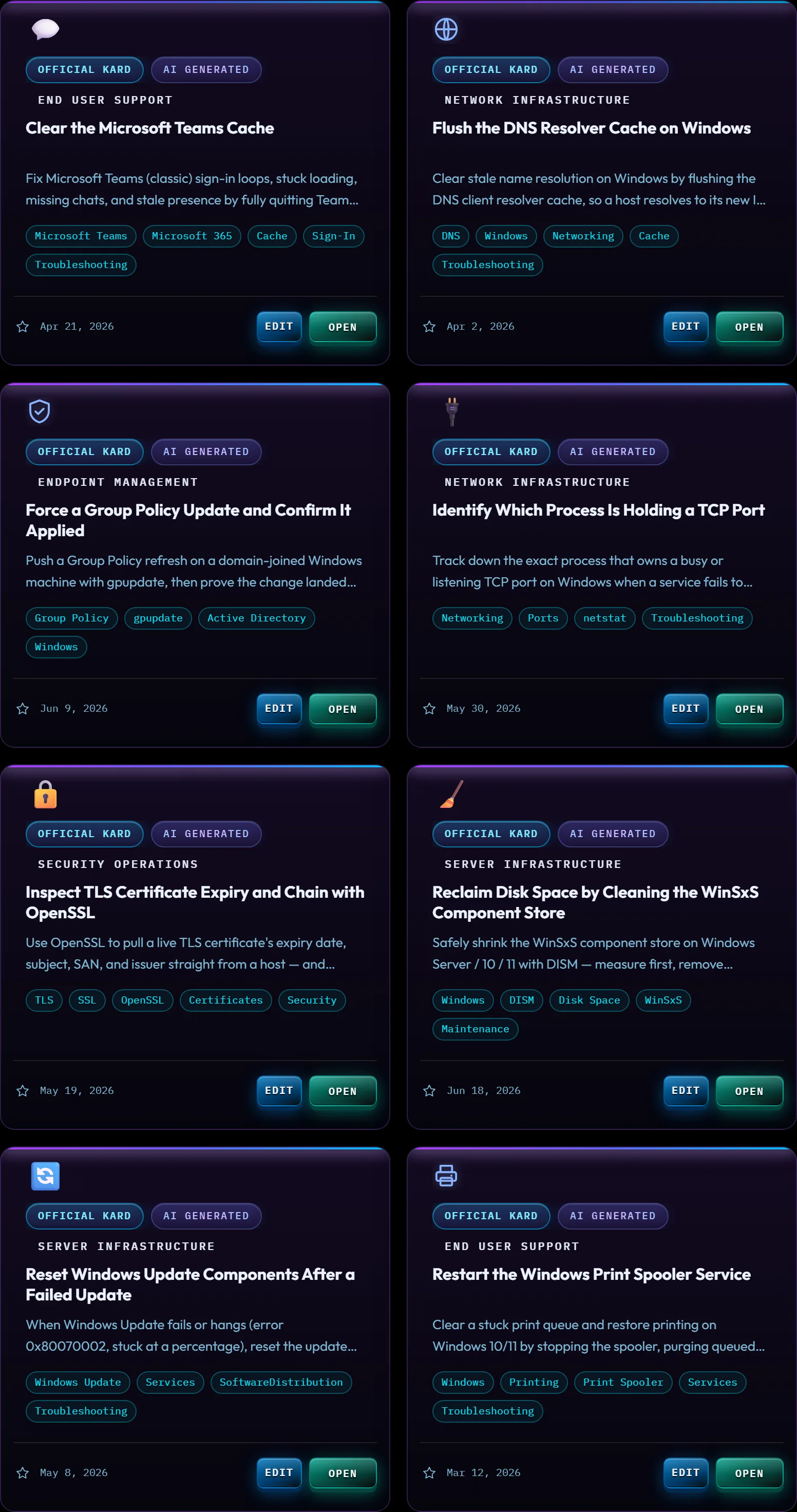
At a glance
The library grid is the wall of tiles below the boards — every Kard you have, one tile each. From here you can open a Kard, star it as a favorite, switch between grid and list layouts, sort the whole library, or narrow it down with a quick filter. Nothing here deletes or changes a Kard's content — the controls on this page only change what you're looking at and in what order.
Libraries are verified up to 5,000 Kards. Search, filters, sorting, and counts cover the entire library. Scroll normally to browse; use Home and End on a focused card to reach the first or last matching Kard, and arrow keys to move between cards.
How to…
Read a tile
Every tile is the same size — grid tiles at one fixed size, list rows at another — with the same things in the same places; long content is trimmed to fit rather than stretching the tile:
- A thin color bar across the top, matching the Kard's Domain.
- A source badge — Official Kard (ships with the app, protected from deletion) or My Kard (yours) — plus an AI Generated badge when the AI Generator wrote it. See Demo Data & Starting Fresh for what Official Kard actually protects.
- A small shield in the corner of a generated Kard whose generation searched the web and whose links were all checked and found working when it was saved. Editing the Kard checks its links again. A Kard brought in by Import or Restore arrives without the shield, because a file cannot show that either check happened.
- The category, title, and description. Titles keep two lines; descriptions keep two lines in Grid View and one in List View, ending in an ellipsis — hover the title to read all of it, or open the Kard for the full text.
- Tags (labels) describing what the Kard covers — two rows on a grid tile, one row on a list row. When a Kard has more tags than fit, a +N chip counts the rest — hover it to see their names, or click it (it's a button, so Tab and Enter work too) to show them all on the tile. Click it again to tidy up.
- A ⏳ stale marker beside the date when a Kard hasn't been updated in six months or more, showing how long it's been — see below.
- A favorite star and the date it was added, in the footer.
- Edit and Open buttons.
Clicking Open (or pressing Enter while a tile has focus) reads the Kard — but what you land on depends on where the Kard came from. See Reading a Kard for the full picture, including why the eight sample Kards the app ships with open differently than a Kard you write yourself.
Switch Grid and List View
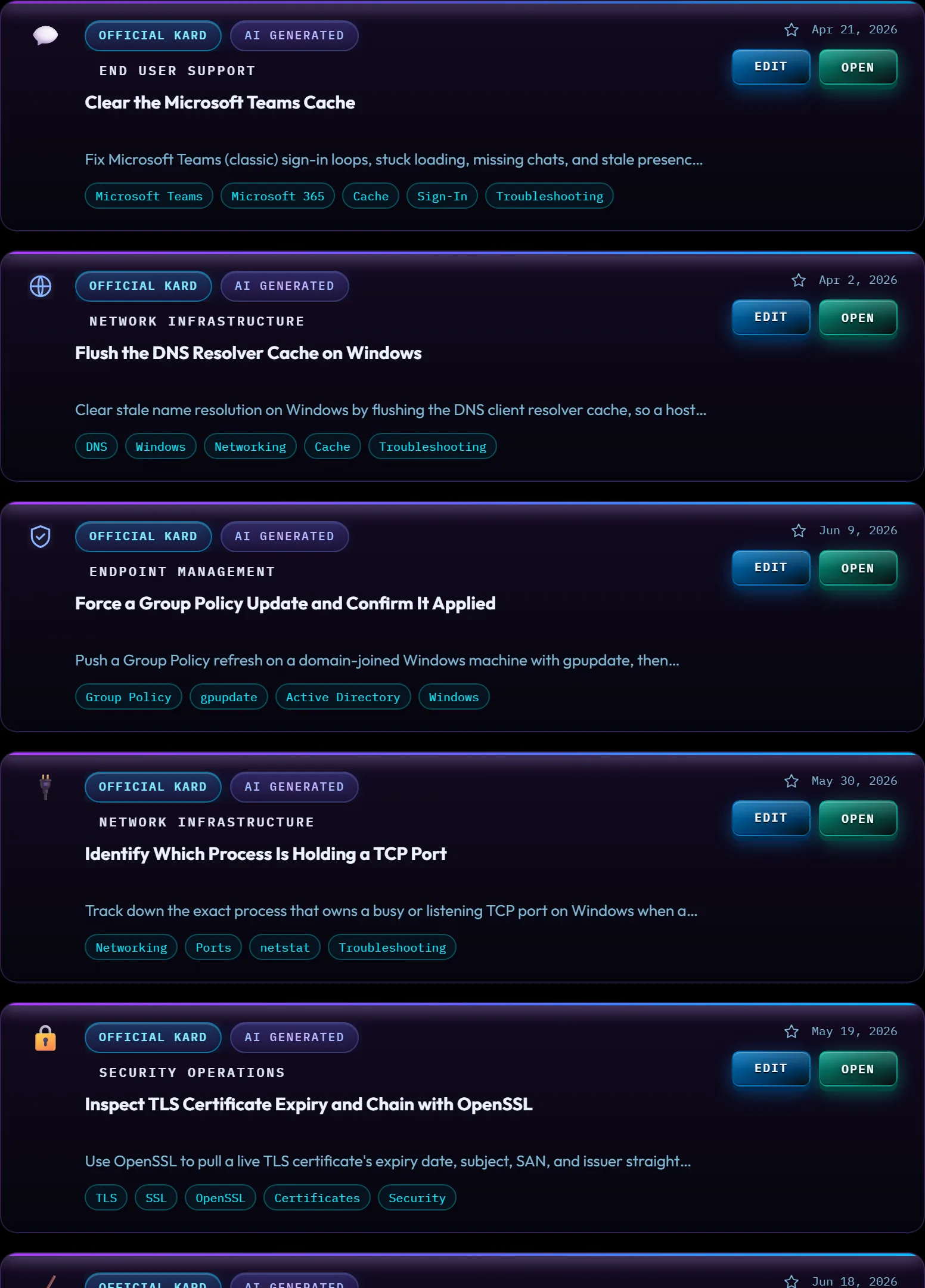
Click Grid View or List View in the Command Center (Alt+G / Alt+L) to change the layout. Both views show the same Kards with the same actions — List View lays each Kard out as a full-width row and trims the description to one line and the tags to one row, which is easier to scan top-to-bottom when you have a lot of Kards. Nothing is lost in the trim: the +N chip names the remaining tags, and opening the Kard always shows the full text.
Right next to those two buttons, Labels (Ctrl+L) is a separate toggle — it hides or shows the text labels under every Command Center button (icon-only vs. icon-plus-text), not anything on the Kard tiles themselves. The Labels button stays lit while the labels are off, so you can always see which mode you are in. Your choice is remembered between sessions, and the same switch lives in Settings › Interface & Accessibility.
In icon-only mode, hovering a button shows its name, and moving to it with Tab shows the same name in a small tip above the button — so the board is navigable by keyboard without the captions.
In a narrow window the Command Center runs four buttons to a row with smaller captions, and the Labels button works as it does anywhere else. Narrower still and the whole sidebar tucks away as a drawer — use the ☰ button in the top-left corner to slide it in and out.
Sort your Kards
Click Sort Kards (Alt+S) to open the sort menu. The options, top to bottom:
- A → Z / Z → A — by title.
- Newest / Oldest — by the date the Kard was added.
- Category — groups Kards by Domain.
- Favorites — starred Kards first.
- Recent — most-recently-opened first.
- Most Used — most-opened first; among Kards opened equally often, the one you opened most recently comes first.
Your chosen sort applies to the whole library and to the Favorites and New Kards quick filters below — but not to Recent or Most Used, which are their own orderings (see below). While one of those two views is active the sort menu pauses: its options gray out and a note says which view owns the order. Your chosen sort is remembered between sessions.
Use the quick filters
The row of five buttons under Sort Kards narrows the grid to one view at a time:

- All Kards (Ctrl+1) — clears any quick filter or Domain selection.
- Favorites (Ctrl+2) — Kards you've starred.
- Recent (Ctrl+3) — a true ordering, not just a filter: your most-recently-opened Kards, most-recent first. It shows your eight most recent, so the view stays a shortlist — the Kard count says how many it was drawn from (for example, “8 of 23 Kards”).
- Most Used (Ctrl+4) — also a true ordering: your most-opened Kards, most-opened first. Kards opened equally often are ranked by which you opened most recently. It shows your top five, with the same “5 of …” count.
- New Kards (Ctrl+5) — Kards added today or in the six days before it, in whatever order Sort Kards is set to.
Click the lit filter again to turn it off and return to All Kards.
Favorite a Kard, and see how much you use it
Click the star on a tile to favorite it. Favoriting doesn't touch a Kard's content; it just adds it to the Favorites quick filter and the Favorites sort.
The app also quietly counts opens: every time you click Open on a tile — whether the Kard lands in a new browser tab or the in-app viewer — that counts toward Most Used and updates Recent. There's nothing to turn on; it just happens as you use the library.
Work on several Kards at once
Ctrl-click a tile (⌘-click on Mac), or press Space while a tile has focus, to select it — a bar appears above the grid showing how many are selected, with ★ Favorite, 🗑 Delete, and Clear. Favorite stars them all (or unstars them, if they're all already starred). Delete asks you to confirm first and names how many will go; Official Kards are kept even if they're in your selection, exactly as they are when you delete one at a time. Selecting is only a view thing — it never changes a Kard, and it clears itself when you reload.
See what's gone stale
Knowledge rots quietly: a runbook written against last year's console still looks fine on its tile. Any Kard you haven't updated in six months or more carries a small ⏳ marker showing its age (8mo, 1y+). It's an observation, not a verdict — nothing is hidden, changed, or deleted, and a Kard that's still correct can be left exactly as it is.
To see them together, open the Command Palette (Ctrl+K) and choose Stale Kards. The same palette has Resume Last Kard, which reopens whatever you read most recently — useful when you come back to a job after being pulled away.
Read the Kard-health badge
In the panel at the top of the Domains list, beside the coverage filter, a small badge reports on your library. When your Kards are loaded normally, it shows a coverage gauge — the percentage of your Domains that have at least one Kard — next to your total Kard count. Both track your library as you work: add, import or delete a Kard, or add or remove a Domain, and the gauge moves with it. If something's off, the badge switches to a plain warning label instead of the gauge: your library is completely empty, the app fell back to a smaller built-in demo set, or — if it couldn't reconfirm your Kards against its own file-backed list this time around — a STORED label, meaning you're looking at what's saved in this browser rather than a freshly-confirmed set. Hover the badge for the details behind the number, or Tab to it — a screen reader reads the same details there.
Tips & tricks
- Recent and Most Used aren't just filters with fancy names — they're real rankings built from what you actually open. The more you use the app, the more useful they get.
- Switching to List View doesn't change what's on a card, only the layout — the same title, tags, star, and Edit/Open buttons are still there, just arranged as a row.
- A quick filter and a Domain selection can't both narrow the grid at the same time — picking one clears the other.
Troubleshooting
- "A Kard I know I have has disappeared." A quick filter or a Domain selection is narrowing the view. Click All Kards in the Command Center to clear it.
- "The order looks wrong." Check which Sort option and which quick filter are active. Recent and Most Used always show their own ordering (time or use count) — they ignore whatever Sort Kards is set to.
- "My Favorites / Recent / Most Used / New view is empty." That's expected until you star, open, or add a Kard — each quick filter explains what fills it right on the empty screen (for example, Favorites says "Star a Kard to pin it here").
Shortcuts
| Keys | Does |
|---|---|
| Alt+G | Grid View |
| Alt+L | List View |
| Alt+S | Open the Sort menu |
| Ctrl+L | Toggle Command Center labels |
| Ctrl+1 | All Kards |
| Ctrl+2 | Favorites |
| Ctrl+3 | Recent |
| Ctrl+4 | Most Used |
| Ctrl+5 | New Kards |