Kards & Library
Reading a Kard
Opening a Kard — moving through its stages, printing, and closing.
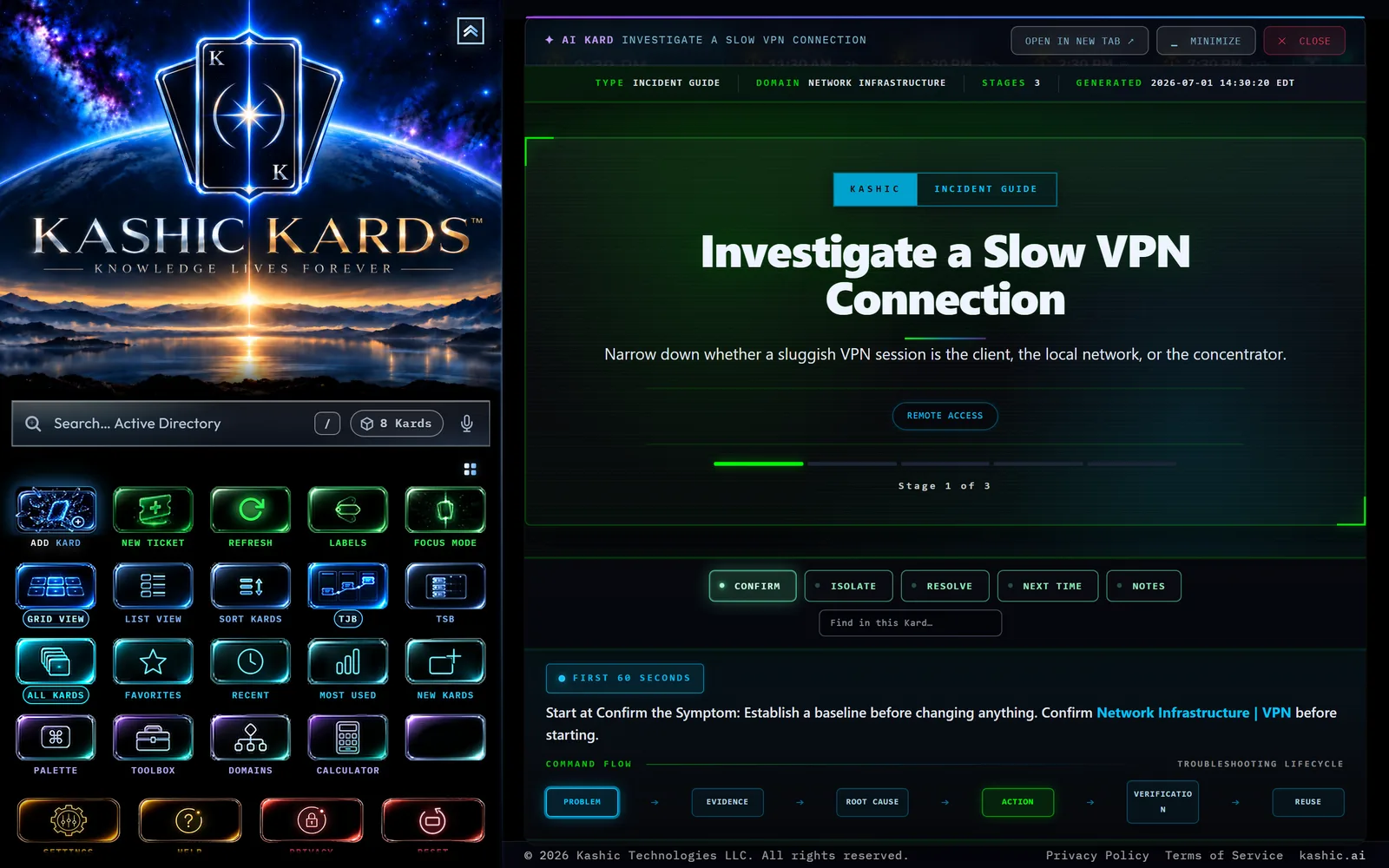
At a glance
Opening a Kard from the library lands you in one of two different places, and which one depends on where the Kard came from:
- The eight sample Kards the app ships with — and any other Kard tied to a saved file — open as a plain page in a new browser tab. There's no Kashic chrome around it; you're just reading the Kard itself.
- A Kard you write with the AI Generator, or bring in by importing, opens inside Kashic Kards™' own viewer window (pictured above) — a staged layout with its own title bar, because it isn't tied to one fixed file the way the samples are.
This page covers both, but focuses mostly on the viewer window, since that's where a staged Kard's stage buttons, progress bar, and Notes area live.
How to…
Open a Kard
Click a tile's Open button, or press Enter while a tile has focus. See Read a tile for everything else a tile shows.
Move through a staged Kard
A staged Kard opens with a metadata strip (its type, Domain, stage count, and when it was generated), a hero with the title and a short summary, and a progress bar reading Stage 1 of N. Below that, a row of buttons lists every stop in the Kard: its own stages by name (like Confirm, Isolate, and Resolve in the screenshot above; in a newly generated Kard the first is How It Works, and every other stage opens with Why This Works and closes with Reading the Result), then a closing stage of 3 to 5 lessons the AI drew from this Kard (Next Time for troubleshooting Kards, Key Takeaways for reference-style ones; a Kard that came back with no lessons has no closing stage), and a Notes stage the app always adds. Click any button to jump straight there. On a phone the buttons sit in a single row that stays at the top of the screen: swipe it sideways to reach the rest, and the Find in this Kard… box at its end.
Under the stage buttons, the Kard Intelligence panel orients you before you start: the Kard's Purpose, what it Applies To, its Risk — Read-only, Low, Medium or High, with a one-line reason, as the AI rated the procedure — and its Primary Tools. A cell the Kard has nothing true to say for is left out rather than filled in. On a Kard generated with sources, the panel's Evidence Map shows the result of the command check; see AI Generator for what its counts and marks mean.
Inside a stage's text, a real web link is clickable and opens in a new tab; anything that isn't a real, working link — a placeholder a generation left behind, for instance — reads as plain text instead of a dead click. A Kard generated with verified web sources turned on may also include a References stage listing what it drew from.
A code block's Copy button copies only the commands, ready to paste and run. The block's comments and any sample output are there to read, so they stay on the page. Every Kard in your library copies this way, whenever it was generated.
Find something inside a Kard
A staged Kard only shows one stage at a time, so your browser's own Ctrl+F can only see the stage you're looking at. Use the Find in this Kard… box in the stage bar instead: it searches every stage and tells you what it found (for example 3 matches in 2 stages). Press Enter to jump to the first match — the Kard switches to whichever stage it lives in and highlights it — and Enter again to walk the rest. Shift+Enter goes back one; Esc clears the search and the highlights.
Keep your place in a long Kard
Every stage has a Mark done button. Tick it as you work and that stage's button in the bar gets a check, so a long runbook survives a phone call, a reboot, or closing the Kard entirely — reopen it and your progress is still there. It's remembered per Kard on this device, and it never changes the Kard's content: untick it any time.
Get back to the ticket
When you open a Kard from a ticket — its ⬡ KARD flag, or by starting a focus session on it — the viewer's title bar gains a ↩ Back to KT-000 button that closes the Kard and reopens that ticket. Opening a Kard straight from your library shows no such button, because there's nothing to go back to.
Read a simple Kard
The sample Kards the app ships with are shorter and don't use a stage bar — you read them top to bottom in one scroll. Each follows the same shape: When to use this, What's actually happening, then one or two sections that walk through the actual fix, and a Confirm … section that tells you how to check it worked. Most close with a section for when that fix doesn't take — for example, the DNS-flush Kard ends with When a flush doesn't fix it, and the WinSxS cleanup Kard ends with When the store keeps growing.
Print or export a Kard
Kards you generate or import carry real built-in print styling. To use it, click Open in New Tab first — then use your browser's print (Ctrl+P). You'll get every stage in sequence with sensible page breaks, not just the one stage you happened to be looking at. The navigation bar, the find box and the other on-screen controls drop away, since they do nothing on paper.
The Kard keeps its dark theme when it prints. That's deliberate: the design is light text on a dark background, so the colors are forced through on purpose — without that, the text would come out nearly invisible on white paper. If you'd rather not spend the toner, use the Kard Export tool below instead.
If you print while you're still inside the app window, you'll print the app screen instead, with only part of the Kard visible inside its frame. Nothing is broken if that happened to you: just open the Kard in its own tab and print from there.
The built-in sample Kards aren't tuned for printing. For those, use the Kard Export tool (open the Toolbox, then Kard Export): pick the Kard and a format — Word downloads a document straight away, and PDF opens its own print-ready layout in a tab where your browser's own Print → Save as PDF finishes the job.
If you use high contrast or reduced motion
A generated Kard follows your system settings. Turn on Windows High Contrast and the Kard swaps to your chosen colors, keeping a visible edge around every callout, code block, chip and button so the structure still reads — the meaning never depended on color alone, since the risk badges, the Verified / Observed / Inferred labels and the Warning / Caution / Tip / Handoff ribbons all say what they are in words.
If you've asked your system for reduced motion, the Kard stops animating: stage jumps become instant rather than smooth-scrolled, and the small hover and fade effects settle.
Close and return
Click Close, or press Esc. Open in New Tab opens the exact same content as a full browser tab instead. The viewer window itself runs the Kard in an isolated area of the page — even a Kard you imported from somewhere else can't read or change anything else in your Hub.
Tips & tricks
- The title bar reads ✦ AI KARD for a generated Kard and plain ✦ KARD otherwise — a quick way to tell what you're reading without checking the tile it came from.
- Left and right arrow keys step between stages too, as long as you're not typing in a text box — handy for reading hands-free on a call.
Troubleshooting
- "The viewer opened but there's nothing in it." The app tells you when this happens rather than leaving it blank — look for a message like "This Kard's content is unavailable" or "No content found for this Kard." Either way, the fix is the same: regenerate or re-import the Kard.
- "The stage buttons don't do anything." Fixed — stage buttons, the ← / → keys, and the Notes stage all work in the app's viewer. If you're looking at a Kard you generated before this update, just open it again; the fix applies to Kards already in your library, not only new ones.
- "I clicked Open in New Tab and nothing happened." Your browser likely blocked the pop-up. Allow pop-ups for this site and click it again. If you see a message about browser storage instead, close a few other tabs of this site and try once more.
- "A picture in my Kard isn't showing." Kards are text, code, and tables — the AI Generator doesn't embed pictures. If you imported a Kard that points to an image on your own computer instead of a real web address, the viewer can't reach it.
- "Did my notes save?" Watch the small mark beside the Notes area: it flashes SAVED once the note is stored, or SAVE FAILED if it couldn't be — and it only says SAVED when the write actually landed. Notes are kept per Kard on this device, so reopening the same Kard brings them back. (A Kard opened in its own tab saves them directly; inside the app's viewer the Kard is sandboxed, so it hands them to Kashic Kards™ to store for it.)
Shortcuts
| Keys | Does |
|---|---|
| Esc | Close the viewer |
| ← / → | Previous / next stage (staged Kards) |
| Enter in Find | Jump to the next match anywhere in the Kard (Shift+Enter for the previous) |
| Ctrl+P | Print — from the Kard's own tab: all stages in sequence, dark theme preserved |