System & Settings
Integrity Check
The Integrity Check is a built-in health screen. It looks over the parts of Kashic Kards™ that have to be working — your Kard data, categories, backups, logging, and core modules — and tells you, in plain pass/warn/fail terms, whether everything is in order. It only reads; it never changes your Kards or settings.
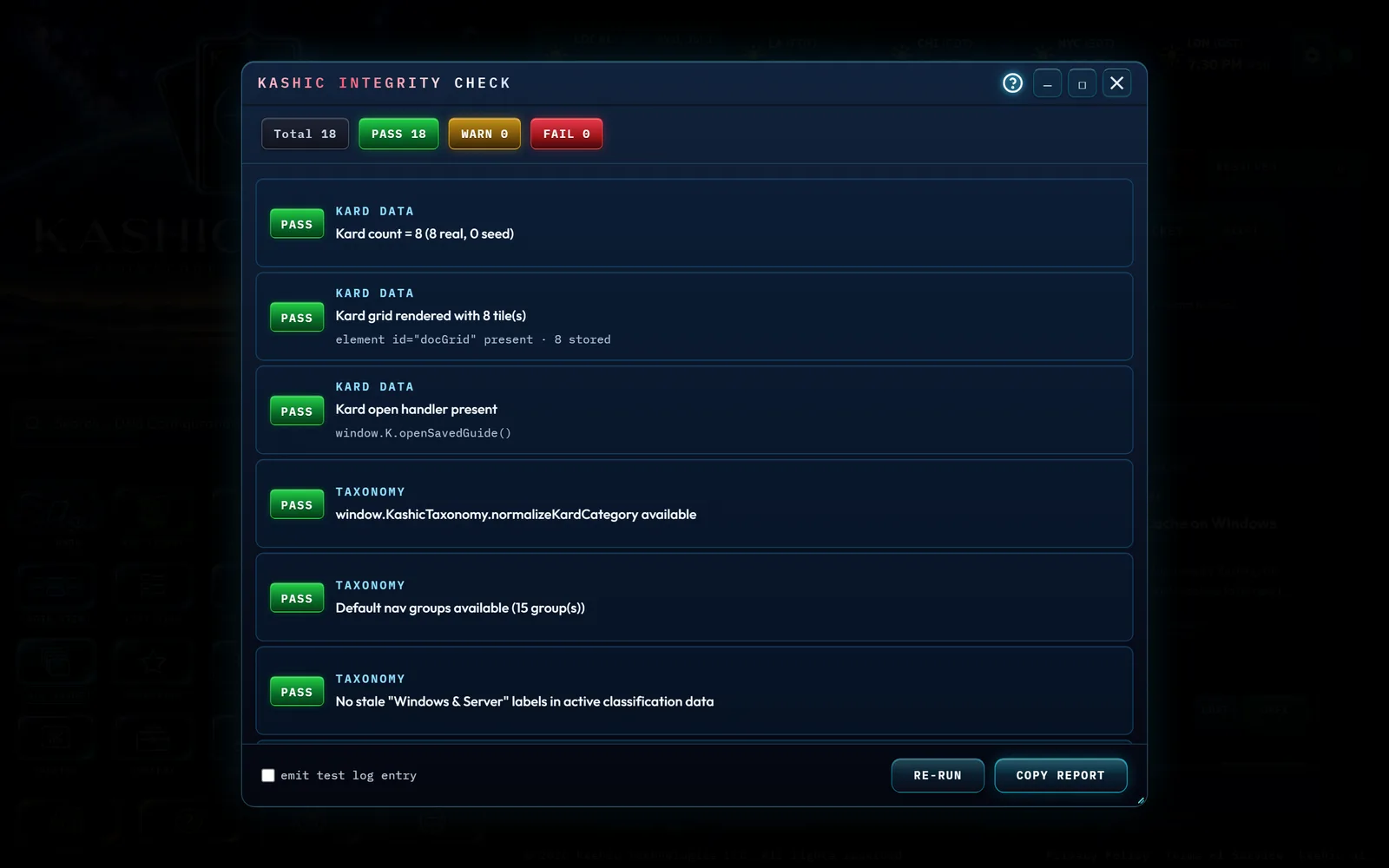
At a glance
- Something looks off — a Kard won't open, a list looks empty, or a button seems to do nothing.
- Before sending a report to support, so you can attach exactly what the app sees.
- Any time you just want a quick "is everything healthy?" confirmation.
How to…
| You're using… | Do this |
|---|---|
| Keyboard | Press Ctrl+Alt+I |
| The Hub | Right-click the logo and choose Run Diagnostics |
To close it: press Esc, click the ✕ in the title bar, or click the dark area outside the window.
Reading the results
Every check ends with one of three badges:
- PASS (green) — this part is healthy. Nothing to do.
- WARN (amber) — not broken, but worth a look. Often this is just a normal state (for example, "no Kards yet" on a fresh install).
- FAIL (red) — something that should be working isn't. The window title turns red so you can tell at a glance.
The chips along the top (Total · PASS · WARN · FAIL) are the running tally. When a check needs your attention, it shows a short "Try:" line with the exact next step.
A WARN is not an error. Many WARNs describe an expected situation — a brand-new install with only the starter Kards, or the Kard grid being hidden because a tool panel is open. Read the "Try:" line before worrying.
Buttons and controls
- Re-run — runs every check again and refreshes the results.
- Copy Report — copies a plain-text summary to your clipboard; the button briefly says "Copied!" to confirm.
- Send to Support — appears only when there is a WARN or FAIL. It hands the full report to the Feedback form so support sees exactly what you saw.
- emit test log entry — a checkbox for advanced users. When ticked, the next Re-run writes one harmless test line into the activity log to confirm logging works. Leave it unticked for a normal check.
- Window controls — Help (?), which opens this page, then minimize (—), maximize (▢), and close (✕) in the title bar. Minimizing collapses the window to its title bar and lifts most of the dimming so you can see the app behind it — the app underneath stays paused until you close the window. You can also drag the window by its title bar and resize it from any edge or corner.
What the report contains
Both Copy Report and Send to Support produce the same
plain text: the check results you can see on screen, plus a short environment header —
the time, the page address, and your browser's identification string. The address has
its query and anchor removed (those can carry sign-in tokens), and if you opened the app
from a file, your Windows or macOS account name is replaced with
<user>.
With Privacy Mode on, the address and the browser string are both
replaced with (masked). The report is plain text and nothing is sent
anywhere until you press Send in the Feedback form — read it first if you want to.
What it checks
- Kard Data — your Kards are present and the grid is rendering them.
- Taxonomy — categories and the domain tree are set up correctly, with no leftover labels from older versions. It also lists any Kard filed under a domain that no longer exists (by its id, with the domain name it carries), any domain or subcategory name saved before the naming rules that doesn't follow them, and any two names that differ only in capitals or accents. Each of these is a warning, never a failure: everything keeps working, and the hint says what to change. While Privacy Mode is on, those names are hidden in the report.
- Import / Export / Backup — saving, loading, and recovering Kards is available, and the Ticket board has a backup your tickets could be restored from.
- System Status — the service-status tools are reachable.
- Activity Log — logging is loaded and working, and the saved history the log keeps across a reload is readable.
- Core modules — the app's main pieces all finished loading.
Tips & tricks
- "It says my Kard grid wasn't found." That's normal when a tool panel (like the Calculator) is open and the grid is hidden. Switch back to the grid view and Re-run.
- "It only sees demo Kards." You're on the starter set. Generate a real Kard (Alt+N) or import a backup (Ctrl+I).
- "Some warnings mention features I don't use." Checks for optional features (like the Ticket board) warn when those aren't active. That's expected and safe to ignore.
Troubleshooting
- A FAIL appears: read its "Try:" line first — it usually says to reload the page. If a FAIL persists after a reload, use Send to Support (or Copy Report) so the details reach us.
- "Could not read storage" warnings: your browser may be blocking site storage (private/incognito windows often do). Open the app in a normal window and Re-run.
- The window opened off-screen or too small: it stays inside the screen edges by design; drag it by the title bar or resize from a corner.