Getting Started
Welcome to Kashic Kards™
What Kashic Kards™ is, what a Kard is, and where to start.
At a glance
Kashic Kards™ is built for IT support work. It pairs a searchable knowledge library — your Kards — with a ticket board and a time-and-schedule system, so the fix and the work you're doing about it live in the same place.
A Kard is a self-contained guide that walks you through one task or problem, stage by stage — the steps, the reasoning, and how to confirm it worked. Kards come from three places: you write one yourself with the AI Generator, you import one from a backup file, or you start from the demo set the app ships with.
How to…
Find your way around the screen
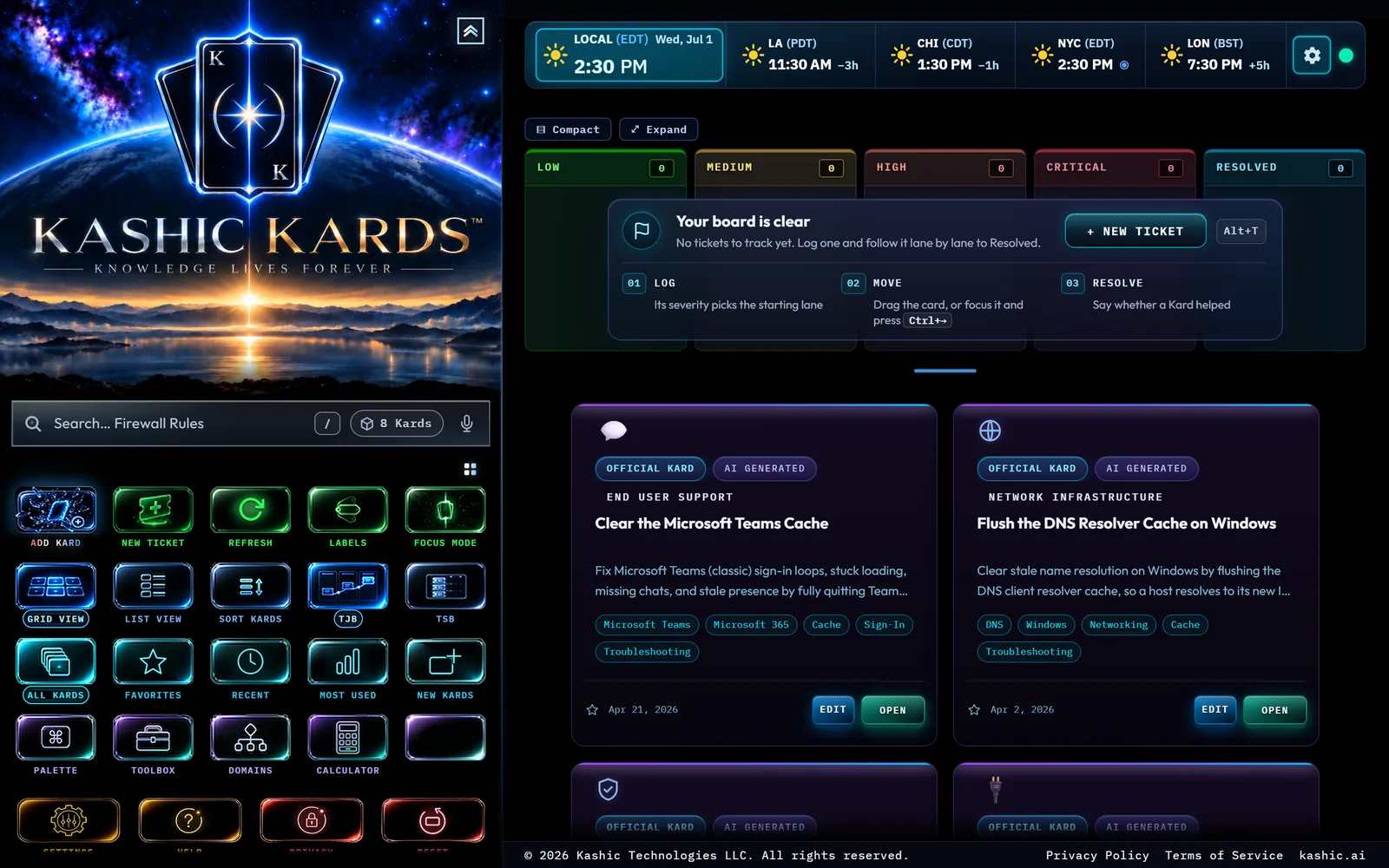
The screen breaks into three bands. On the left, the sidebar holds the Kashic brand and Hub, the search box, the Command Center (a grid of one-click buttons for almost everything), and your Domains list — the map of how your Kards are organized. In the middle, the boards band holds TJB (your tickets) and TSB (your schedule), with the Meridian time strip ticking above them. Below that, the Kard library grid shows every Kard you have as a tile you can open.
For a slower, guided walk through each of those zones, see Your First 10 Minutes.
Get help anytime
Press Alt+H, or click Help in the Command Center, to open help for whatever you're looking at. From the Kashic Hub (right-click the brand at the top of the sidebar), Help & Feedback → Help / Documentation opens this site directly. You can also jump to any topic from the Command Palette — look for the entries starting with Help:
Most windows also carry a ? in their title bar, left of the window buttons, that opens that window's own page.
Know where your data lives
Two different places, and the line between them is worth knowing. Your Kards, your Domains and your settings live in your Kashic Kards™ account. Sign in and they follow you to any machine you sign in on; only you can see them. That covers the shape of your workspace — the Domains you file Kards under, your view and sort, your favorites, your pinned commands and saved searches.
Your tickets live in your account too. Create a ticket signed in and it is saved to your account, so it survives signing out and appears on any machine you sign in on. Ticket numbers (KT-001, KT-002…) are issued by your account rather than by the browser, so two machines can never hand out the same one.
The schedule and per-Kard notes stay on this machine. They live in this browser and do not travel with you.
So signing in somewhere new brings your library, your tickets and your setup along, and leaves your schedule and notes behind. Settings → Account & Cloud lists what is still to come — an online profile, a subscription, syncing the rest — and every item there carries a Not yet available tag.
Tips & tricks
- The Command Palette (Ctrl+K) is the fastest way to get anywhere — commands, Kards, and tools, all from one search box.
- Try the AI Generator early — click Add Kard in the Command Center. Turning a real problem into a finished Kard is the fastest way to see what the app is for.
Troubleshooting
- "My library looks empty, or smaller than I expected." A Domain or a quick filter is probably narrowing the view. Click All Kards in the Command Center to clear it.
- "The screen doesn't match a screenshot in this guide." That's usually a different quick filter, a different view (grid vs. list), or a narrower window — nothing's broken.
- "I don't know what a button does." Hover it — every button in the Command Center shows its name and shortcut in a tooltip. For the full list, open Keyboard Shortcuts from the Hub.